Picture this. One of your affiliates has had a great quarter. Sales are up, conversion looks fantastic, and the commission report reads like a success story. Nobody on the team questions it, because nothing looks wrong. Then someone types your company name into Google and finds that affiliate’s ad sitting right above your own listing.
That is how brand bidding often comes to light: by chance, and well after it started. It does not trigger an alert, and your dashboard has no red flag for “this sale was already yours”. If you want to know whether it is happening in your program, you have to go and look. This guide shows you how to detect brand bidding, from the first search to the evidence folder, and how often to repeat it. Whether you are looking to find brand bidding for the first time or setting up regular monitoring of brand bidding, the routine is the same, and it tells you who is bidding on your brand.
This is the monitoring companion to our main guide. If you are still working out what brand bidding is and whether you should allow it, start with our guide to brand bidding in affiliate marketing or the short glossary definition . Once you know what you are looking for, come back here.
In short
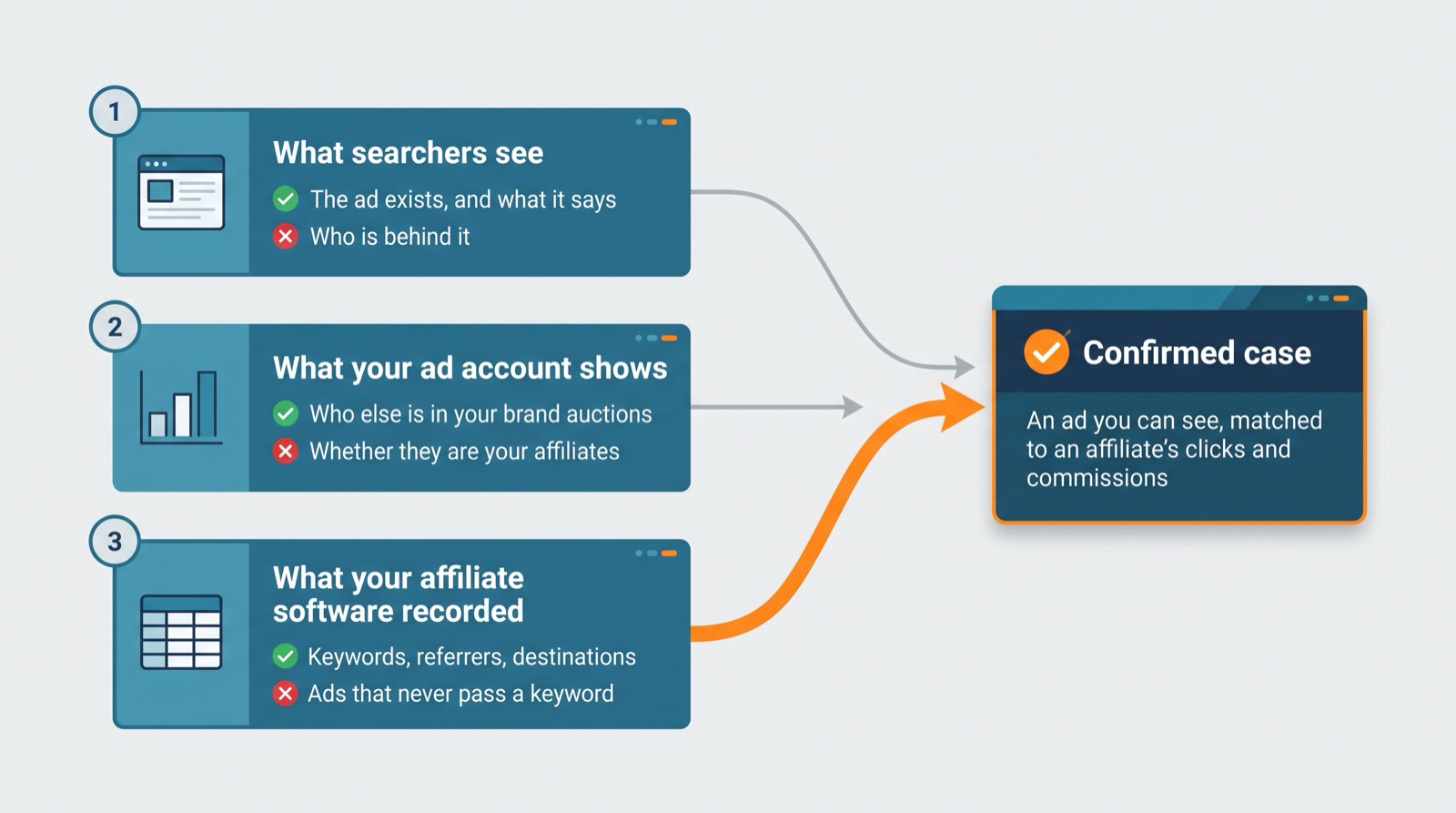
- You will not find everything in one place, so use three sources: what searchers see, what your ad account shows, and what your affiliate software recorded.
- Start with a written watchlist of every brand term you care about, including product names, misspellings and “brand plus discount” phrases.
- Search the way customers do, from different countries, devices and times, and screenshot what you find with the date visible.
- Read your affiliate data for patterns: keywords, referrer URLs, destination URLs and commissions.
- Save evidence as you go. Ads vanish and click records expire.
How do you detect brand bidding?
You detect brand bidding by lining up three views of the same traffic: the ads that show when someone searches your brand terms, the auction data in your own ad account, and the click, keyword and commission data in your affiliate software. No single view is complete, because ads change by location and device, and affiliates do not always pass the search keyword along in their links.
Each view answers a different question. The search results tell you an ad exists. The ad account tells you who else is competing on your brand searches. Your affiliate data tells you whether a particular affiliate profited from it. A case you can act on needs the first and the third to match.

Launch your affiliate program today
Set up advanced tracking in minutes. No credit card required.
Step 1: write down what you are protecting
It sounds obvious, but it is easy to skip. You cannot spot what you have not defined, so before you search for anything, open a spreadsheet and list your brand terms. Use a made-up brand called “Acme Sign” as the model:
| Type of term | Example |
|---|---|
| Company name | acme sign |
| Product and plan names | acme sign pro, acme sign enterprise |
| Misspellings and spacing | acmesign, acme-sign, acme sing |
| Brand plus an action word | acme sign login, acme sign pricing, acme sign discount, acme sign coupon, acme sign review |
| Brand plus a rival or category | acme sign vs [competitor], acme sign alternative |
| People and tools | founder name, app name |
Add the countries and languages you sell in. This sheet doubles as your log later: one row per check, with the date, the term, the country and what you saw.
Spend the most time on the action words. Someone searching “acme sign discount” or “acme sign login” is either about to buy or already a customer, and that is exactly the visitor an affiliate would love to intercept.
Step 2: search the way your customers do
Open a private browser window and search each term from your list. Read every ad on the page, not only the top one, and write down the headline, the description, the displayed domain and the position. Note where you were searching from, on what device and at what time, then screenshot the page with the date visible.
Then do it again somewhere else. What appears on a results page depends on where, when and on which device the search happens, so one clean result proves very little. Try your top two or three markets, desktop and mobile, a weekday and a weekend, a morning and an evening. That small routine catches most of what a single check would miss.
Read the ad, but do not click it while you investigate. The click runs through the affiliate’s tracking link and may be recorded as a genuine click for that affiliate, which muddies the very data you are trying to read.
Join our newsletter
Be the first to know about new features and product updates.
Step 3: check Auction insights if you run brand ads
If you run your own campaign on your brand terms, Google Ads can show you who else turns up in the same auctions. The Auction insights report compares your performance with other advertisers. For Search campaigns it includes impression share, overlap rate, outranking share, position above rate, top of page rate and absolute top of page rate, and it only appears for campaigns, ad groups or keywords with enough activity in the chosen period (Google Ads Help ). Competing advertisers show up by domain.
Look for unfamiliar domains that overlap with your brand campaign often. The report will not tell you whether that domain belongs to an affiliate, a competitor or a reseller, so treat it as a list of leads for the next step.
If you do not run brand ads, you will not have this report, and a small brand campaign is one way to get a window into who else is advertising on your name. Whether that is worth the spend is a separate question, which the main guide covers in its section on bidding on your own brand terms.
Step 4: match each ad to a real affiliate
Take every unfamiliar domain from the first three steps and work out who is behind it. Compare it with the websites on your affiliate list, and search the list for the domain.
Go slowly here. The domain in an ad is not always the affiliate’s own website. It can be a landing page, a review site or a redirect domain. It can also belong to someone who is not in your program at all, such as a competitor bidding on your name. That is a different problem with different options, because you have no agreement with them. Connect the ad to an affiliate before you accuse anyone of anything.
Step 5: check the keyword and click data in your affiliate software
Your affiliate software already holds most of the clues, and this is where an ad you spotted gets tied to a real affiliate. Look at three things:
- The search keywords that arrive with each affiliate’s clicks – Filter by one affiliate and scan for your brand name, product names and misspellings, or filter by a brand keyword and see which affiliates appear against it.
- The referrer URLs – A referrer that points to a search results page or an ad redirect tells you where the click came from.
- The destination URLs – Clicks that go straight to your homepage, login page or pricing page are the ones brand searchers want. An affiliate whose clicks bunch up there while their content pages barely get any deserves a closer look.
Know where this stops. A keyword only shows up if the affiliate passes it along in the link or the referrer carries it, so an affiliate who bids on your name and never passes a keyword may not appear by keyword at all. That absence is a clue in its own right, and it is why your terms should require affiliates who run paid search to pass the keyword, as the brand bidding policy template does. Click details are not kept forever either, so export the records when you find something.
Post Affiliate Pro has a keyword report and a clicks list for exactly this. Where to find them, how to switch them on and what each one can and cannot show is covered step by step in our tutorial on enforcing a brand bidding policy in Post Affiliate Pro .
Step 6: listen to what the commissions are telling you
Numbers that look too good deserve a second glance. A few patterns are worth checking in your own data:
- An affiliate whose sales pile up on your homepage, login or pricing pages
- A new affiliate with strong results and very little visible content or audience
- A jump in branded keyword commissions with no campaign or launch to explain it
- An affiliate who earns well but will not say where the traffic comes from
None of these proves anything alone. Add a screenshot of an ad and a matching click record, and you have a case you can act on. Your commission approval step is a handy checkpoint: with manual approval you can hold a transaction while you look into it.
What evidence should you save when you find brand bidding?
Evidence is what stops an affiliate from simply denying it, and the time to collect it is the moment you find the problem. Ads disappear and raw data expires.
| Evidence | Why it matters |
|---|---|
| Dated screenshot of the ad and search page | Shows the ad existed and what it said |
| Search term, country, device, date and time | Lets you or the platform reproduce it |
| Displayed domain and final destination URL | Identifies who is behind the ad |
| Export of the affiliate’s clicks (referrer, destination, keyword) | Ties the ad to a specific affiliate |
| Transaction IDs and commission amounts | Shows what was earned |
| Your terms and the date the affiliate accepted them | Shows which rule applied |
Record the advertiser’s URL and the country in particular. If you decide to complain about the ad text, Google Ads accepts trademark complaints against specific advertisers identified by their URLs, and only in countries and industries where the owner has shown trademark rights (Google Ads trademark policy ). Google does not restrict trademarks as keywords, so that route covers what an ad says, not the fact that someone bid on your name.
How often should you check?
| Check | How often |
|---|---|
| Search the watchlist from your main markets | Weekly for the first months of a program or a new affiliate, then monthly |
| Auction insights for your brand campaign | Monthly |
| Keyword report by affiliate | Monthly, weekly for new affiliates |
| Clicks of flagged affiliates | When flagged, exported before retention runs out |
| Extra check | After a launch, promotion, price change or terms update |
| Refresh the watchlist | Quarterly, or when you add a product |
The days around a launch or a sale deserve the closest look. When demand for your name rises, so does the number of people who want a piece of it.
Monitoring brand bidding: by hand or with a service?
For a small program that sells in a few countries, a manual routine is free and perfectly good. It gets harder as you add markets, because nobody can sit in every country at every hour. If your brand sells globally or you pay a lot in affiliate commission, a dedicated monitoring service that checks results from many locations on a schedule can save real time. Either way, treat what it reports as a lead and confirm it against your own affiliate data before you act.
What to do when you find it
Once you have an ad, a link from that ad to an affiliate, and the matching click and commission data, you are ready to act. Tell the affiliate what you found and give them a deadline, decline the commissions that came from the breach, and remove repeat or serious offenders. Our brand bidding policy template includes a warning notice you can adapt, and the main guide walks through enforcement.
There is one catch. If your terms never mentioned brand bidding, you can spot the problem but have very little to enforce. Fix the terms first. For the wider picture of keeping partners in line, see affiliate brand protection .
Mistakes that make monitoring useless
Searching once and stopping – A clean result on one device in one country says very little. Repeat across markets, devices and times.
Accusing before you have connected the ad to an affiliate – It may belong to a competitor, a reseller or a sub-affiliate. Match the domain and the click data first.
Trusting the keyword report alone – It only records keywords that arrive with clicks or referrers. Use it with your own searches and the Clicks list.
Not saving anything – Ads vanish, and click records expire after the retention period.
Checking only the company name – Product names, misspellings and “brand plus discount or login” are where affiliates usually bid.
Next steps
Build your watchlist today and run your first round of searches this week. Put a monthly slot in the calendar for the data checks, switch on the keyword report if you have not already, and add a keyword-passing rule to your terms so the next round gives you more to work with.