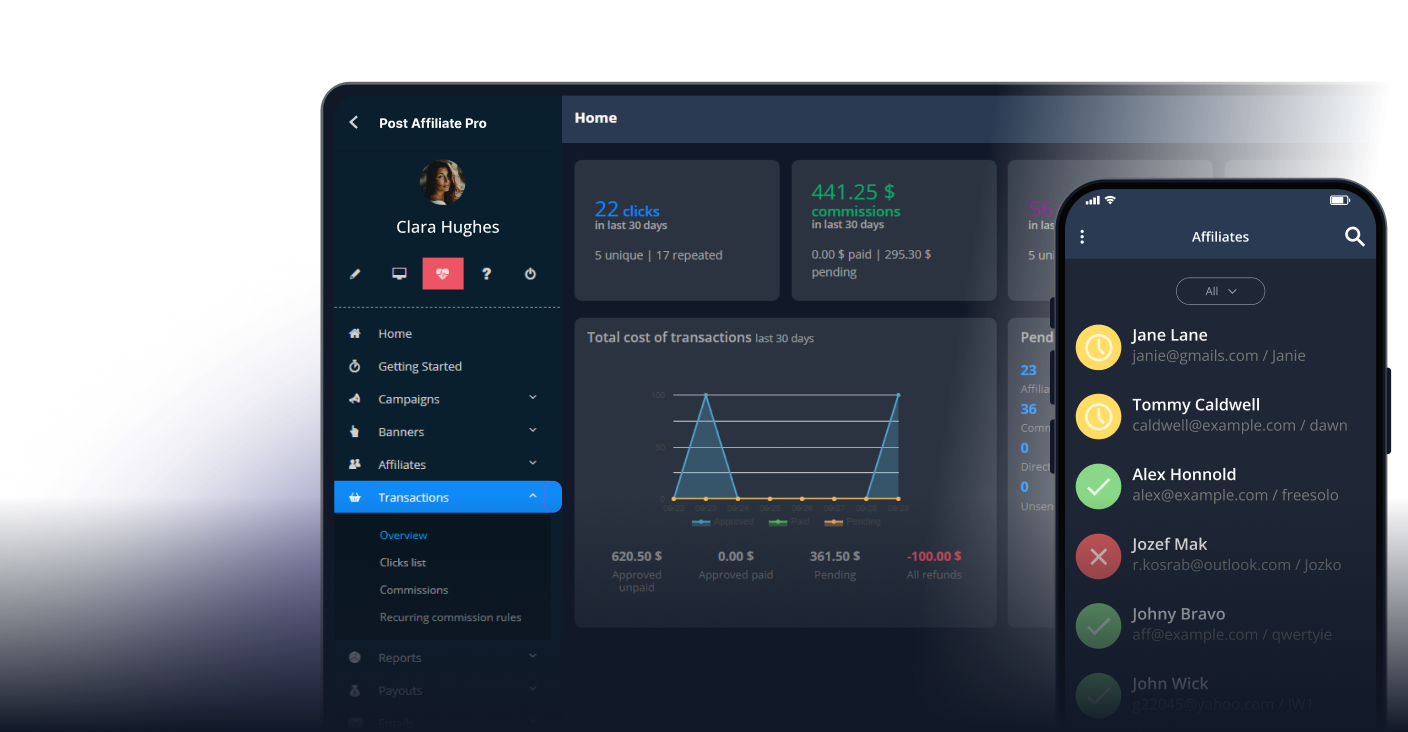
A brand bidding rule only protects you if you can see what your affiliates are doing and act on it. Without that, it is just a sentence in your terms that nobody checks. Post Affiliate Pro gives you the pieces to close the gap: terms that every affiliate has to accept, reports that show which keywords and pages their traffic uses, and controls to hold, decline or block whatever breaks the rule.
This tutorial walks through those tools in the order you would actually use them. We start with getting everyone to accept the rule, move on to the reports that show you what affiliates are doing, and finish with the steps you can take when someone crosses the line. If you want the thinking behind brand bidding first, read our guide to brand bidding in affiliate marketing . If you still need the rule itself, use the brand bidding policy template , and for the search side of monitoring, the guide to detecting brand bidding .
In short
- Put the rule in your terms and conditions and make every affiliate accept it again.
- Activate the Keywords Performance feature, then read it together with the Clicks list.
- Ask affiliates who run paid campaigns to use channels, so you can trace a commission to a campaign.
- Review commissions before they are approved, and decline the ones that came from a breach.
- Ban referrer URLs you can identify, and decline affiliates who keep breaking the rule.
Before you start
You need three things. First, a written brand bidding rule, ideally one that names your brand terms and requires affiliates who run paid search to pass the search keyword in their links. Second, access to your merchant panel with permission to change settings. Third, a spare half hour, because the first pass through the reports is where you learn what normal looks like for your program.

Launch your affiliate program today
Set up advanced tracking in minutes. No credit card required.
Step 1: put the rule in your terms and make everyone accept it
A rule that affiliates never agreed to is hard to enforce, so start here. In the merchant panel, go to Configuration > Affiliate signup and open the General tab.
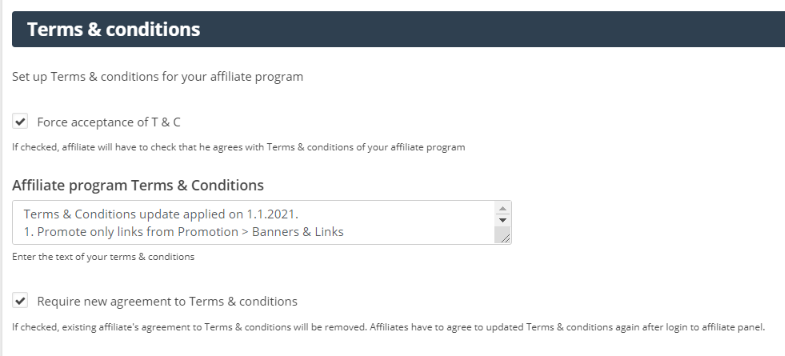
- Paste your brand bidding clauses into the Affiliate program Terms & Conditions editor.
- Tick Force acceptance of T & C. It is off by default, and without it affiliates are not asked to agree to anything.
- Tick Require new agreement to Terms & conditions. This option only appears once forced acceptance is on, and it removes every existing affiliate’s agreement, so all of them have to agree to the updated terms again.
Save the settings. From then on, affiliates see the terms when they next log in to the affiliate panel. They have to tick I agree to the terms & conditions before the I agree button works, and closing the dialog logs them out instead.
Email your affiliates before you do this, so the prompt does not come as a surprise.
Step 2: switch on keyword tracking
Brand bidding lives in search keywords, so you need to record them. Go to Configuration > Features and activate Keywords Performance.
The feature has one setting, Keyword URL parameter name. It tells Post Affiliate Pro which URL parameter carries the keyword, and the default is q, the search query parameter used by Google and other search engines. The field cannot be left empty. Use the same name in the rule you give your affiliates, so the keyword they pass is the keyword the report reads.
The feature records keywords from the moment you activate it and does not process older clicks, so switch it on now, before you need the evidence.
Join our newsletter
Be the first to know about new features and product updates.
Step 3: read the keyword report
Open Reports > Keywords Performance. The report lists each keyword with its clicks, total cost, commissions, sales, conversion rate and click value, and you can filter by date range, keyword, affiliate, transaction type and commission type. There is a button to export everything to CSV.
For brand bidding there are two useful ways to read it:
- Filter by affiliate – Pick one affiliate and scan their keywords for your brand name, product names and misspellings.
- Filter by keyword – Enter your brand name and see which affiliates appear against it.
Be clear about what the report can miss. For a click, the keyword comes from the URL parameter on the click, or from the referrer URL if the parameter is empty. For sales and commissions, it comes only from the referrer URL stored with the transaction, so a keyword that was passed only as a link parameter shows in Clicks but not in Sales or Commissions. If no keyword is found, nothing is recorded at all. The report is strong evidence when it shows a match and no proof of innocence when it does not, which is why the next step matters. The Keywords Performance feature page has more on the report.
Step 4: check the click details
When a keyword or an affiliate looks suspicious, go to Transactions > Clicks list. This is the raw record of clicks, and it includes the Referrer URL, Destination URL, Channel name and Affiliate columns. You can add or remove columns and export the list to CSV. The filters cover date, type, campaign, affiliate, channel and banner, and the Custom filter lets you set conditions on fields such as Referrer URL, Destination URL and User ID, which is how you narrow the list to one referrer or one landing page.
Look at where the clicks come from and where they land. Referrers that point to a search results page or an ad redirect, and destination URLs that go straight to your homepage, login or pricing page, are the pattern to watch for when an affiliate’s traffic is mostly branded.
Click details do not stay forever. The default retention is 185 days, and the Clicks list tells you how many days it currently keeps. Deleting click records does not change your statistics, but it removes the details you would use as evidence, so export the relevant clicks as soon as you find something.
Step 5: ask paid-search affiliates to use channels
Channels let an affiliate label each ad campaign, which gives you something specific to point at. Affiliates create them in their own panel under Promotion > Channels with Add channel, giving each a name and a code. They then add chan=CODE to their links.
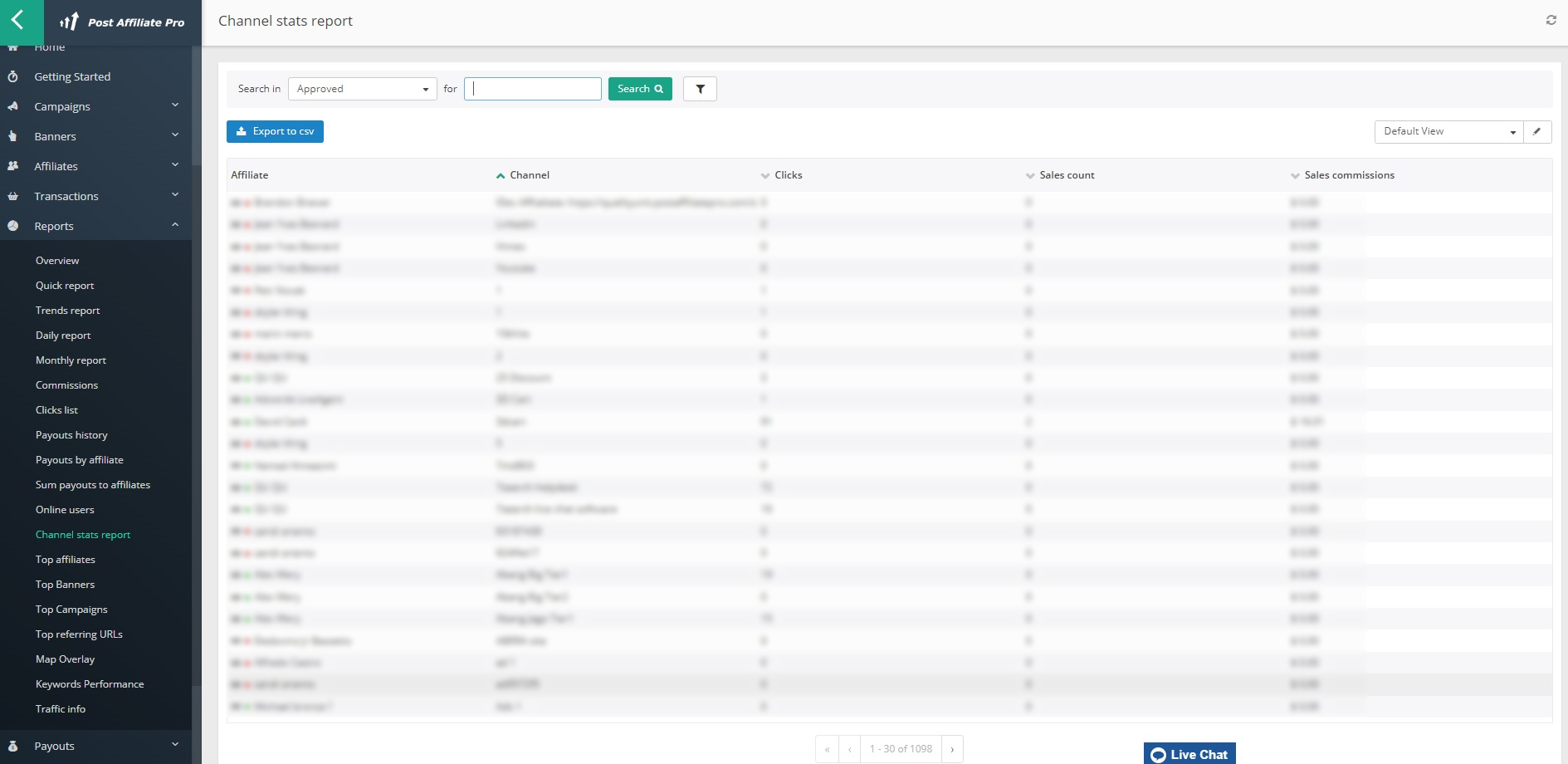
The channel is stored with the click and the resulting transaction. In your merchant panel, Reports > Channel stats report compares clicks, sales and commissions by affiliate and channel, and the Clicks list shows channel name and code too. One channel per campaign means an odd commission can be traced to one campaign instead of an affiliate’s whole account. Add the channel request to your terms so it is not optional for anyone who runs paid ads. The ad channels feature page explains the setup from the affiliate’s side.
Step 6: review commissions before they are approved
This is where enforcement becomes real, because commission is what affiliates care about. Payouts include approved commissions only, so a commission you have not approved is a commission you can still stop.
To review commissions before approval, open the campaign, go to its commission settings and set the Approval field of the relevant commission type to manual approval. Choose the commission types where you want control, for example for new affiliates or for anyone whose traffic you are questioning. Note that the setting applies only when the transaction status is not set directly in the sale tracking request. The advanced commission configuration page covers the options.
When a breach turns up, go to Transactions > Commissions, select the affected commissions, click Change status and choose Decline. You can also open a transaction and add a merchant note with the reason, which is useful for your own records. Affiliates only receive an email about a changed commission status if they have switched that notification on, so tell them yourself.
Step 7: ban referrer URLs you can identify
Sometimes the traffic arrives through a referrer or redirect domain you can name. In that case, Configuration > Tracking Settings > Fraud Protection lets you block it. On the Clicks tab, tick Ban clicks from urls (HTTP_REFERER), and on the Sales / Action commissions tab, tick Ban sales from urls (HTTP_REFERER).
Enter the URLs in the box, separated by commas. Wildcards work in the form *exampleurl.com*. Then choose the action: save nothing, or decline. The default is decline, and on the sales tab you can add an optional message to the declined transaction.
This only works where the referrer reveals the source. It will not catch an affiliate whose ads send clean traffic, and banning a search engine’s own domain would block legitimate visitors as well, so use it for specific redirect or landing domains, not for Google. The Fraud Protection feature page explains the rest of the tool.
Step 8: warn, then decline the affiliate if needed
Enforcement should follow the order your terms describe. Start with a written warning that includes the evidence, using the notice in the policy template. If the breach continues, decline the commissions as in Step 6. If it repeats or is serious, remove the affiliate.
To remove an affiliate, go to Affiliates > Affiliates Manager, select the affiliate and use Change status to choose Decline. A declined affiliate cannot log in. A confirmation dialog appears, and the affiliate gets a notification email on the first decline unless you tick Don’t send notification email. There is no field for a reason, so send your explanation by email as well. The lifecycle management page covers affiliate statuses.
Apply the same steps to every affiliate. Consistency protects you if someone challenges a decision.
A simple routine to keep
| Task | Where | How often |
|---|---|---|
| Check branded keywords by affiliate | Reports > Keywords Performance | Monthly, weekly for new affiliates |
| Read clicks of anyone flagged and export them | Transactions > Clicks list | When flagged |
| Compare paid campaigns | Reports > Channel stats report | Monthly |
| Review commissions before approval | Transactions > Commissions | Every payout cycle |
| Re-check the referrer ban lists | Configuration > Tracking Settings > Fraud Protection | Quarterly |
| Update your terms and require re-acceptance | Configuration > Affiliate signup > General | When the rule changes |
Limits to keep in mind
Post Affiliate Pro does not search Google for you, and it has no keyword blacklist, so it cannot stop a brand-bidding ad from running. What it gives you is the evidence and the controls: terms your affiliates have accepted, keyword and click data to investigate with, and the power to decline commissions and affiliates. The search side, such as seeing the ads themselves, stays with you, which is what the detection guide is for.
Next steps
Do the first three steps today: update your terms with forced re-acceptance, activate Keywords Performance, and check the keyword report once data starts to arrive. Then book a monthly review in the calendar. If you are not using Post Affiliate Pro yet, you can start a free trial and set this up on your own program, or book a demo and we will walk you through it.