


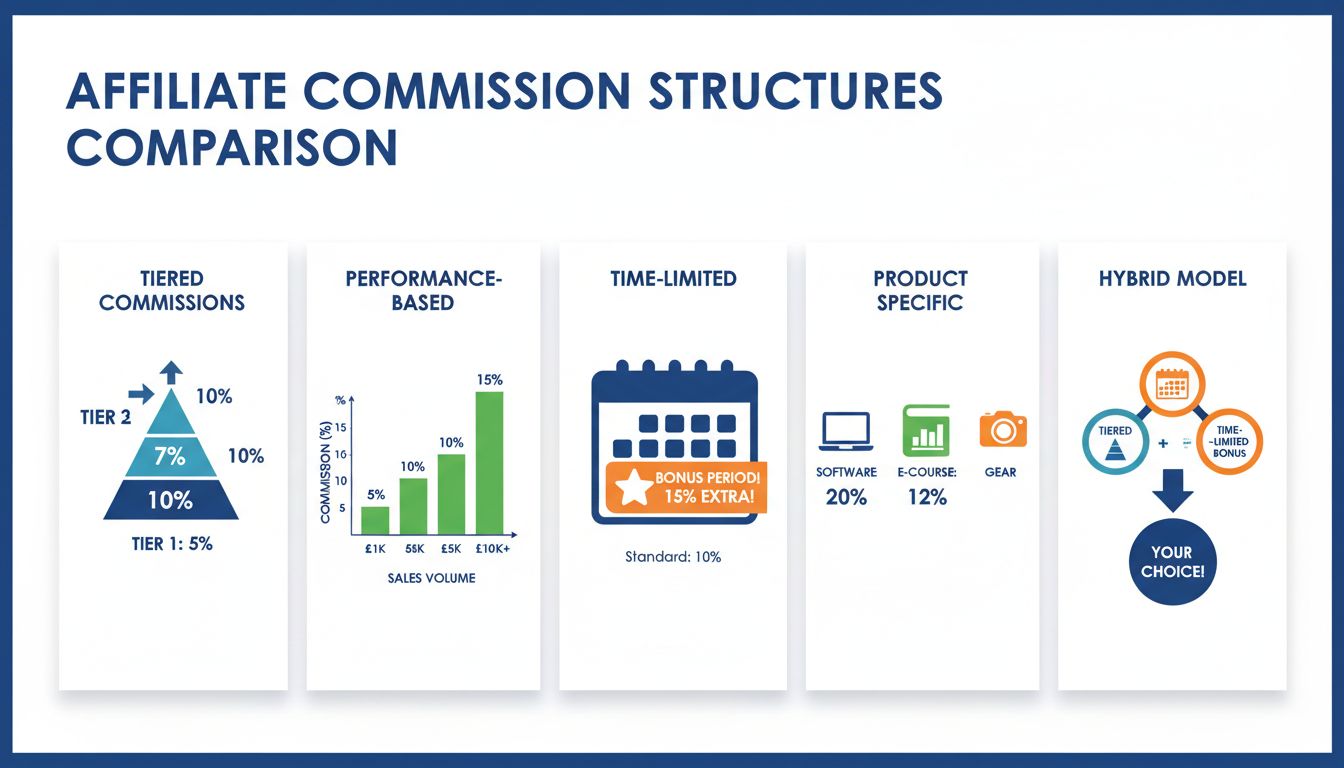
Can Affiliate Commissions Vary by Product or Service?
Learn how affiliate commissions vary by product, service, and commission structure. Discover tiered rates, performance-based models, and how PostAffiliatePro op...
7 min read

Learn how to set up niche-specific commission groups in Post Affiliate Pro to protect your margins when your store sells products from different categories with different profit levels.
Picture this: You run an online store that started out selling high-end streetwear. Your affiliate program runs on a simple 10% commission rate for every sale, which is straightforward and easy to manage.
Then you expand. You launch a skincare line and start selling wearable tech gadgets. A month later, you check your numbers and realize that flat 10% rate is quietly costing you money.
Your streetwear has a 60% profit margin, which is comfortable. Your skincare has an 80% margin, meaning you could afford to pay affiliates much more and still profit, but you are not doing that, so beauty creators have little reason to prioritize your brand. Your gadgets run on a 20% margin after hardware costs and shipping. After paying a 10% affiliate commission, you are barely breaking even on every device sold.
This is called margin bleed: paying the same commission on products that have very different profit levels. You end up overpaying on low-margin items and underpaying on high-margin ones.
The fix is to set up niche-specific commission groups, meaning separate commission rates for each product category, so your payouts match your actual margins. This guide shows you exactly how to do that in Post Affiliate Pro.
Different products cost different amounts to make, store, and ship. A single commission rate ignores that reality entirely. Before you can set up niche-specific commissions, it helps to understand exactly what goes wrong with a blanket rate and why the same issue affects affiliate programs across every product category, not just e-commerce. For a broader look at how commission structures vary by niche, see our guide to the most profitable affiliate marketing niches for 2026 .
Here is what happens to your profit when a single customer buys three products from three different categories under a flat 12% commission rule:
| Product Vertical | Product Price | Gross Margin % | COGS + Shipping | 12% Blanket Payout | Net Merchant Profit |
|---|---|---|---|---|---|
| Premium Apparel | $100 | 60% | $40 | $12 | $48 (Healthy) |
| Luxury Cosmetics | $60 | 80% | $12 | $7.20 | $40.80 (Missed Growth) |
| Smart Fitness Tracker | $150 | 20% | $120 | $18 | $12 (Margin Bleed) |
On the fitness tracker, your affiliate earned $18 while you kept only $12, which is barely enough to cover payment processing fees and warehousing. You took on all the operational risk for less reward than the affiliate.
On the cosmetics, you kept most of the profit but left money on the table. A 25% commission on that high-margin product would have motivated beauty creators to push it much harder, without hurting your bottom line.
The solution is to stop applying one rate to the whole order and instead calculate a separate commission for each product. That requires your affiliate tracking software to read the individual items in a cart, not just the total amount.
Post Affiliate Pro gives you two tools for setting different commission rates, and it is important to know which one to use for which purpose:
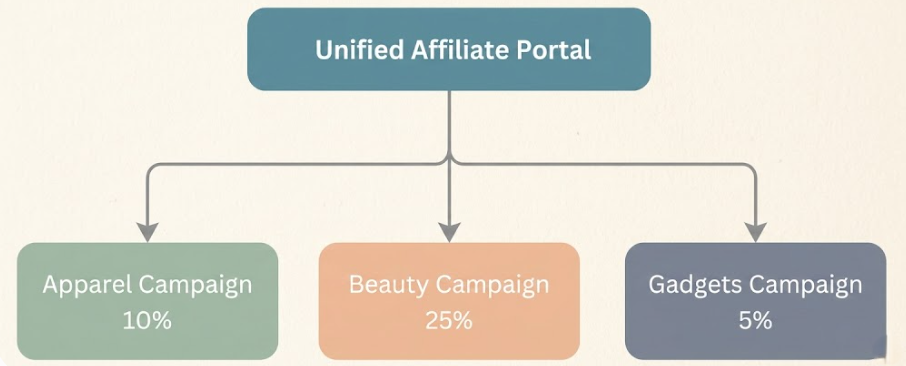
Use separate Campaigns when you want different rates for different products. Post Affiliate Pro uses a campaign matching algorithm to route each transaction to the correct campaign based on the product ID, so a sale of an apparel item goes to your Apparel campaign (10%) and a sale of a beauty product goes to your Beauty campaign (25%).
Use Commission Groups when you want different rates for different affiliates within the same campaign, for example when paying your top performers more than new affiliates promoting the same product.
For a store with multiple product categories at different commission rates, the correct approach is one campaign per product category, with the “Assign to Groups by Ordered Products” plugin routing each transaction to the right campaign automatically. All your affiliates still log in to one dashboard and use one set of links, and the routing happens behind the scenes.

Set up advanced tracking in minutes. No credit card required.
Here is how to configure separate commission rates for three product categories: Apparel (10%), Beauty (25%), and Tech Gadgets (5%).
This plugin tells Post Affiliate Pro to read the product IDs in each order and route the transaction to the correct campaign based on those IDs.
Apparel, Beauty, Gadgets.APPAREL-001,APPAREL-002).When a customer checks out, Post Affiliate Pro reads the product IDs in the order, matches them to your rules, and records the commission against the correct campaign.
┌───────────────────────────────────────────────────────────┐
│ ASSIGN TO GROUPS BY ORDERED PRODUCTS — RULES              │
├───────────────────────────────────────────────────────────┤
│ Product IDs: APPAREL-*   ──────────────────► Apparel (10%)│
│ Product IDs: BEAUTY-*    ──────────────────► Beauty (25%) │
│ Product IDs: GADGETS-*   ──────────────────► Gadgets (5%) │
└───────────────────────────────────────────────────────────┘
For the routing rules to work, your store needs to send product IDs to Post Affiliate Pro at the point of checkout. Post Affiliate Pro has native integrations for both Shopify and Magento 2 that handle this automatically — you do not need to write custom code.
The important thing is that the product IDs you enter in the plugin rules match the product identifiers your store actually sends through the integration. Check the Post Affiliate Pro integration setup guide for your platform to confirm the exact field used (product ID, SKU, or variant ID) before you set up your rules.
Be the first to know about new features and product updates.
Once your commission groups are set up, it is worth understanding how Post Affiliate Pro handles two situations that come up regularly.
What happens when a customer buys the $100 dress, the $60 beauty serum, and the $150 fitness tracker in one order?
A basic affiliate platform would apply one rate to the entire $310 total. Post Affiliate Pro instead reads each product separately and calculates a commission for each one:
The affiliate receives one combined payment, and your gadget margin is protected.
Return rates vary a lot by product type. Skincare is rarely returned once opened. Clothing is returned frequently because of sizing. If a customer keeps the $60 serum but sends back the $100 dress, you should not pay a commission on the returned item.
Post Affiliate Pro supports refund and chargeback events through Application Callbacks , which can notify the system when a transaction is reversed. How commissions are adjusted on refunds depends on your specific integration and configuration — check your integration documentation or contact Post Affiliate Pro support to confirm the correct setup for your store.
Before telling your affiliates about the new commission structure, run through this quick checklist:
Setting up niche-specific commission groups takes a little configuration upfront, but it means every payout from that point forward is calculated correctly and automatically for every order.
Post Affiliate Pro handles the tracking, the product matching, and the payout calculations so you do not have to manage it manually as your catalog grows. Start your free trial today and build a commission structure that works for every product you sell.
Post Affiliate Pro gives you the automated webhooks, granular reporting, and flexible commission structures you need to run niche-specific programs at scale.
Learn how affiliate commissions vary by product, service, and commission structure. Discover tiered rates, performance-based models, and how PostAffiliatePro op...
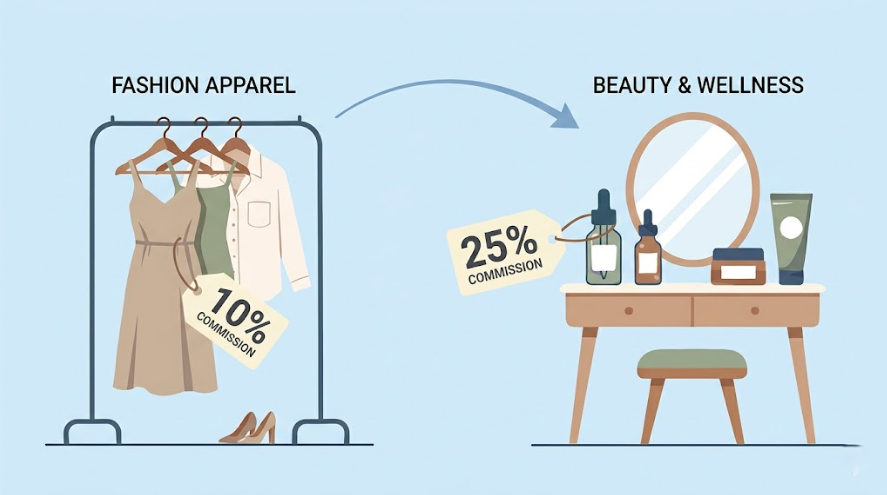
Learn how Shopify brands expanding from fashion into beauty and wellness can use multi-niche affiliate tracking to protect margins, manage mixed-cart orders, an...
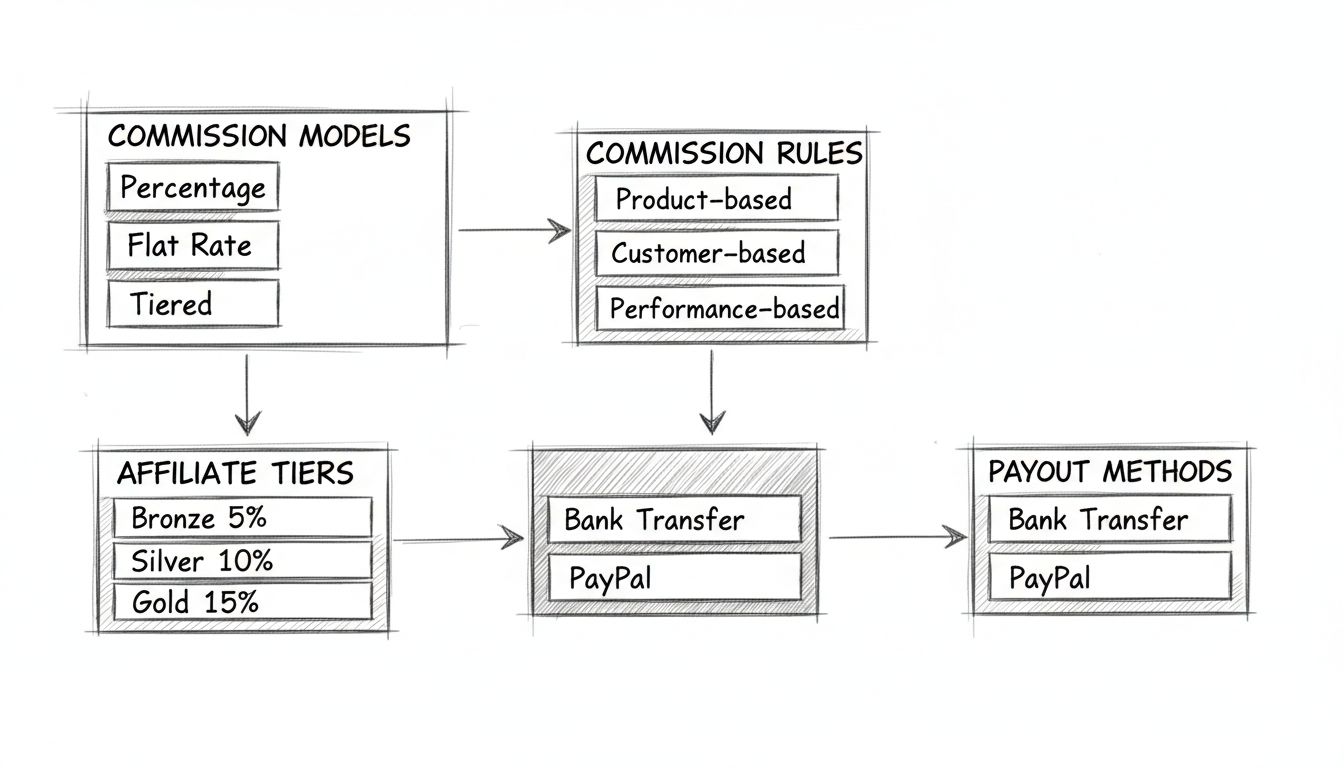
Learn how to create custom affiliate commission structures with tiered rates, product-specific commissions, and performance-based incentives. Complete guide wit...
Join our community of happy clients and provide excellent customer support with Post Affiliate Pro.



Cookie Consent
We use cookies to enhance your browsing experience and analyze our traffic. See our privacy policy.