


How To Create An Amazon Affiliate Link
Learn how to create Amazon affiliate links in this beginner-friendly video guide. Discover step-by-step methods for using Amazon Associates to promote products ...
2 min read
Amazon
AffiliateMarketing
+3

Step-by-step guide to adding Amazon affiliate text and image links to your WordPress blog posts, helping you monetize your content and boost affiliate earnings.
Incorporating Amazon affiliate links into your WordPress blog can be a highly effective way to monetize your content. By strategically placing text links and clickable images within your posts, you can seamlessly integrate product recommendations and potentially increase your affiliate earnings . This guide outlines the process to add Amazon affiliate links to your WordPress blog, using both text and image links.
To begin adding Amazon affiliate products to your blog, start with text links. Here’s a step-by-step approach:
Enhance your blog’s visual appeal and engagement by adding clickable images that link to Amazon products:
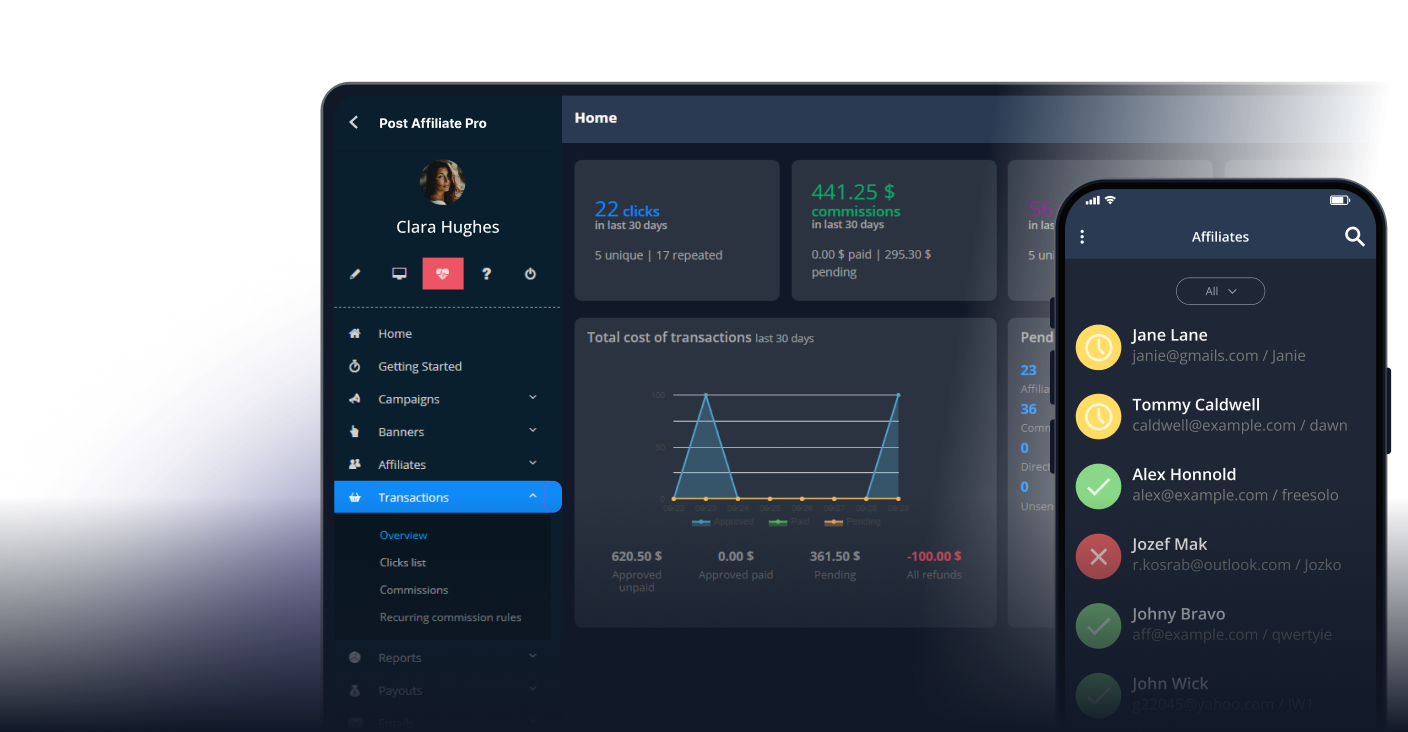
Experience the power of Post Affiliate Pro with our 30-day free trial. Test our user-friendly affiliate marketing software that comes with exceptional 24/7 support. Discover all the features you need for successful affiliate management today!
Learn how to create Amazon affiliate links in this beginner-friendly video guide. Discover step-by-step methods for using Amazon Associates to promote products ...
Learn how to add Amazon affiliate links to your YouTube videos and monetize your channel with ease. This tutorial guides you through setting up an Amazon Associ...
Discover two effective methods to add Amazon affiliate links to your Facebook page and monetize your audience. Learn how to promote single products or utilize L...
Join our community of happy clients and provide excellent customer support with Post Affiliate Pro.



Cookie Consent
We use cookies to enhance your browsing experience and analyze our traffic. See our privacy policy.