Problem definition
Browser extensions like AdBlock, uBlock Origin, and others are widely used to block advertisements and tracking scripts. The default Post Affiliate Pro (PAP) tracking setup often uses a recognizable domain such as something.postaffiliatepro.com, which is frequently targeted by these extensions due to its known association with affiliate tracking. This can result in missing affiliate clicks and conversions, negatively impacting your affiliate program’s accuracy and trustworthiness.
Understanding how ad blockers operate and pro-actively adjusting your setup is vital to maintaining reliable affiliate tracking and accurate reporting for your program.
Why the default Post Affiliate Pro domain and scripts are blocked
Ad blockers use filter lists that target known tracking domains and scripts. The default PAP subdomain (e.g., example.postaffiliatepro.com) is publicly associated with affiliate tracking and is therefore flagged and blocked by most ad blockers. Requests to typical tracking endpoints such as track.php or its hashed variants are intercepted, regardless of their file name, because the domain itself is on the blocklist. This means tracking scripts and conversion pixels may never load or register events when ad blockers are active.
Launch your affiliate program today
Set up advanced tracking in minutes. No credit card required.
Troubleshooting: How to check if your tracking is blocked
To determine if your tracking scripts are being blocked:
- Install AdBlock or another popular browser extension.
- Visit your website and open the Developer Tools (usually F12).
- Go to the Network tab and filter by your Post Affiliate Pro account’s domain (not by filename, since script names may be hashed and unique).
- Reload the page and look for requests to your tracking domain.
- If requests are marked as blocked or do not appear, your tracking is being interrupted by the ad blocker.
Tracking script names like track.php or their hashed versions (e.g., a1x2r2) can be unique per account and may change, so always filter by the domain in question.
Best Practices: Avoiding ad blocker detection in Post Affiliate Pro
- Set up a custom tracking domain: Choose a neutral subdomain such as partners.yourdomain.com (since the domain is also used for affiliate and merchant backoffice) without keywords like ‘affiliate’, ’track’, or ‘postaffiliatepro’. Create a CNAME DNS record pointing this subdomain to your default PAP domain.
- Configure the custom domain in PAP: In your merchant panel under Configuration → Domain settings, add your new domain. You must also purchase and install an SSL certificate generated using the Certificate Signing Request (CSR) from Post Affiliate Pro. Let’s Encrypt is not currently supported, so use a traditional SSL provider. For detailed steps, refer to the official domain parking guide
.
- Update integration codes: After configuring the custom domain, make sure your website’s tracking scripts and links use the new, adblocker-resistant domain.
- Test with ad blockers enabled: Regularly check your site with popular ad blockers to confirm that tracking is not being blocked.
Join our newsletter
Be the first to know about new features and product updates.
Increasing tracking reliability: Server-to-server (S2S) tracking
Browser-based tracking can never be fully immune to ad blockers. For maximum reliability, you can implement S2S (server-to-server) tracking in addition to (or instead of) JavaScript-based methods:
- Configure Redirect Links:
In Post Affiliate Pro, go to Configuration → Tracking settings and select “Redirect Links” as your linking method. Enable the “Add visitor id to redirect urls” option. - Save the visitorId:
On your landing page, capture the visitorId query string parameter from the URL (e.g., ?visitorId=abcdef123456). You can save this value by setting a PAPVisitorId cookie for the user or storing it server-side in your session/database, depending on your technical preference. - Track the conversion:
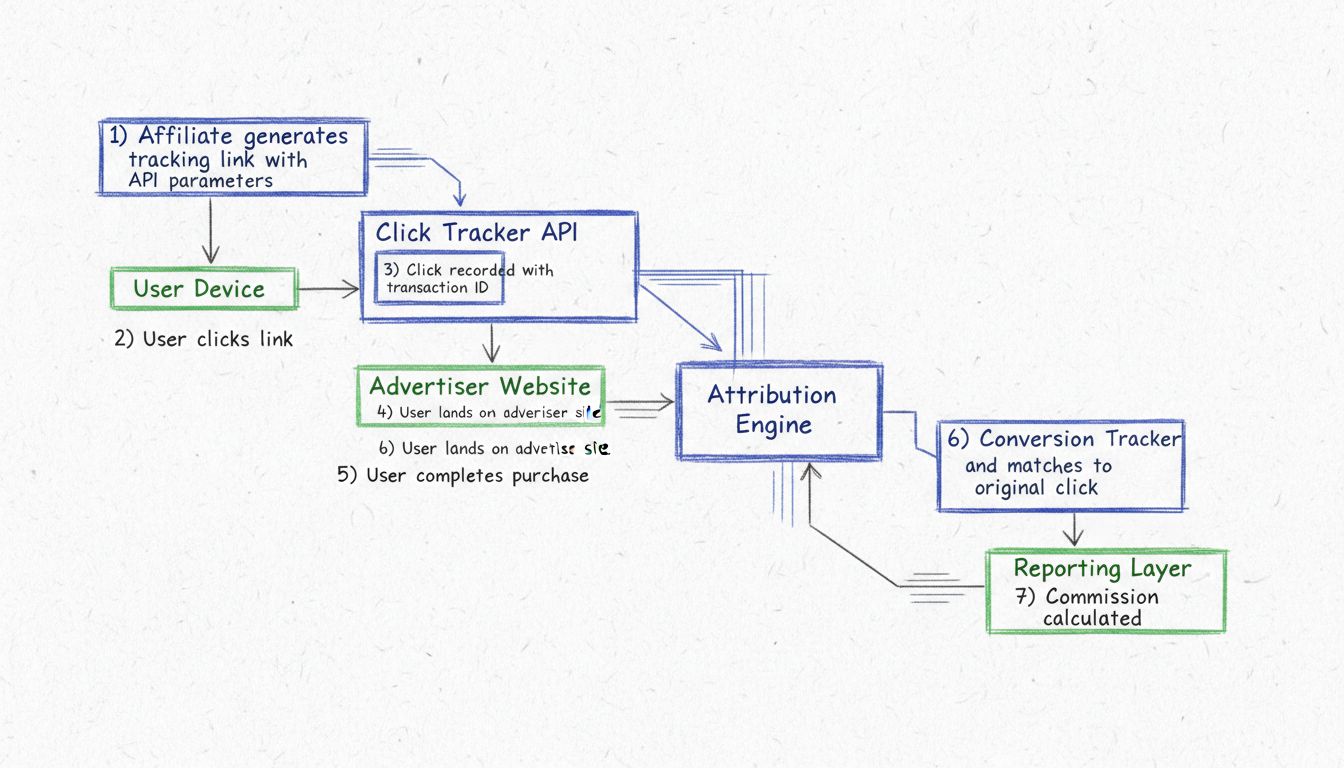
When a sale or action occurs, always call the sale.php endpoint from your server. Include the visitorId and ip parameters. If the visitorId is unavailable, still call the endpoint—Post Affiliate Pro can also track using the IP address, coupon codes, or customer identifiers.
Example URL:https://partners.yourdomain.com/scripts/sale.php?visitorId=abcdef123456&ip=123.45.67.89&totalcost=100&orderID=ABC123
For a full list of available parameters, refer to the pixel tracking documentation
.
S2S tracking is handled on the server side and is not affected by browser ad blockers, providing you with the most reliable method for conversion tracking.
Step-by-step guide: Setting up a custom tracking domain in Post Affiliate Pro
- Choose a neutral subdomain (e.g., partners.yourdomain.com).
- Create a CNAME DNS record that points this subdomain to your default Post Affiliate Pro domain (e.g., something.postaffiliatepro.com).
- Obtain an SSL certificate for your custom domain using the CSR from your Post Affiliate Pro installation.
- In your merchant panel, go to Configuration → Domain settings and add your new domain.
- Update all tracking codes on your site to use the new domain.
- Validate by testing with ad blockers enabled.
By following these best practices, you can significantly improve the reliability of your affiliate tracking, reduce lost conversions, and keep your reporting accurate—even for visitors who use ad blocking tools.