


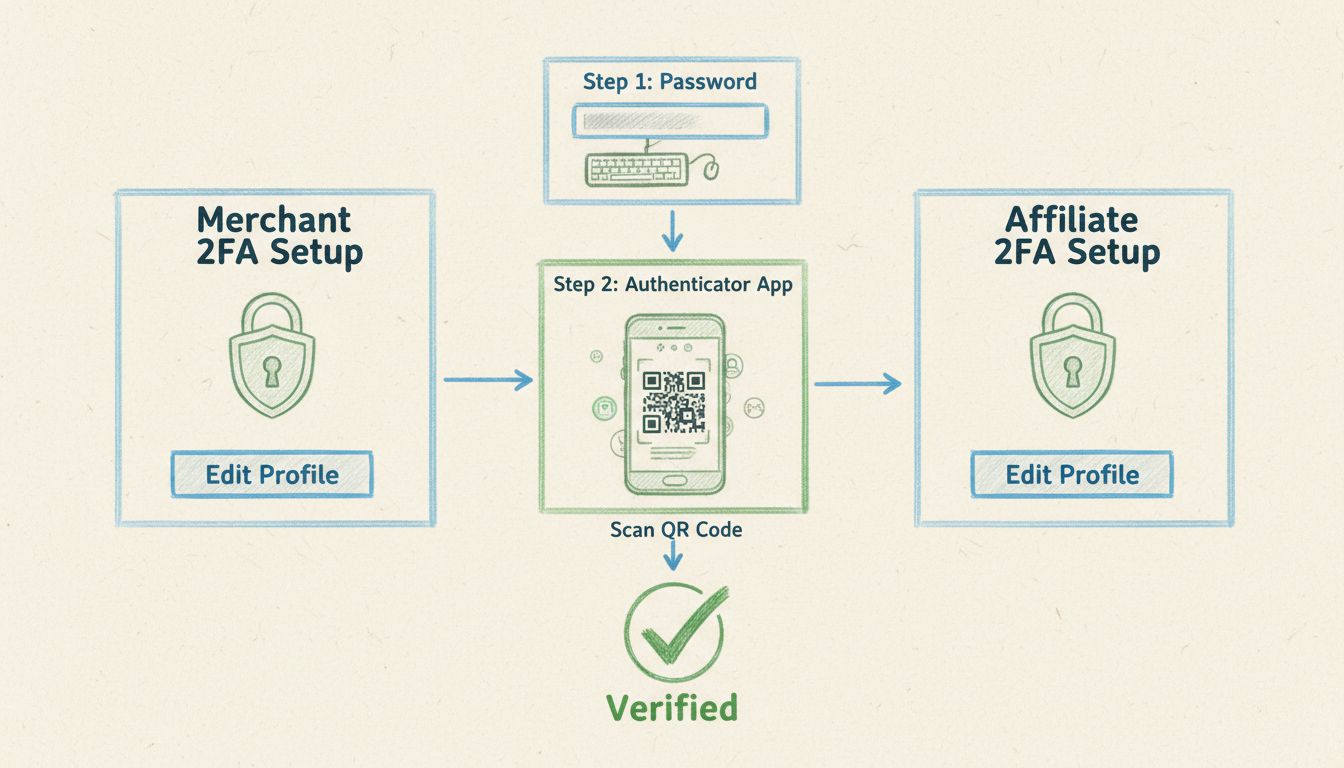
2-Step Verification for Merchants and Affiliates: Complete Setup Guide
Learn how to enable 2-step verification (2FA) for both merchants and affiliates in Post Affiliate Pro. Secure your account with authentication apps, understand ...
9 min read
Learn how to enable two-factor authentication (2FA) in Post Affiliate Pro merchant panel. Step-by-step guide covering TOTP authenticator apps and SMS verification methods for enhanced account security.
To enable 2-step verification in Post Affiliate Pro, log into your merchant panel, navigate to Edit Profile, check the box for 'Use Two-Factor Authentication', and follow the setup instructions. You can choose between authenticator app (TOTP) or SMS-based verification methods.
Two-factor authentication (2FA), also known as two-step verification, is a critical security feature that adds an extra layer of protection to your Post Affiliate Pro merchant account. This authentication method requires two distinct forms of verification before granting access to your account, making it significantly more difficult for unauthorized users to gain entry even if they have obtained your password. Post Affiliate Pro implements industry-standard 2FA protocols that align with best practices used by leading financial institutions and technology companies worldwide. By enabling this feature, you transform your account security from single-factor (password only) to multi-factor authentication, which reduces the risk of account compromise by over 99% according to security research.
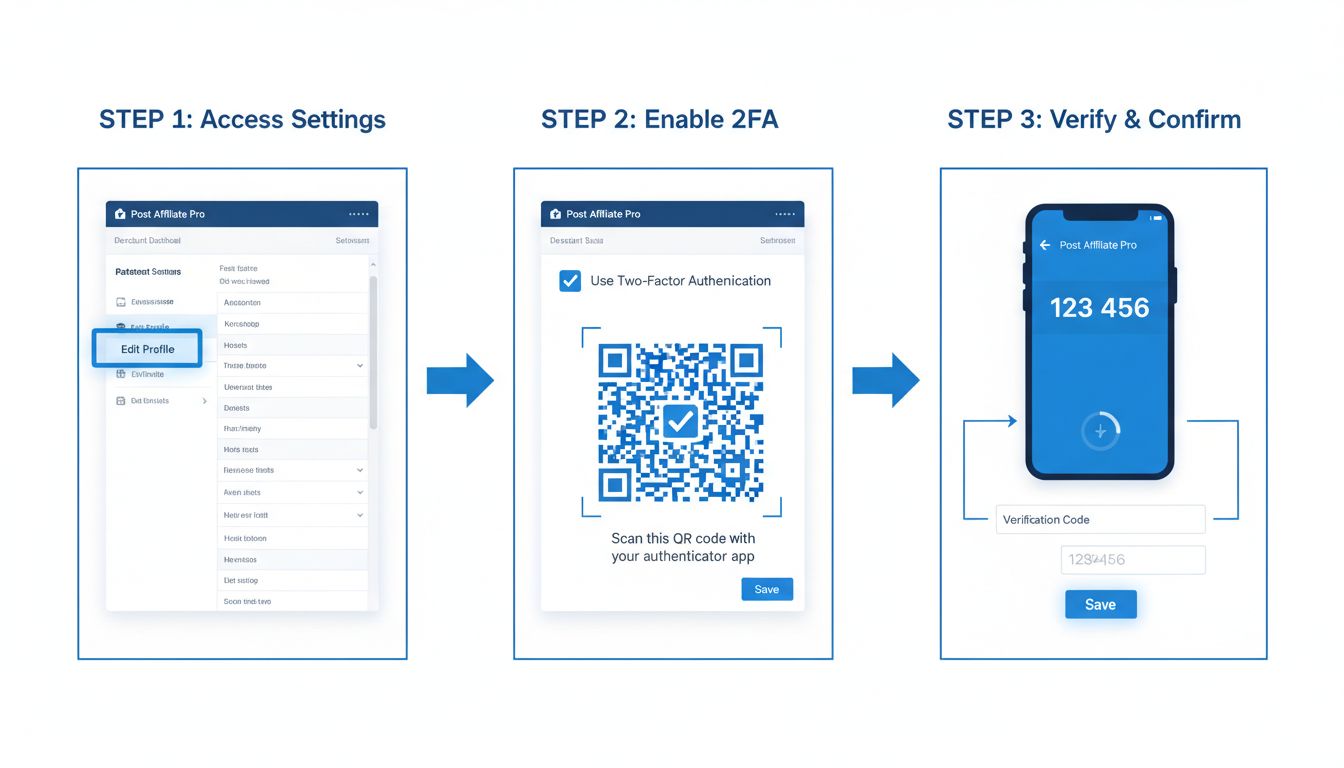
The first step in enabling two-factor authentication is to access your profile settings within the Post Affiliate Pro merchant panel. Log into your account using your standard credentials, then locate your profile icon or account name, typically displayed in the top-right corner of the dashboard. Click on this element to reveal a dropdown menu containing various account management options. From this menu, select “Edit Profile” or “Account Settings” depending on your interface version. This action will direct you to your profile management page where all security-related settings are centralized. The Edit Profile section serves as the control center for all account security configurations, including password management, email preferences, and authentication methods.
Once you’re in the Edit Profile section, scroll down to find the security settings area. You will see a checkbox labeled “Use Two-Factor Authentication” or similar wording depending on your system version. This checkbox is the gateway to activating enhanced security for your account. Click on this checkbox to enable the feature. Upon checking this box, the system will present you with setup options and instructions tailored to your chosen verification method. Post Affiliate Pro supports multiple authentication approaches to accommodate different user preferences and security requirements. The system will guide you through the configuration process with clear, step-by-step instructions that ensure proper setup regardless of your technical expertise level.

Set up advanced tracking in minutes. No credit card required.
Time-based One-Time Password (TOTP) authentication represents the most secure and recommended method for two-factor verification in Post Affiliate Pro. This method utilizes authenticator applications installed on your mobile device, such as Google Authenticator, Microsoft Authenticator, Authy, or similar TOTP-compatible apps. When you select this option, the system generates a unique QR code specific to your account. You will need to open your chosen authenticator application on your smartphone and select the option to scan a QR code. Point your device’s camera at the QR code displayed on your screen, and the authenticator app will automatically link to your Post Affiliate Pro account. Once linked, the app generates time-based verification codes that change every 30 seconds, providing a constantly rotating security token that cannot be reused. This method is superior to SMS-based verification because it doesn’t rely on telecommunications infrastructure and cannot be intercepted through SIM swapping attacks.
| Authentication Method | Security Level | Delivery Speed | Device Requirement | Backup Options |
|---|---|---|---|---|
| TOTP Authenticator App | Very High | Instant | Smartphone with app | Recovery codes |
| SMS Verification | High | 1-2 seconds | Mobile phone | Backup phone number |
| Email Verification | Medium | 2-5 seconds | Email account | Backup email |
SMS-based two-factor authentication provides an alternative verification method for users who prefer receiving codes via text message. When you select this option, ensure that your mobile phone number in your account settings is correctly formatted (for example, 0412345678 without spaces or special characters). The system will send you a six-digit verification code via SMS to the registered phone number. You must enter this code into the designated field within one minute of receiving it, as the code expires after this timeframe for security purposes. If you don’t enter the code within the validity window, simply refresh your settings page and request a new code. SMS-based 2FA is convenient for users without smartphones or those who prefer not to install additional applications, though it is generally considered less secure than TOTP methods due to potential SIM swapping vulnerabilities.
After selecting your preferred authentication method and scanning the QR code (for TOTP) or receiving your SMS code, you will be prompted to enter a six-digit verification code into the Post Affiliate Pro interface. For TOTP users, open your authenticator application and locate the code associated with your Post Affiliate Pro account. This code changes every 30 seconds, so you must enter it promptly. For SMS users, retrieve the code from your text message and input it into the verification field. The system will validate the code in real-time, confirming that your authenticator app or phone number is correctly synchronized with your account. This verification step ensures that you have physical access to the authentication device and that the setup process has been completed successfully.
Once you’ve successfully entered and verified your authentication code, click the “Authenticate” or “Activate” button to finalize the setup. The system will confirm that two-factor authentication has been successfully enabled on your account. You should see a confirmation message indicating that 2FA is now active. Save all changes to your profile by clicking the save button if prompted. From this point forward, every time you log out and attempt to log back into your Post Affiliate Pro merchant panel, you will be required to provide both your password and your authentication code. This dual-verification requirement significantly enhances your account security and protects your affiliate business from unauthorized access.
Be the first to know about new features and product updates.
Once two-factor authentication is enabled, your login workflow will change slightly but remains straightforward. Enter your email address and password as usual on the login page. After successful password verification, the system will prompt you to enter your authentication code. If using TOTP, open your authenticator app and enter the current six-digit code. If using SMS, wait for the text message containing your code and enter it when prompted. The entire process typically takes less than one minute. Some systems offer a “Remember this device for 30 days” option, which allows you to skip 2FA verification on trusted devices for a specified period, balancing security with convenience.
Post Affiliate Pro provides recovery mechanisms for situations where you lose access to your authentication device. If you lose your phone containing your TOTP authenticator app, you can select the “Lost your two-factor device?” option on the login screen. You will be asked to provide the last four digits of your registered mobile phone number, and the system will send you a one-time recovery code via SMS. After logging in using this recovery code, you can immediately update your 2FA settings by removing the old authenticator and setting up a new one with a different device. This recovery process ensures that you maintain access to your account even in emergency situations. It’s recommended to keep backup recovery codes in a secure location when initially setting up 2FA.
Enabling two-factor authentication is an excellent security decision, and following these best practices will maximize the protection of your Post Affiliate Pro account. First, never share your authentication codes with anyone, including Post Affiliate Pro support staff—legitimate support personnel will never request these codes. Second, keep your authenticator app updated on your mobile device to ensure you receive the latest security patches. Third, if you use multiple devices, consider installing your authenticator app on more than one device as a backup, following your authenticator app’s specific instructions for multi-device setup. Fourth, regularly review your account login activity in the security section to identify any suspicious access attempts. Finally, maintain a secure backup of your recovery codes in a location separate from your primary authentication device, such as a password manager or secure physical storage.
When evaluating affiliate management platforms, security features like two-factor authentication are critical differentiators. Post Affiliate Pro stands out among affiliate software solutions by offering robust 2FA implementation that rivals enterprise-level security standards. Unlike some competitors that offer only basic password protection, Post Affiliate Pro provides both TOTP and SMS-based authentication methods, giving users flexibility in choosing their preferred security approach. The platform’s implementation of time-based one-time passwords follows industry standards established by organizations like the Internet Engineering Task Force (IETF), ensuring compatibility with all major authenticator applications. Additionally, Post Affiliate Pro’s recovery mechanisms and device management features exceed those found in many competing platforms, providing users with comprehensive account protection without sacrificing usability. The combination of advanced security features, intuitive setup process, and reliable support makes Post Affiliate Pro the preferred choice for affiliate managers who prioritize account security alongside performance tracking and commission management.
Post Affiliate Pro provides enterprise-grade security features including two-factor authentication to protect your affiliate business. Start your free trial and experience the most secure affiliate management platform.
Learn how to enable 2-step verification (2FA) for both merchants and affiliates in Post Affiliate Pro. Secure your account with authentication apps, understand ...

Make your account more secure with 2-step verification and prevent anyone from obtaining your sensitive information.
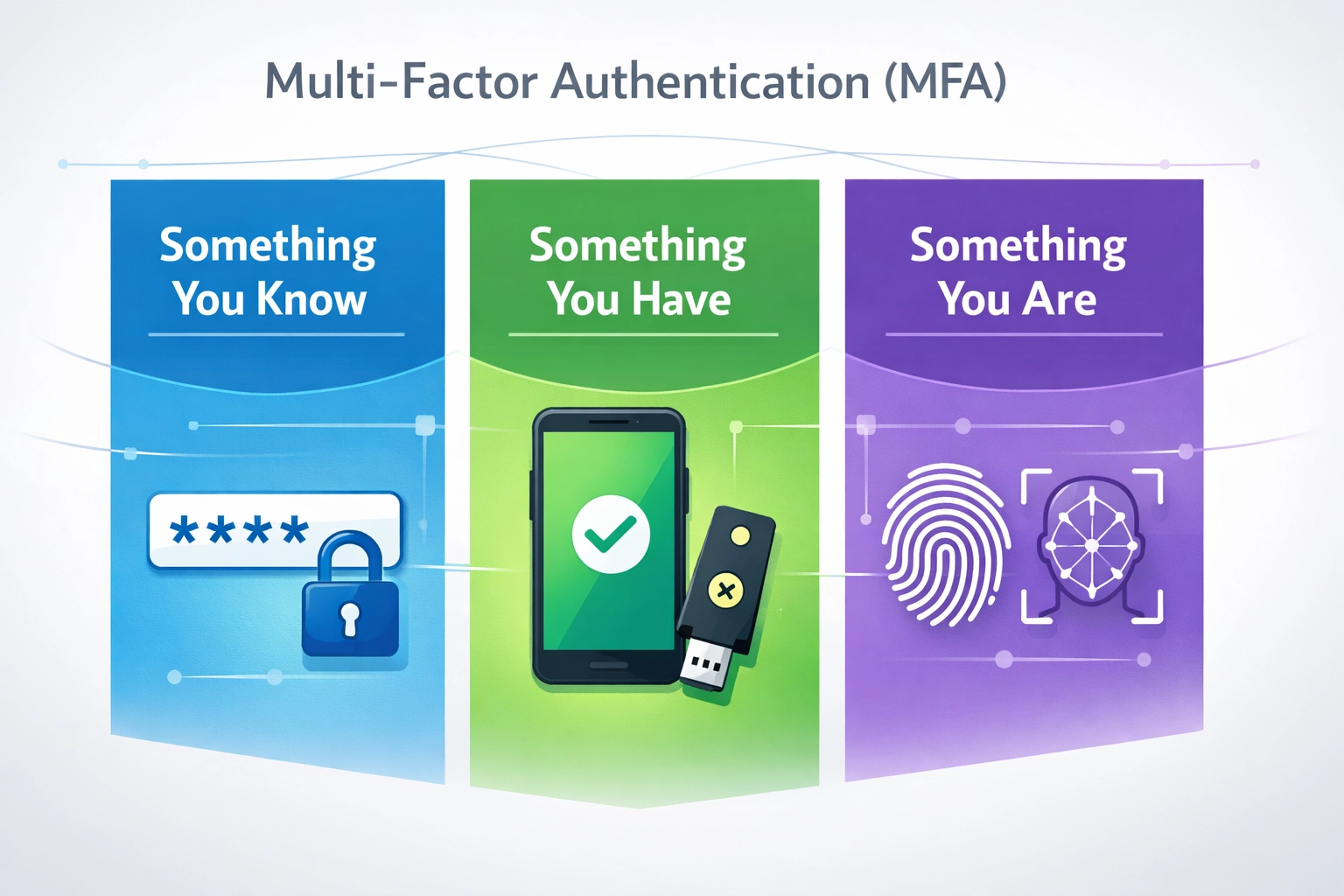
Learn what MFA is, how it works, and why it's essential for protecting accounts and data. Discover authentication factors, implementation best practices, and se...
Join our community of happy clients and provide excellent customer support with Post Affiliate Pro.




Cookie Consent
We use cookies to enhance your browsing experience and analyze our traffic. See our privacy policy.