



What Should I Look a Secure Web Host: Essential Features
the essential security features to look for in a web host: SSL/TLS, DDoS protection, WAF, daily backups, 24/7 support, and updated security tools.
10 min read


how to protect your WordPress site from brute force attacks by implementing two-factor authentication and changing your default login URL using proven security
WordPress powers over 43% of all websites on the internet, making it the most popular content management system in the world. However, this widespread adoption also makes it an irresistible target for hackers and malicious actors. According to security research, WordPress sites experience hundreds of brute force login attempts every month, with some sites reporting over 24 attacks per day. The stakes are high—a compromised WordPress site can lead to data theft, malware distribution, defacement, or complete loss of control over your digital presence. Implementing robust security measures like two-factor authentication and hiding your login URL is not optional; it’s essential for protecting your business and your users.

A brute force attack is a cyberattack method where hackers use automated tools to repeatedly attempt login combinations until they find the correct password. These attacks are particularly effective against WordPress because the login page is publicly accessible and the default URL is well-known. Attackers don’t need sophisticated hacking skills—they simply deploy scripts that try thousands of common password combinations in rapid succession. The goal is to overwhelm your site’s defenses through sheer volume and persistence. Even if your password is relatively strong, a determined attacker with enough computing power and time can eventually crack it through brute force methods.

Set up advanced tracking in minutes. No credit card required.
By default, every WordPress installation uses the same login URL structure: yoursite.com/wp-login.php or yoursite.com/wp-admin. This predictability is a significant security vulnerability because hackers know exactly where to find your login page without any reconnaissance. The default WordPress login URL is so well-known that automated bots scan the internet constantly, looking for WordPress sites and attempting to break into them. When you use the default login URL, you’re essentially leaving your front door unlocked and clearly marked. The problem is compounded by the fact that many site owners use predictable usernames like “admin,” making it even easier for attackers to narrow down their targets.
| Aspect | Default URL | Risk Level | Attack Frequency |
|---|---|---|---|
| Login Page | /wp-login.php | High | 100+ attempts/month |
| Admin Area | /wp-admin | High | 50+ attempts/month |
| Discoverability | Easily found | Critical | Automated scanning |
| Username | Often “admin” | High | Targeted attacks |
| Protection | None | Critical | Constant threats |
Two-factor authentication (2FA) is a security method that requires two separate forms of identification to access your WordPress account. Instead of relying solely on a password, 2FA adds an additional verification step that typically involves something you have (like a phone or security key) or something you are (like a fingerprint). This dual-layer approach makes it exponentially harder for attackers to gain unauthorized access, even if they somehow obtain your password. The beauty of 2FA is that it’s nearly impossible for remote attackers to bypass because they would need physical access to your second authentication method. According to security experts, 2FA is 100% effective in preventing brute force attacks because attackers cannot guess both your password and your second authentication factor simultaneously.
Be the first to know about new features and product updates.
WordPress and its security plugins support several different 2FA methods, each with its own advantages and use cases:
Time-Based One-Time Password (TOTP): Uses an authenticator app like Google Authenticator or Authy to generate a new 6-digit code every 30 seconds. This is the most popular method because it doesn’t require internet connectivity and works offline.
SMS Text Messages: Sends a verification code to your phone via text message. While convenient, SMS is considered less secure than TOTP because it’s vulnerable to SIM swapping attacks.
Email Codes: Sends a verification code to your registered email address. This method is reliable and doesn’t require a smartphone, making it accessible to all users.
Security Keys: Uses hardware devices like YubiKeys or biometric authentication. This is the most secure method because it’s immune to phishing attacks and doesn’t rely on codes that can be intercepted.
Backup Codes: One-time use codes generated during 2FA setup that you can use if you lose access to your primary authentication method. Always save these in a secure location.
Several excellent WordPress plugins make implementing 2FA straightforward and user-friendly. WP 2FA is a free, feature-rich plugin that supports multiple authentication methods and allows administrators to enforce 2FA for specific user roles. Wordfence Login Security is a lightweight plugin focused specifically on 2FA that integrates seamlessly with WordPress and WooCommerce. ProfilePress 2FA is ideal for membership sites and eCommerce stores, offering role-based enforcement and recovery code management. Shield Security provides comprehensive security features beyond 2FA, including firewall protection and login attempt limiting. The Two Factor plugin, developed by WordPress contributors, offers a simple, lightweight solution for basic 2FA needs. Google Authenticator is a completely free option that works with the popular Google Authenticator app and supports unlimited users without premium limitations. Each plugin has different strengths, so your choice should depend on your site’s specific needs, user base size, and desired features.
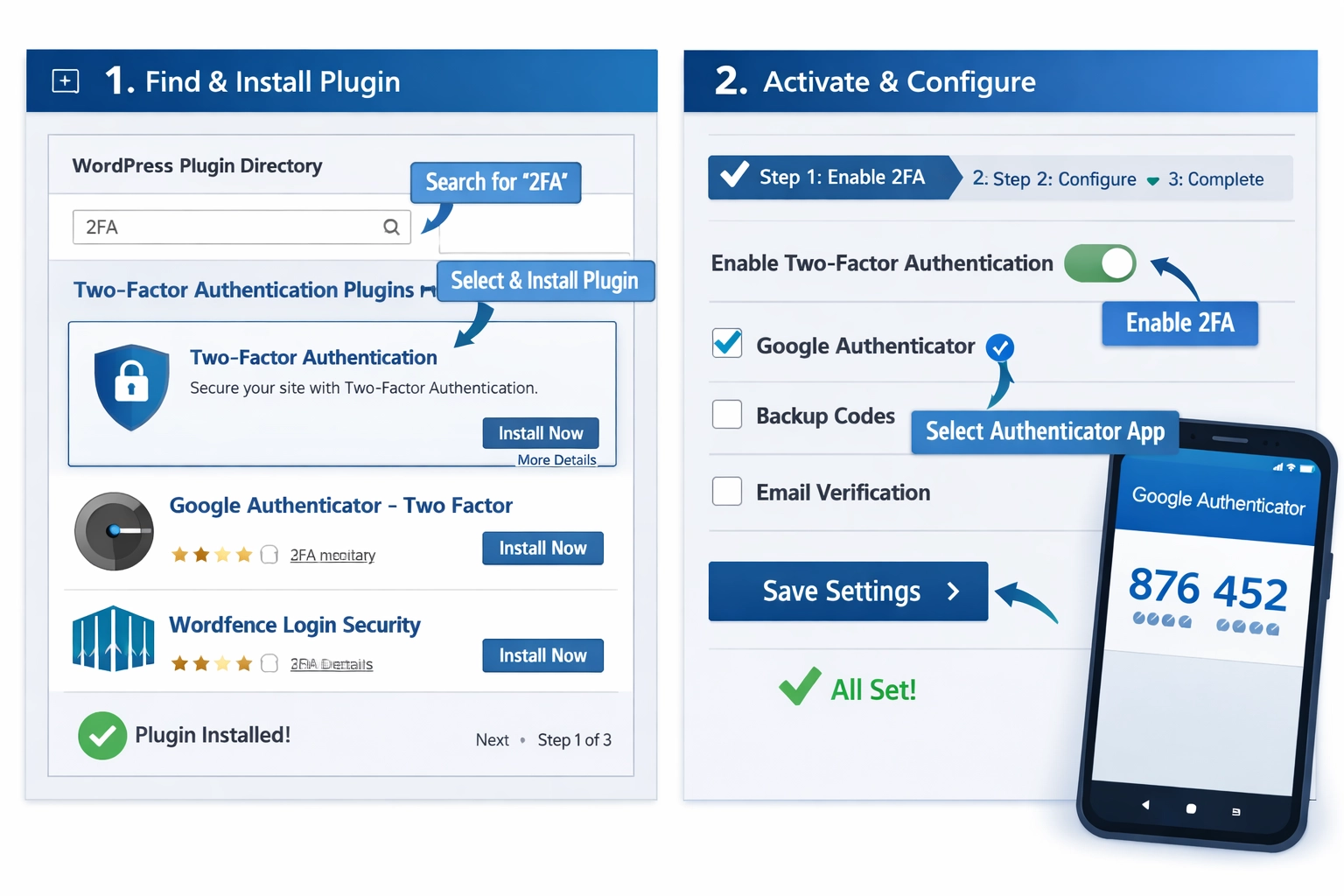
Installing a 2FA plugin on your WordPress site is straightforward and takes just a few minutes. First, log into your WordPress dashboard and navigate to Plugins > Add New. Search for your chosen 2FA plugin (we recommend WP 2FA for most sites) and click the Install Now button. Once installed, click Activate to enable the plugin. Next, navigate to the plugin’s settings page—usually found under Settings or a dedicated menu item. Enable 2FA for your user account by clicking the activation button and following the setup wizard. The wizard will display a QR code that you scan with your authenticator app (Google Authenticator, Authy, or Microsoft Authenticator). Your app will generate a 6-digit code that you enter to confirm the setup. Finally, generate and save backup codes in a secure location—these are critical for account recovery if you lose access to your authentication device.
Changing your WordPress login URL is one of the simplest yet most effective security measures you can implement. By moving your login page from the default /wp-login.php to a custom URL like /secure-access/ or /admin-portal/, you make it significantly harder for automated bots to find your login page. Most brute force attacks are opportunistic—hackers use automated tools that scan for the default WordPress login URL. If your login page isn’t where they expect it to be, they’ll likely move on to easier targets. The best approach is to use a plugin rather than manually editing files, as plugins handle all the technical details and ensure compatibility with WordPress updates. When choosing a new login URL, select something that’s easy for you to remember but difficult for others to guess—avoid obvious choices like /admin/ or /login/.
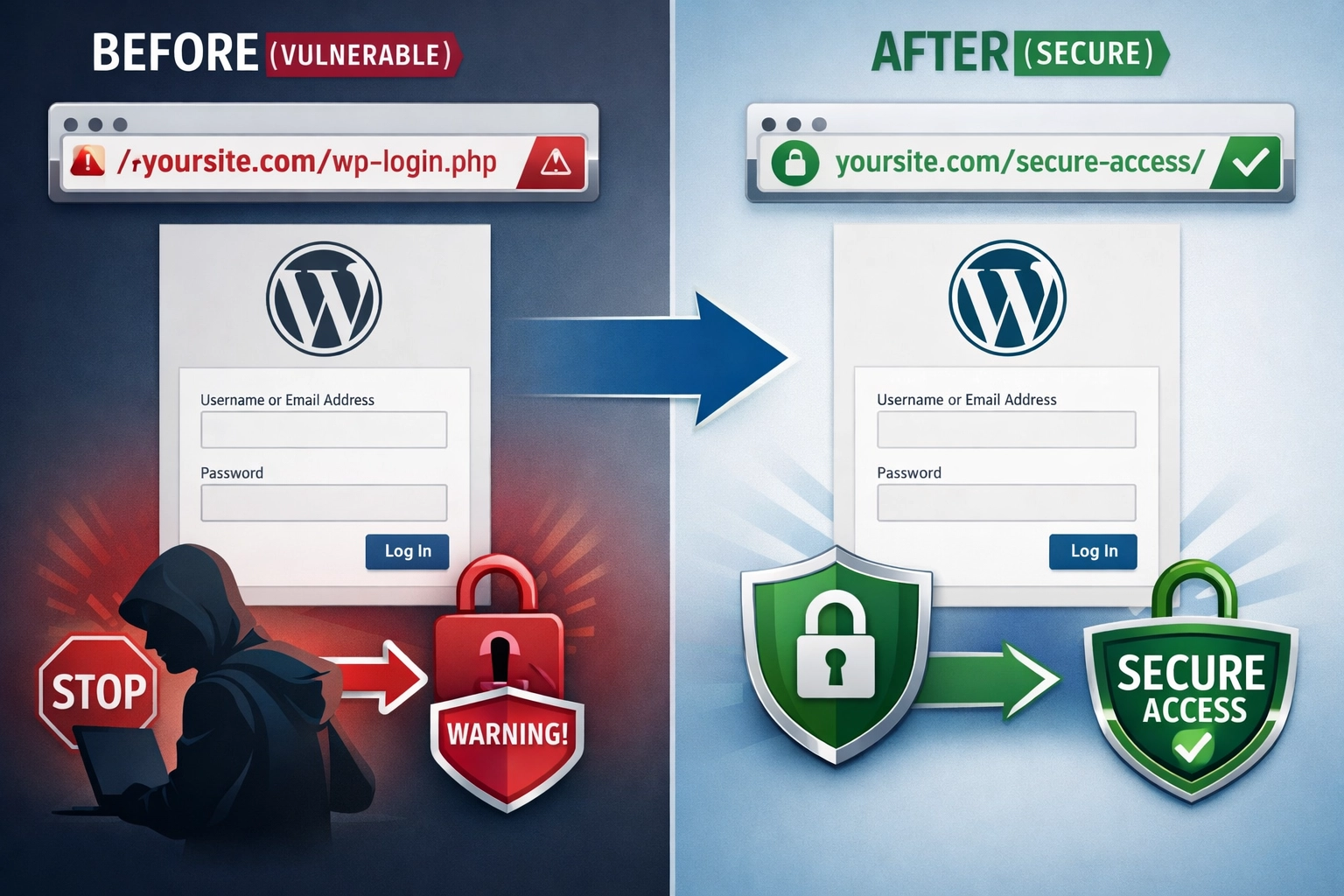
WPS Hide Login is one of the most popular and reliable plugins for changing your WordPress login URL. To use it, first install and activate the plugin from the WordPress plugin directory. Navigate to Settings > WPS Hide Login to access the configuration page. In the Login URL field, enter your desired custom login path (for example, “secure-access” or “admin-portal”). You can also configure the plugin to redirect visitors who try to access the default /wp-login.php or /wp-admin URLs to a specific page on your site, such as your homepage or a 404 page. The plugin automatically handles all the technical redirects and ensures that WordPress functions correctly with your new login URL. One important note: bookmark your new login URL or save it somewhere secure, as you’ll need it to log in to your WordPress dashboard. If you forget your custom login URL, you can still access it through FTP or your hosting control panel.
While 2FA and a hidden login URL provide excellent protection, they work best as part of a comprehensive security strategy. Strong passwords remain fundamental—use a combination of uppercase and lowercase letters, numbers, and special characters, and avoid reusing passwords across different sites. Limit login attempts by using a plugin that locks out accounts after a certain number of failed login attempts, preventing brute force attacks from succeeding through persistence. IP whitelisting restricts login access to specific IP addresses, which is ideal if your team always logs in from the same location. CAPTCHA verification on your login page adds another layer of protection by requiring users to prove they’re human, blocking automated bot attacks. Regular backups ensure that even if your site is compromised, you can quickly restore it to a clean state. Keep WordPress updated by enabling automatic updates for WordPress core, plugins, and themes, as updates often include critical security patches.
For maximum security, implement both 2FA and a hidden login URL together—they complement each other perfectly. Enforce 2FA for all administrator and editor accounts, as these have the highest level of access to your site. For larger teams, use a plugin that allows role-based 2FA enforcement, so you can require it for admins while making it optional for contributors. Regularly audit your user accounts and remove any inactive or unnecessary accounts, reducing potential entry points for attackers. Consider using a password manager to generate and store complex passwords, making it easier to maintain strong credentials without the burden of memorization. Document your security setup and backup codes in a secure location that only authorized personnel can access. Finally, stay informed about WordPress security best practices by following official WordPress security announcements and reputable security blogs.
If you lose access to your authentication device, don’t panic—this is why backup codes exist. Use one of your saved backup codes to log in, then reconfigure your 2FA settings with a new device. If you can’t scan the QR code during 2FA setup, most authenticator apps provide a manual entry option where you can type the code directly instead of scanning. If your 2FA plugin stops working after a WordPress update, try deactivating and reactivating the plugin, or check the plugin’s support forum for compatibility issues. If you’re locked out of your account completely, you can use FTP to access your site’s files and temporarily rename the 2FA plugin folder to disable it, allowing you to log in and troubleshoot. If changing your login URL causes a redirect loop, check that your permalink settings are properly configured by going to Settings > Permalinks and clicking Save Changes. For persistent issues, contact your hosting provider’s support team—they can help diagnose problems and may be able to restore access to your account if necessary.
Yes, many excellent WordPress 2FA plugins offer free versions with comprehensive features. Plugins like WP 2FA, Wordfence Login Security, and the official Two Factor plugin are completely free and don't require premium subscriptions for basic 2FA functionality. Some plugins offer premium versions with advanced features, but the free versions are sufficient for most WordPress sites.
This is why backup codes are essential. During 2FA setup, you receive one-time backup codes that you should save in a secure location. If you lose your device, use one of these backup codes to log in, then reconfigure your 2FA with a new device. If you've lost both your device and backup codes, contact your hosting provider or use FTP to temporarily disable the 2FA plugin.
Absolutely. Many 2FA plugins like ProfilePress 2FA, WP 2FA, and Wordfence Login Security are specifically designed to work with WooCommerce and membership plugins. You can enforce 2FA for administrators while making it optional for customers, or require it for all users depending on your security needs.
While 2FA is extremely effective at preventing brute force attacks and unauthorized login attempts, it's not a complete security solution by itself. It should be combined with other security measures like strong passwords, regular backups, security plugins, and keeping WordPress updated. Together, these measures create a comprehensive defense against most common WordPress attacks.
If you're locked out of your WordPress account, you have several options. First, try using a backup code if you saved one. If that doesn't work, you can use FTP to access your site's files and temporarily rename the 2FA plugin folder to disable it. Alternatively, contact your hosting provider's support team—they often have tools to help restore account access.
Changing your login URL is an excellent security measure that stops most automated bot attacks, but it shouldn't be your only security strategy. Combine it with 2FA, strong passwords, login attempt limiting, and regular backups for comprehensive protection. Security through obscurity works best when layered with other proven security practices.
Time-Based One-Time Password (TOTP) using apps like Google Authenticator or Authy is generally considered the best method because it's secure, doesn't require internet connectivity, and is immune to SIM swapping attacks. However, the best method depends on your needs—email codes are more accessible, while security keys offer the highest security level.
Yes, most modern 2FA plugins allow administrators to enforce 2FA for specific user roles or all users. Plugins like WP 2FA and ProfilePress 2FA offer role-based enforcement, so you can require 2FA for administrators while making it optional for other users, or enforce it site-wide depending on your security requirements.
Just like securing your WordPress login is critical, protecting your affiliate program requires enterprise-grade security. PostAffiliatePro provides secure, reliable affiliate management with built-in security features to keep your program and data safe.
the essential security features to look for in a web host: SSL/TLS, DDoS protection, WAF, daily backups, 24/7 support, and updated security tools.

Discover why WordPress is the top choice for affiliate marketing. Learn about plugins, tracking, SEO benefits, and how to build a profitable affiliate business ...

As an affiliate or WP eCommerce, increasing the security of your site is mandatory. If you don't, you expose yourself/customers to a wide range of problems.
Join our community of happy clients and provide excellent customer support with Post Affiliate Pro.



Cookie Consent
We use cookies to enhance your browsing experience and analyze our traffic. See our privacy policy.