
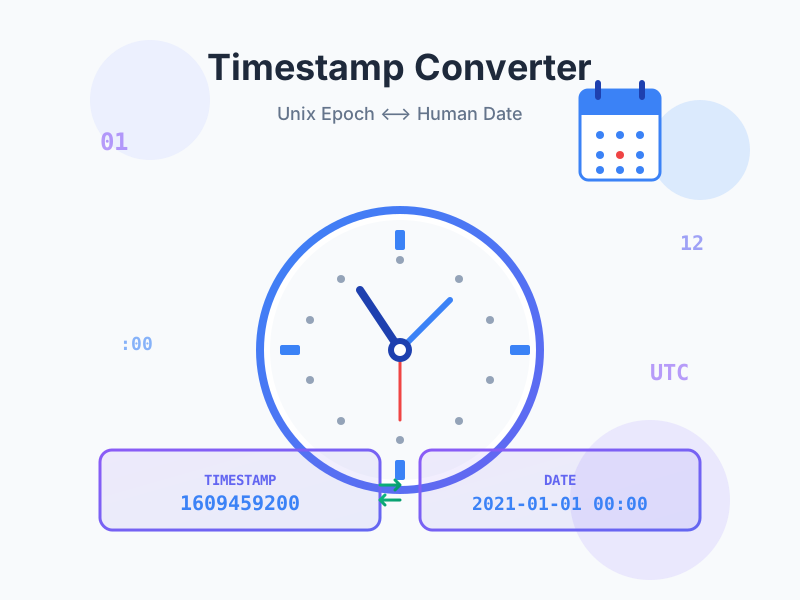
Unix Timestamp Converter - Epoch Time Converter
Convert Unix timestamps to human-readable dates and vice versa. Free online epoch time converter with timezone support, multiple formats, live current timestamp...
9 min read
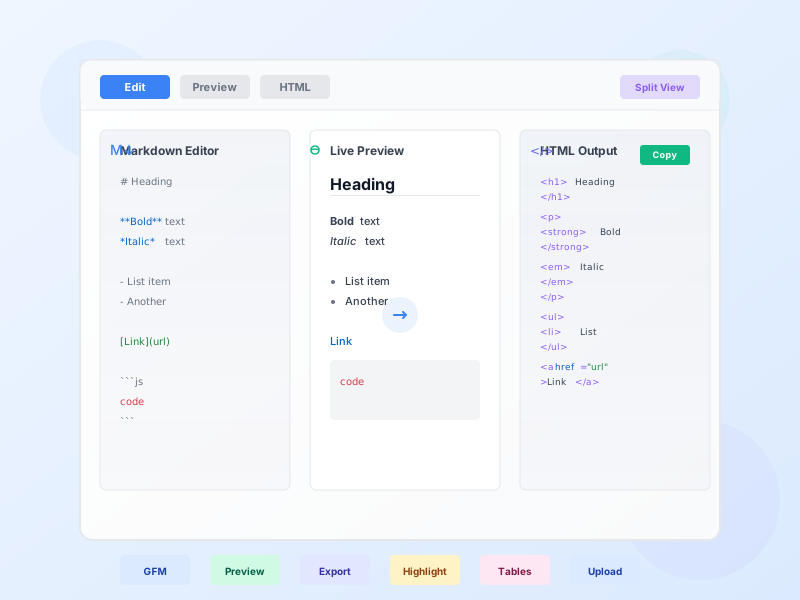
Convert Markdown to HTML instantly with GitHub Flavored Markdown support, live preview, syntax highlighting for code blocks, and multiple export options. Edit in Markdown, preview in real-time, export as HTML.
Markdown is a lightweight markup language created by John Gruber in 2004. It uses plain text formatting syntax that’s easy to read and write, converting seamlessly to HTML for web publishing.
Why Markdown is essential: Writing raw HTML is verbose and error-prone. Markdown lets you focus on content, not tags. Write **bold** instead of <strong>bold</strong>. Create lists with - instead of <ul><li>. Format headings with # instead of <h1>. The result: faster writing, cleaner source files, better readability.
Standard Markdown covers basics: headings, bold, italic, links, images, lists, code, quotes. GitHub Flavored Markdown (GFM) adds essential features for modern documentation and collaboration.
GFM additions: Tables with alignment, strikethrough text (~~deleted~~), task lists (- [ ] todo), fenced code blocks with syntax highlighting, auto-linking URLs (no brackets needed), emoji support (:smile: → 😊).
Why GFM matters: It’s the de facto standard. GitHub, GitLab, Bitbucket, Discord, Slack, Reddit, Stack Overflow, and countless platforms support GFM. Write once, publish anywhere. Our converter defaults to GFM for maximum compatibility.
Live Preview - See HTML output as you type. No delays, no server round-trips. Edit Markdown on the left, view rendered preview in the center, check raw HTML on the right. Instant feedback helps catch formatting errors before publishing.
Syntax Highlighting - Code blocks automatically highlight based on language. Supports 100+ languages: JavaScript, Python, Java, PHP, C++, Go, Rust, SQL, Bash, HTML, CSS, and more. Specify language after triple backticks: ```javascript. Essential for technical documentation and API guides.
Split View Modes - Four view modes: Edit (Markdown only), Preview (rendered output only), HTML (raw code only), Split (all three panes). Choose based on your workflow. Editing? Focus on Markdown. Reviewing? Preview only. Need HTML code? Switch to HTML view.
Multiple Export Options - Download as raw HTML, styled HTML (with embedded CSS), copy HTML to clipboard, copy formatted preview, or download original Markdown. Styled HTML export creates standalone documents that look great in browsers and email clients.
File Upload Support - Upload .md, .markdown, or .txt files directly. No copy-paste needed. Perfect for converting README files, documentation, or blog posts stored as Markdown files.
Customizable Options - Toggle GFM, syntax highlighting, line numbers, auto-linking, smart quotes, and header anchors. Tailor conversion to your exact needs. All settings persist in browser storage.
Markdown Cheat Sheet - Built-in syntax reference. Click ‘Cheat Sheet’ for quick guide to all Markdown syntax: headings, formatting, links, images, code blocks, tables, task lists. Learn as you write.
Theme Support - Preview in Light, Dark, or GitHub themes. See how your content looks in different contexts. Especially useful for documentation that might be viewed in dark mode IDEs or GitHub.
Product Review Pages - Write detailed affiliate product reviews in Markdown. Use headings for structure, tables for comparisons, lists for pros/cons, images for products, links for affiliate URLs. Convert to HTML and paste into WordPress, Shopify, or any CMS. Markdown’s portability means you can reuse reviews across multiple platforms.
Landing Page Copy - Draft landing page content in Markdown: headlines, benefit lists, testimonials, CTAs. Preview formatting instantly. Export as styled HTML for quick deployment or paste raw HTML into page builders. Markdown keeps content separate from design, making it easy to A/B test different copy without touching code.
Email Newsletters - Create formatted email newsletters in Markdown. Write headlines, paragraphs, bullet points, links—preview rendering in real-time. Export as styled HTML and import into email marketing tools (Mailchimp, ConvertKit, ActiveCampaign). Markdown ensures clean, accessible HTML that renders consistently across email clients.
Documentation & Guides - Write how-to guides, setup instructions, and API documentation in Markdown. Use code blocks for examples, tables for parameters, task lists for steps. Convert to HTML for knowledge bases, help centers, or blog posts. Markdown’s structure makes documentation scannable and maintainable.
GitHub README Files - Preview how your repository README will look on GitHub before committing. Test tables, task lists, badges, and fenced code blocks. Our GFM support matches GitHub’s rendering exactly, preventing formatting surprises after push.
Blog Post Drafts - Write blog posts in Markdown for portability. If you switch blogging platforms later, your content is platform-agnostic. Convert to HTML for WordPress, Medium, Ghost, or static site generators like Hugo and Jekyll. Markdown future-proofs your content.
Comparison Tables - Create affiliate product comparison tables in Markdown. Use GFM table syntax with alignment (:---, :---:, ---:). Add bold for highlighting, links for affiliate URLs, inline code for specs. Convert to HTML and embed in comparison pages. Much faster than building HTML tables manually.
Technical Tutorials - Explain API integrations, tracking pixel setups, or affiliate platform configurations. Use Markdown for structure, fenced code blocks for examples, syntax highlighting for readability. Export as styled HTML for self-hosted tutorials or paste into platforms like Dev.to or Hashnode.
Use Headings Hierarchically - Start with # Main Title (H1), then ## Sections (H2), ### Subsections (H3). Don’t skip levels. Proper heading hierarchy improves SEO, accessibility, and document structure. Our converter adds anchor IDs to headings for easy deep-linking.
Format Code Properly - Use inline backticks for short code: affiliate_id . Use fenced code blocks for multi-line code or commands. Always specify language for syntax highlighting: ```javascript, ```python, ```bash. Proper formatting makes code readable and professional.
Leverage Lists - Unordered lists (- or *) for non-sequential items. Ordered lists (1., 2.) for steps or rankings. Nested lists (indent by 2-4 spaces) for hierarchies. Task lists (- [ ], - [x]) for checklists. Lists improve scannability—readers absorb bulleted content faster than paragraphs.
Use Tables for Comparisons - GFM tables are perfect for product comparisons, pricing tiers, feature matrices, and data. Align columns for readability: left (:---), center (:---:), right (---:). Keep tables under 10 columns for mobile compatibility.
Add Alt Text to Images - Always include descriptive alt text: . Alt text improves accessibility, SEO, and user experience when images fail to load. For affiliate content, alt text helps search engines understand product images.
Link Meaningfully - Use descriptive link text: [Read our affiliate guide](url) instead of [click here](url). Descriptive links improve SEO and accessibility. For affiliate links, consider adding rel="nofollow" in HTML output if required by FTC guidelines.
Blockquotes for Testimonials - Use > for customer testimonials, expert quotes, or highlighting key points. Blockquotes visually separate quoted text from your content, adding credibility and breaking up long text blocks.
Horizontal Rules for Separation - Use --- to separate major sections. Horizontal rules provide visual breaks without creating new headings. Useful in long-form content to guide readers through distinct topics.
Keep Lines Under 80 Characters - While Markdown supports long lines, breaking at 80 characters improves readability in plain text editors, Git diffs, and code reviews. Not required, but recommended for collaborative documents.
Preview Before Publishing - Always preview your Markdown before exporting. Check for broken links, malformed tables, unintended formatting, and proper code highlighting. Our live preview catches issues instantly—use it.
Markdown for Portability - Content written in Markdown isn’t locked to any platform. If you switch from WordPress to Ghost, Medium to your own site, or one affiliate network to another, your Markdown content moves with you. Export as HTML for any destination. Future-proof your content library.
Version Control with Git - Markdown files are plain text, making them perfect for Git version control. Track changes to documentation, blog posts, and product descriptions over time. Collaborate with team members using GitHub, GitLab, or Bitbucket. See exactly what changed in each revision.
Combine with Static Site Generators - Tools like Hugo, Jekyll, and Gatsby convert Markdown to static HTML sites. Write affiliate content in Markdown, deploy as fast, SEO-friendly static sites. No database, no server-side processing—just pure speed.
Markdown in Notion, Obsidian, Bear - Modern note-taking apps support Markdown. Write in Notion or Obsidian, export as Markdown, convert to HTML with our tool. Seamless workflow from notes to published content.
Email Signatures in Markdown - Create formatted email signatures in Markdown, export as styled HTML, paste into Gmail or Outlook. Update signature by editing Markdown file instead of recreating HTML manually.
Documentation as Code - Keep product documentation, API guides, and tutorials in Markdown files alongside your codebase. Update docs when code changes. Convert to HTML for hosting on GitHub Pages, ReadTheDocs, or your site.
Test with Sample Templates - Use our quick-start templates to explore Markdown features: basic formatting, lists, code blocks, tables, comprehensive examples. Learn syntax by example, then customize for your needs.
Keyboard Shortcuts - Most Markdown editors support shortcuts: Cmd/Ctrl + B for bold, Cmd/Ctrl + I for italic, Cmd/Ctrl + K for links. Speed up writing by learning shortcuts for your editor.
Use Reference-Style Links - For documents with many repeated links, use reference style: [text][ref] with [ref]: url at bottom. Keeps content readable while maintaining links. Great for affiliate links used multiple times.
Markdown Tables in Excel - Convert spreadsheet data to Markdown tables using online converters or Excel formulas. Paste into our converter for HTML output. Automate product comparison table creation.
Markdown is a lightweight markup language that uses plain text formatting syntax to create formatted documents. It was created by John Gruber in 2004 to be easy to read and write. Converting Markdown to HTML is essential because web browsers only understand HTML, not Markdown. When you write documentation, README files, blog posts, or notes in Markdown, you eventually need HTML to display them on websites. Markdown is popular because it's human-readable (unlike raw HTML), portable across platforms, and quick to write. For affiliate marketers, Markdown is useful for creating product descriptions, landing pages, documentation, and blog content that needs to be converted to HTML for websites or email campaigns.
GitHub Flavored Markdown (GFM) is an extended version of standard Markdown with additional features used by GitHub. Key differences: 1) Task lists with checkboxes (- [ ] unchecked, - [x] checked), 2) Tables with column alignment, 3) Strikethrough text using ~~text~~, 4) Auto-linking URLs without brackets, 5) Fenced code blocks with syntax highlighting, 6) Username @mentions and issue #references (on GitHub). GFM is now the de facto standard for Markdown because it's more feature-rich and widely adopted. Most modern Markdown parsers support GFM by default. Our converter supports full GFM syntax, so you can use tables, task lists, and strikethrough text without worrying about compatibility.
Live preview converts your Markdown to HTML in real-time as you type, displaying the rendered output instantly. Our converter uses marked.js, a fast Markdown parser, to convert text immediately without server delays. Every keystroke triggers conversion in under 50ms, so you see results instantly. Live preview helps you: 1) Catch formatting errors immediately, 2) Visualize how content looks before publishing, 3) Experiment with different Markdown syntax, 4) Ensure links, images, and tables render correctly. The split view shows Markdown source, live preview, and raw HTML side-by-side, making it easy to learn Markdown syntax by seeing how each element converts.
You can export in multiple formats: 1) **Download HTML** - Raw HTML code without styling, ready to paste into your CMS or website, 2) **Download Styled HTML** - Complete HTML document with embedded CSS styles (GitHub-style formatting), ready to open in browsers or email clients, 3) **Copy HTML** - Copy HTML code to clipboard for pasting into code editors or CMSs, 4) **Copy Preview** - Copy rendered HTML for pasting into visual editors, 5) **Download Markdown** - Save your Markdown source as a .md file for version control or sharing. Styled HTML export is perfect for creating standalone documents, email newsletters, or previewing content before publishing. Raw HTML is ideal for CMS integration where you already have CSS styling.
Yes, you can upload .md, .markdown, or .txt files directly. Click 'Upload .md' button, select your file, and the converter will load the content automatically. This is especially useful for: 1) Converting existing README files from GitHub repos, 2) Processing documentation files from projects, 3) Editing large Markdown documents without copying/pasting, 4) Converting multiple files (upload, convert, download, repeat). File uploads are processed entirely in your browser—files never leave your device. Maximum file size is limited only by your browser's memory, but for best performance, keep files under 1MB. For very large documents, consider splitting them into smaller sections.
Yes, our converter uses Prism.js for automatic syntax highlighting in code blocks. Supports 100+ programming languages including JavaScript, Python, Java, C++, PHP, Ruby, Go, Rust, SQL, HTML, CSS, Bash, and more. To enable syntax highlighting, use fenced code blocks with language identifiers: ```javascript for JavaScript, ```python for Python, etc. Syntax highlighting makes code examples readable, helps spot errors, and improves documentation quality. The feature works in live preview and exported styled HTML. If you disable syntax highlighting in options, code blocks will render as plain monospace text. For affiliate marketers sharing API integration examples or tracking code snippets, syntax highlighting makes technical documentation more professional.
Absolutely. Our Markdown converter runs 100% client-side in your browser using JavaScript. Your Markdown text and files never leave your device or get sent to any server. All conversion, preview, and export operations happen locally. We don't store, log, or transmit your content anywhere. You can even use this tool offline once the page loads (though external libraries like marked.js require initial load). This makes it safe for confidential documentation, private notes, proprietary content, API keys in code examples, or any sensitive information. For added security, you can disconnect from the internet after loading the page and continue using the tool. Your data stays on your device, period.
Common use cases: 1) **Documentation** - Convert README files, technical docs, and API guides to HTML for websites, 2) **Blogging** - Write blog posts in Markdown for portability, convert to HTML for publishing on any platform, 3) **Email Newsletters** - Create formatted emails in Markdown, export as styled HTML for email clients, 4) **Product Descriptions** - Write affiliate product reviews in Markdown, convert to HTML for e-commerce sites, 5) **Landing Pages** - Draft landing page copy in Markdown, convert to HTML for CMSs like WordPress, 6) **GitHub Pages** - Preview how your README or docs will look before committing, 7) **Knowledge Bases** - Convert Markdown articles to HTML for help centers and support sites, 8) **Note-taking** - Write notes in Markdown apps, convert to HTML for sharing or archiving. Markdown is faster to write than HTML, and conversion tools make it compatible with any HTML-based platform.
Manage multiple affiliate programs and improve your affiliate partner performance with Post Affiliate Pro.
Convert Unix timestamps to human-readable dates and vice versa. Free online epoch time converter with timezone support, multiple formats, live current timestamp...
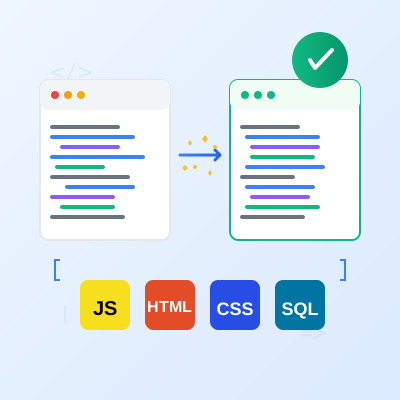
Free online code beautifier and formatter. Format and beautify JavaScript, HTML, CSS, SQL, and more with syntax highlighting, customizable options, and instant ...
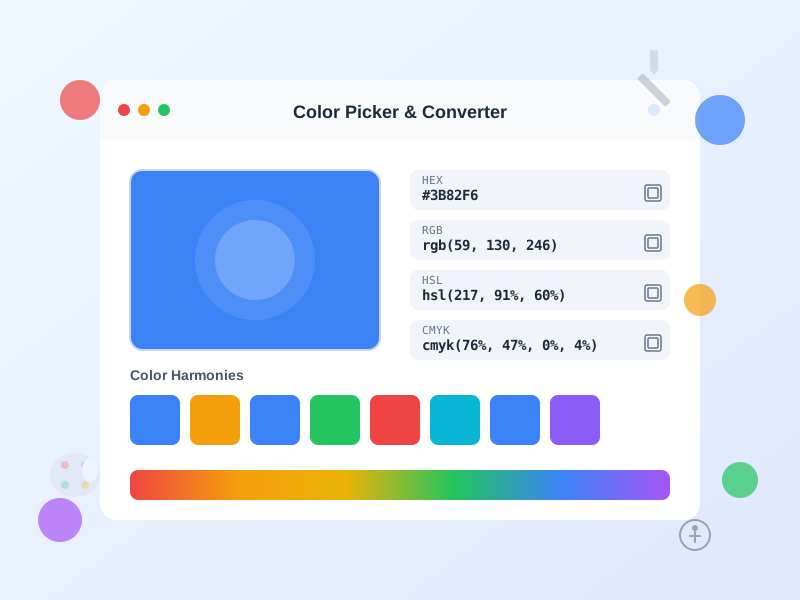
Free online color picker tool with instant conversion between HEX, RGB, HSL, HSV, and CMYK formats. Generate color palettes, check WCAG accessibility, and creat...
Join our community of happy clients and provide excellent customer support with Post Affiliate Pro.



Cookie Consent
We use cookies to enhance your browsing experience and analyze our traffic. See our privacy policy.