
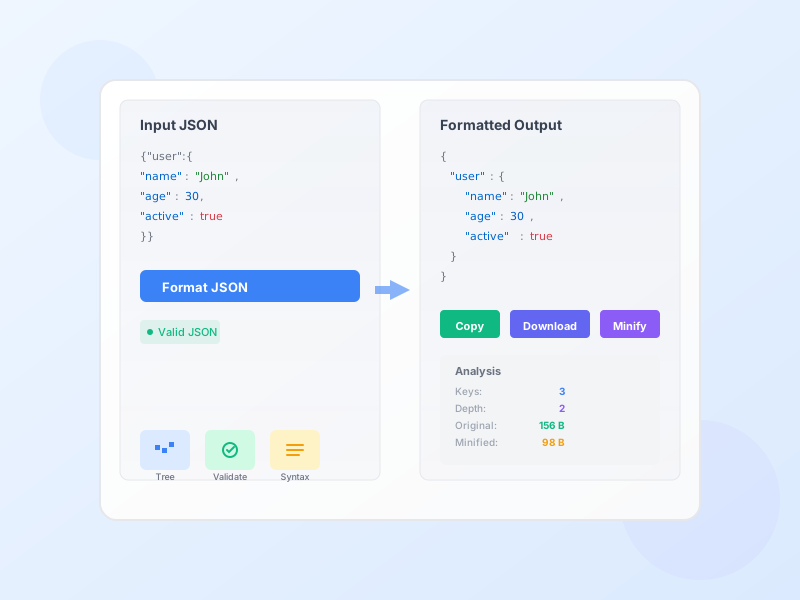
JSON Formatter & Validator - Beautify & Validate JSON Online
Free online JSON formatter and validator. Beautify, minify, validate, and analyze JSON data with syntax highlighting, tree view, and detailed error reporting.
4 min read
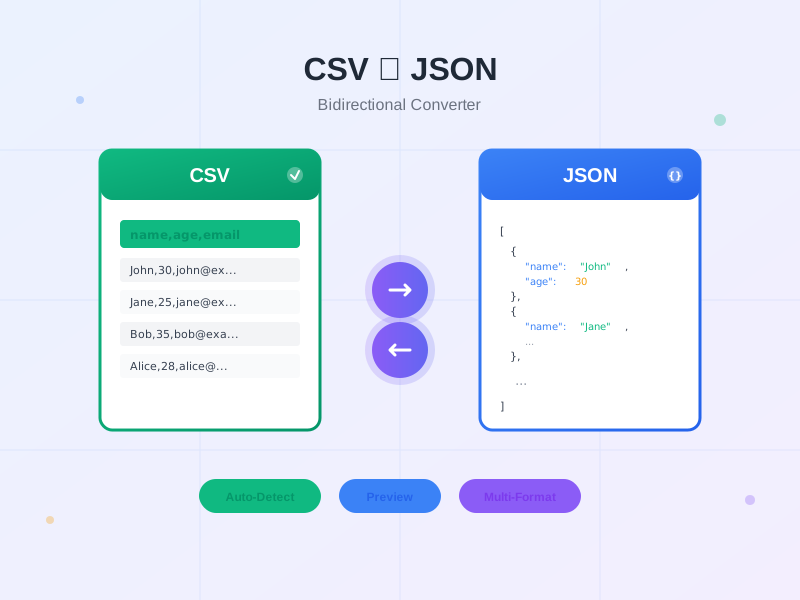
Free bidirectional CSV to JSON converter with auto-detect delimiter, data preview, and multiple output formats. Convert CSV to JSON or JSON to CSV instantly with smart type detection, flattening options, and no data upload required.
This tool provides seamless bidirectional conversion between CSV (Comma-Separated Values) and JSON (JavaScript Object Notation) formats, the two most common data interchange formats for web applications and data processing. CSV to JSON conversion transforms tabular spreadsheet data into structured objects that modern web APIs and JavaScript applications can consume directly. Import CSV exports from Excel, Google Sheets, CRM systems, or database dumps, then convert to JSON for use in REST APIs, single-page applications, MongoDB collections, or JavaScript data processing. The converter parses CSV rows with proper quote handling, escaped characters, and delimiter detection, then maps column headers to JSON property names with automatic type detection converting numbers, booleans, and null values appropriately. JSON to CSV conversion flattens complex JSON structures into spreadsheet-compatible rows and columns for analysis in Excel, Google Sheets, or database import tools. Nested objects are flattened using dot notation (user.name becomes a column), arrays are handled intelligently (join, separate columns, or first element only), and all values are properly quoted for CSV compatibility. Both directions support customizable options: delimiter choice (comma, semicolon, tab, pipe), output formatting, type handling, and edge case management, making this the most flexible converter for developers and data analysts.
CSV files from different regions and software use varying delimiters, causing parsing failures with fixed-delimiter tools. This converter’s auto-detect delimiter feature intelligently analyzes your CSV’s first row to identify whether it uses commas (US/UK standard), semicolons (European Excel default where commas are decimal separators), tabs (TSV format from database exports), pipes (log files), or custom delimiters. The detection algorithm counts delimiter occurrences and analyzes their distribution pattern to select the most likely separator, achieving 95%+ accuracy on real-world CSV files. Manual override options allow you to specify comma, semicolon, tab, pipe, or custom single/multi-character delimiters when working with unusual formats or when auto-detection fails. The parser correctly handles quoted fields containing delimiters - for example, "Product Name, Premium Edition" is treated as a single field even though it contains commas, following RFC 4180 CSV specification. Escaped quotes within quoted fields are processed correctly: "Company ""Special"" Product" becomes Company "Special" Product. This robust parsing handles real-world CSV complexity including: mixed-case booleans, numeric strings with thousand separators, date formats, empty fields, trailing delimiters, and inconsistent whitespace, making it reliable for data from any source.
Different applications require different JSON structures, so this converter offers four output formats optimized for specific use cases. Array of Objects (default and most common) converts each CSV row into a JSON object with header names as keys: [{"name":"John","age":30},{"name":"Jane","age":25}]. This format is ideal for REST API payloads, MongoDB collections, JavaScript array methods (map, filter, reduce), and any scenario where you iterate over records treating each as an independent entity. Modern web frameworks (React, Vue, Angular) expect this structure for rendering lists. Object with Keys wraps each row in a parent object with row identifiers: {"row1":{"name":"John"},"row2":{"name":"Jane"}}. Use this when you need direct access by row number or want to preserve row ordering through object keys, particularly useful for configuration files or lookup tables. Array of Arrays preserves raw tabular structure: [["name","age"],["John",30],["Jane",25]] with headers in the first array and data in subsequent arrays. This format matches the original CSV structure exactly, making it ideal when column order is more important than named property access, or when interfacing with legacy systems expecting array-based data. Column-Oriented reorganizes data by columns instead of rows: {"name":["John","Jane"],"age":[30,25]}. This format is perfect for data visualization libraries (Chart.js, D3.js), statistical analysis, and scenarios where you process entire columns at once rather than individual records. Each format maintains full data fidelity with proper type conversion, null handling, and nested structure support.
The interactive data preview table displays your converted data before export, allowing you to verify accuracy, catch parsing errors, and ensure output matches expectations. After conversion, the tool renders your data as a formatted HTML table with column headers and row-by-row display, showing exactly how the CSV was parsed and structured into JSON. Pagination automatically activates for datasets exceeding 10 rows, preventing browser slowdown on large files. Navigate through pages using Previous/Next controls while viewing “Showing 1-10 of 247 rows” status to understand dataset size. The preview table features: (1) Sortable columns - Click headers to sort alphabetically or numerically for data validation, (2) Responsive design - Horizontal scroll on mobile devices preserves all columns, (3) Type indicators - Visual differentiation between strings (black), numbers (blue), booleans (green), and null (gray) values, (4) Cell truncation - Long text is abbreviated with ellipsis, hover to see full content, (5) Row highlighting - Hover effect helps track values across wide tables. This preview catches common errors: delimiter misdetection (all data in one column), missing headers (generic column1, column2 names), type conversion issues (numbers as strings), and structural problems (inconsistent column counts). Verify your preview before downloading to ensure clean data for your application or database.
Fine-tune conversion behavior with comprehensive options for both directions. CSV to JSON options: (1) First row as headers (default enabled) - Use row 1 as JSON property names. Disable for data-only CSV files without headers. (2) Skip empty rows - Ignore blank lines common in Excel exports. (3) Trim whitespace - Remove leading/trailing spaces from all cells, preventing ’ John ’ becoming a different key from ‘John’. (4) Auto-detect data types (recommended) - Convert ‘123’ to numeric 123, ’true’ to boolean true, ’null’ to JSON null. Disable to keep everything as strings. (5) Delimiter - Auto-detect or specify comma, semicolon, tab, pipe, or custom. JSON to CSV options: (1) Flatten nested objects - Convert {"user":{"name":"John"}} to flat user.name column. Essential for nested structures. (2) Array handling - Join arrays with semicolons, create separate columns (array[0], array[1]), or use first element only. (3) Include empty fields - Output blank cells for undefined/null values, or omit them entirely. (4) Null/undefined representation - Specify how null values appear: blank (default), ‘NULL’, ‘N/A’, or custom string. (5) Quote all fields - Wrap every value in quotes (safest) or only when necessary. (6) Line ending - LF (Unix/Mac) or CRLF (Windows) for cross-platform compatibility. These options handle edge cases ensuring clean output for your specific use case.
Access your converted data through two convenient export methods. Copy to Clipboard provides instant one-click copying with automatic format preservation. Click the Copy button to send converted JSON or CSV to your system clipboard, then immediately paste into code editors (VS Code, Sublime, WebStorm), API testing tools (Postman, Insomnia), database management tools (MongoDB Compass, pgAdmin), content management systems, or terminal/command prompt. The tool shows a success notification confirming clipboard operation, eliminating guesswork about whether copy succeeded. Copy works across all modern browsers (Chrome, Firefox, Safari, Edge) and respects formatting - JSON maintains indentation, CSV preserves line breaks and delimiters. Download as File saves your converted data as a properly named file with correct extension (.json or .csv) and MIME type for seamless import into other applications. JSON files use UTF-8 encoding with 2-space indentation for human readability, while CSV files respect your chosen line ending (LF or CRLF) and quoting strategy. Downloaded files include timestamp in filename (converted-2026-01-27-143045.json) for easy organization when converting multiple files. Both export methods operate entirely client-side with no server uploads, ensuring your data remains private on your local device throughout the entire workflow.
All conversion happens 100% in your browser - your CSV and JSON data never leaves your device at any point during the conversion process. Unlike cloud-based converters that upload your files to remote servers (creating security risks, privacy violations, and compliance issues), this tool processes everything using vanilla JavaScript executed locally in your browser’s memory. How it works: (1) When you paste data or upload a file, the content is read directly into JavaScript variables in your browser’s RAM - no network request occurs. (2) All parsing, conversion, type detection, and formatting operations run as pure client-side functions with zero external API calls. (3) Output is generated in memory and displayed in the browser DOM or saved to your local filesystem via JavaScript Blob APIs. (4) When you close the tab or navigate away, all data is immediately erased from memory - nothing persists. This architecture provides: Complete privacy - no one (including us) can access your sensitive data. GDPR/CCPA compliance - no data collection means no compliance obligations. Offline capability - works without internet after initial page load. Fast processing - no upload/download latency. No file size limits from server restrictions (only browser memory limits apply). Perfect for converting: confidential business data, personal information, financial records, healthcare data, proprietary databases, or any sensitive information you wouldn’t trust to third-party servers.
After each conversion, view detailed statistics about your data transformation in an organized metrics panel. Dataset dimensions show row count (number of data records excluding headers) and column count (number of fields/properties per record), helping you verify the complete dataset was parsed correctly. Large datasets display statistics like “247 rows, 12 columns” confirming no data loss during conversion. Size metrics display both input and output byte sizes in human-readable format (B, KB, MB), allowing you to understand compression or expansion. CSV to JSON typically increases file size 20-40% due to JSON’s verbose syntax (property names repeated in every object, quotes around strings, structural characters like {, }, [, ]). JSON to CSV usually reduces size 15-30% by eliminating property name repetition and structural overhead. Size comparison helps predict storage requirements, bandwidth consumption, and whether you should compress large datasets before transmission. Type distribution (CSV to JSON only) shows breakdown of detected data types: X strings, Y numbers, Z booleans, W nulls. This helps verify type detection worked correctly - if you expected numeric data but see all strings, auto-detect may need enabling. Statistics are updated after every conversion and remain visible while you review output, providing quick validation that conversion handled your specific dataset appropriately before you export results for production use.
Web developers frequently need to convert spreadsheet data into JSON format for REST API payloads, request bodies, and response mocking during API development and testing. Export product catalogs, user lists, or configuration data from Excel/Google Sheets as CSV, then convert to JSON arrays that match your API schema. For example, a products CSV with columns (id, name, price, stock, category) converts to [{"id":1,"name":"Laptop","price":999.99,"stock":15,"category":"Electronics"}] ready to POST to /api/products endpoints. Use this workflow for: (1) Creating mock API responses during frontend development before backend is ready, (2) Seeding test databases with realistic sample data from stakeholder-provided spreadsheets, (3) Populating API documentation examples with actual data formats, (4) Bulk importing CSV exports into REST APIs that only accept JSON, (5) Generating fixture files for automated testing frameworks (Jest, Mocha, Cypress). The Array of Objects format mirrors the structure most APIs expect, while type auto-detection ensures numbers are sent as integers/floats (not strings) preventing validation errors. Convert once, then use the JSON across Postman collections, API documentation (Swagger/OpenAPI), integration tests, and frontend applications consuming the same data structure.
Database administrators and developers use CSV to JSON conversion when migrating data from relational databases or spreadsheets into NoSQL databases like MongoDB, CouchDB, Firebase, or DynamoDB that store data as JSON documents. Export tables from MySQL, PostgreSQL, SQL Server, or Access as CSV files, then convert to JSON format matching your NoSQL collection schema. For MongoDB specifically, the Array of Objects format can be directly imported using mongoimport --jsonArray or inserted via application code using insertMany(). Handle nested structures by enabling flattening for initial import, then restructure documents with aggregation pipelines as needed. Common migration scenarios: (1) Moving legacy CRM data to MongoDB for better scaling, (2) Importing e-commerce product catalogs from Excel into Firebase for mobile apps, (3) Bulk loading user profiles from CSV exports into DynamoDB tables, (4) Migrating analytics data from SQL databases to Elasticsearch for log search, (5) Converting flat spreadsheet data into nested JSON documents for document stores. Use Column-Oriented format when populating time-series databases where each column becomes a metric array. Type auto-detection ensures numeric IDs, timestamps, and quantitative fields import with correct types, preventing schema issues and query failures.
Data analysts and scientists often need to convert JSON API responses into CSV format for analysis in spreadsheet tools (Excel, Google Sheets), statistical software (R, SPSS, SAS), or business intelligence platforms (Tableau, Power BI) that work best with tabular data. Fetch JSON data from REST APIs, web scraping results, or application exports, then convert to CSV with flattening enabled to handle nested structures. For example, a user API returning {"id":1,"profile":{"name":"John","email":"john@example.com"},"subscribed":true} flattens to CSV columns: id, profile.name, profile.email, subscribed with values 1, John, john@example.com, true. This allows: (1) Loading API data into Excel for pivot tables, charts, and formulas without manual restructuring, (2) Importing web analytics JSON into Google Sheets for visualization and reporting, (3) Converting e-commerce order JSON exports into CSV for accounting software import, (4) Preparing social media API data for statistical analysis in R or Python pandas, (5) Transforming nested survey results into flat CSV for database import. Array handling options determine whether arrays become separate columns (array[0], array[1]), joined strings (item1;item2), or single values, giving flexibility for different analysis needs. Quote all fields for Excel compatibility when data contains special characters.
Frontend developers building user interfaces need realistic mock data to populate components during development before backend APIs are implemented. Create sample datasets in CSV format (easy to edit in spreadsheets with team input), then convert to JSON for direct use in React, Vue, Angular, or vanilla JavaScript applications. For example, a products CSV converts to JSON arrays that can be imported into component files: import products from './data/products.json' then mapped to JSX: products.map(p => <ProductCard {...p} />). Use cases: (1) Building product listing pages with realistic names, prices, and descriptions before e-commerce backend exists, (2) Populating user profile cards in social media UI mockups with sample user data, (3) Generating table data for admin dashboards during prototyping phase, (4) Creating chart data arrays for data visualization components, (5) Mocking form select options, dropdown menus, and autocomplete suggestions. The Column-Oriented format works well for charting libraries expecting {labels: [...], values: [...]} structure. Type detection ensures numeric data renders correctly in charts and calculations. Frontend teams can maintain CSV mock data in version control (easy to diff and review), then convert to JSON during build process, keeping data separate from component code and allowing non-developers to update mock content.
Data engineers building ETL (Extract, Transform, Load) pipelines use CSV to JSON conversion as a transformation step when integrating data between systems with different format requirements. Extract CSV exports from legacy systems, CRM platforms, ERP software, or partner data feeds, convert to JSON for transformation processing, then load into modern data warehouses, APIs, or message queues. Example workflow: (1) Extract - Daily CSV export from legacy CRM arrives via FTP/SFTP, (2) Transform - Convert CSV to JSON, apply business logic transformations (rename fields, calculate derived values, filter records), (3) Load - POST JSON to REST API, insert into MongoDB, or publish to Kafka topic. The converter handles: cleaning inconsistent delimiters from partner feeds, standardizing date formats through custom type detection, flattening nested vendor JSON for SQL database import, expanding flat CSV into nested JSON for document stores, and converting between array and object formats to match destination schema. For reverse workflows (API to database), convert JSON API responses to CSV for loading into SQL databases using LOAD DATA INFILE or COPY commands. Automation-friendly URL parameters (future enhancement) could integrate this converter into scheduled jobs, while the JavaScript can be extracted and run in Node.js for server-side batch processing of large files.
IT administrators and data managers perform CSV to JSON conversion (and reverse) when archiving data in standardized formats for long-term storage, backup systems, or regulatory compliance. CSV is preferred for human-readable, compact, long-term archives that can be opened in any spreadsheet tool decades later without specialized software. JSON is better for preserving complex structures, data types, and hierarchical relationships. Convert between formats based on storage requirements: (1) Archive to CSV - Convert application JSON exports to CSV for long-term regulatory archives (GDPR, HIPAA, SOX compliance) since CSV is universally readable and less vulnerable to format obsolescence. Financial transaction histories, customer records, and audit logs benefit from CSV’s simplicity and Excel compatibility. (2) Restore to JSON - Convert archived CSV backups back to JSON when restoring data into modern applications expecting JSON format. Old CRM backups from 2010 in CSV format can be imported into current MongoDB-based systems. (3) Format migration - Convert between formats when changing backup systems or cloud storage providers with different format preferences. (4) Compliance exports - Provide data subject access requests (GDPR right to data portability) in both CSV (Excel-readable) and JSON (machine-readable) formats. Flattening options ensure nested JSON exports become manageable CSV files, while type preservation guarantees accurate restoration. This dual-format strategy balances human accessibility (CSV) with structural fidelity (JSON) for comprehensive data governance.
CSV (Comma-Separated Values) to JSON (JavaScript Object Notation) conversion transforms tabular data into a structured object format. CSV files store data in rows and columns with delimiters (usually commas), making them simple but limited in structure. JSON uses key-value pairs and supports nested objects, arrays, and multiple data types (strings, numbers, booleans, null). Converting CSV to JSON is essential when: (1) Migrating data from Excel/spreadsheets to web applications or databases, (2) Preparing data for RESTful APIs that require JSON payloads, (3) Processing data with JavaScript where objects are easier to manipulate than raw text, (4) Building single-page applications that consume structured data, (5) Integrating legacy systems that export CSV with modern systems that expect JSON. The conversion process parses CSV rows, identifies headers (first row typically), and maps each row's values to object properties, creating an array of objects or other structured formats.
Converting CSV to JSON with this tool: (1) **Paste or Upload** - Enter CSV data directly into the input box or click 'Upload File' to load a .csv file from your computer. (2) **Choose Delimiter** - Select 'Auto-detect' to automatically identify comma, semicolon, tab, or pipe delimiters, or manually specify if your CSV uses a custom separator. (3) **Configure Options** - Enable 'First row as headers' (default) to use the first row for object property names. Enable 'Auto-detect data types' to convert strings like '123' to numbers and 'true' to booleans automatically. (4) **Select Output Format** - Choose from Array of Objects (default, best for most use cases), Object with Keys, Array of Arrays, or Column-Oriented format. (5) **Click Convert** - Preview the parsed data in table format, then view the formatted JSON output. (6) **Copy or Download** - Use the Copy button to send JSON to clipboard or Download to save as a .json file. The tool handles quoted fields, escaped characters, and empty cells correctly.
This converter supports four JSON output formats: **Array of Objects** (default) - Creates an array where each row becomes an object with header names as keys: `[{"name":"John","age":30},{"name":"Jane","age":25}]`. This is the most common format, ideal for APIs, databases, and JavaScript array methods. **Object with Keys** - Wraps each row in a parent object with row identifiers: `{"row1":{"name":"John"},"row2":{"name":"Jane"}}`. Useful when you need indexed access by row number. **Array of Arrays** - Preserves the raw tabular structure: `[["name","age"],["John",30],["Jane",25]]`. First array contains headers, subsequent arrays contain data. Best for maintaining exact CSV structure or when column order matters more than named access. **Column-Oriented** - Reorganizes data by columns instead of rows: `{"name":["John","Jane"],"age":[30,25]}`. Ideal for data analysis, charting libraries, and when you need to process entire columns at once. Choose based on how you'll consume the data in your application.
Converting JSON to CSV: (1) **Switch Mode** - Click 'JSON to CSV' at the top of the tool. (2) **Paste JSON** - Enter a JSON array of objects in the input box or upload a .json file. The JSON must be an array format: `[{},{},...]`. Single objects or nested structures need adjustment. (3) **Configure CSV Options** - Enable 'Flatten nested objects' to convert nested structures like `{"user":{"name":"John"}}` into flat columns `user.name`. Choose 'Array handling': join arrays with semicolons, create separate columns, or use first element only. Set 'Null/Undefined as' to specify how empty values appear (blank by default). (4) **Line Ending** - Select LF (Unix/Mac) or CRLF (Windows) based on your target system. (5) **Quote Options** - Enable 'Quote all fields' to wrap every value in quotes (safer for fields with special characters), or let the tool quote only when necessary. (6) **Convert** - Preview the data table, then view CSV output. (7) **Download** - Save as .csv file for use in Excel, Google Sheets, or database import tools.
The converter supports five delimiter types: **Comma (,)** - The standard CSV delimiter used in US/UK regions and most software. Default for Excel in English locales. **Semicolon (;)** - Common in European countries where commas are used as decimal separators (e.g., '1,5' for 1.5). Default Excel delimiter in many EU locales. **Tab (\t)** - Tab-separated values (TSV), often used for data exports from databases and web applications. Better for data containing commas. **Pipe (|)** - Alternative delimiter when data frequently contains commas and semicolons. Common in log files and Unix tools. **Custom** - Define any single or multi-character delimiter for specialized formats. **Auto-detect** (recommended) - Analyzes the first row to automatically identify the most likely delimiter by counting occurrences. Works reliably for standard formats. Choose 'Auto-detect' unless you know your CSV uses an unusual delimiter or the detection fails. The tool handles quoted fields correctly regardless of delimiter, so 'Product Name,Description' with commas in quotes won't break parsing.
'First row as headers' determines how the converter interprets your CSV structure. **Enabled (default)** - The first row contains column names/headers, not data. These headers become JSON object property names. Example: CSV `name,age\nJohn,30` converts to `[{"name":"John","age":30}]`. This is standard for most CSV exports from databases, Excel, and web applications. Use this when your CSV has descriptive column names in row 1. **Disabled** - The first row is treated as data, not headers. The converter generates generic property names: `column1`, `column2`, etc. Example: Same CSV converts to `[{"column1":"name","column2":"age"},{"column1":"John","column2":30}]`. Use this for: (1) CSV files with no header row (rare), (2) Data-only files where you'll manually define headers later, (3) Numeric data matrices without column labels. Most real-world CSVs have headers, so leave this enabled. If your conversion looks wrong, check whether row 1 is headers or data and toggle accordingly.
Data type auto-detection automatically converts CSV string values to appropriate JSON data types, making the output ready for direct use in applications. **Enabled (recommended)** - The converter analyzes each cell and converts: (1) **Numbers** - '123', '45.67', '-10' become numeric `123`, `45.67`, `-10` instead of strings. Essential for mathematical operations and sorting. (2) **Booleans** - 'true', 'false' (case-insensitive) become boolean `true`, `false`. (3) **Null** - 'null' string becomes JSON `null` value. (4) **Strings** - Everything else remains a string. This prevents type coercion issues when using the JSON in JavaScript, TypeScript, or databases that expect proper types. **Disabled** - All values remain strings: `{"age":"30"}` instead of `{"age":30}`. Use this when: (1) You need to preserve leading zeros ('0123' should stay '0123', not become 123), (2) All data should be treated as text regardless of content, (3) You'll handle type conversion manually in your application. For most use cases, enable auto-detection to avoid bugs caused by '30' + 5 = '305' instead of 35.
CSV is inherently flat (rows and columns), while JSON supports nested structures, creating challenges when converting JSON to CSV. **Flatten Nested Objects (recommended)** - Converts nested structures into dot-notation columns. Example: `{"user":{"name":"John","email":"john@example.com"},"active":true}` becomes CSV columns: `user.name, user.email, active` with values `John, john@example.com, true`. This preserves all data in a flat format that spreadsheets can handle. Use when you need to preserve structure and don't mind multiple columns. **Keep Nested (JSON strings)** - Disable flattening to convert nested objects to JSON strings within CSV cells: `user, active` with values `{"name":"John","email":"john@example.com"}, true`. The nested object becomes a single escaped string. Use when you want to preserve exact JSON structure and will parse cells back to objects later. **Manual restructuring** - For complex nested structures, consider restructuring your JSON before conversion. Deeply nested arrays-of-objects often need custom processing. Flattening works for 2-3 levels but becomes unwieldy with deeper nesting.
Common conversion errors and solutions: **'No data found in CSV'** - Your input is empty or contains only whitespace. Paste actual CSV content or upload a valid file. **'Invalid JSON' (JSON to CSV)** - Your JSON has syntax errors (missing quotes, trailing commas, unescaped characters). Validate JSON at jsonlint.com first. **'JSON must be an array'** - JSON to CSV requires an array format `[{},{},...]`. Wrap single objects in brackets: `{"name":"John"}` → `[{"name":"John"}]`. **Misaligned columns** - Wrong delimiter selected. Try 'Auto-detect' or manually check if your CSV uses semicolons (European format) instead of commas. **Quoted fields not parsing** - CSV has improperly quoted fields. Ensure quotes are doubled inside quoted strings: `"Product ""Pro"" Edition"` for `Product "Pro" Edition`. **Type conversion issues** - Numbers stay as strings. Enable 'Auto-detect data types' to convert '123' to numeric 123. **Empty rows** - Enable 'Skip empty rows' to ignore blank lines in CSV. **Extra columns** - CSV has inconsistent column counts across rows. Ensure all rows have the same number of delimiters.
Yes, but browser memory limits apply. **File size limits:** This tool processes data entirely in your browser (client-side), so performance depends on your device's RAM and browser. **Realistic limits:** (1) **Small files (<1MB / <10,000 rows)** - Process instantly with full preview and no issues. Ideal for most use cases. (2) **Medium files (1-10MB / 10,000-100,000 rows)** - Process within seconds. Preview may paginate due to DOM rendering limits. Works well on modern computers. (3) **Large files (10-50MB / 100,000-500,000 rows)** - May take 10-30 seconds to convert. Browser might become temporarily unresponsive. Disable preview for better performance. (4) **Very large files (>50MB / >500,000 rows)** - May fail due to memory limits. Browser tab might crash. Consider splitting files or using server-side tools. **Performance tips:** (1) Close other browser tabs to free memory, (2) Use a desktop computer rather than mobile, (3) For multi-gigabyte files, use command-line tools like `csvkit` or Python pandas instead. This tool prioritizes convenience for typical data conversion tasks (<10,000 rows) where instant browser-based processing is most valuable.
**100% safe - all processing happens in your browser.** This tool uses pure client-side JavaScript with zero server communication for data processing: (1) **No uploads** - Your CSV and JSON data never leaves your device. Unlike cloud-based converters that upload files to remote servers, this tool processes everything locally in your browser's memory. (2) **No tracking** - No analytics track your data, conversion patterns, or file contents. The tool doesn't know what you're converting. (3) **No storage** - Data is not saved to cookies, localStorage, or any persistent storage. Close the tab and everything is erased from memory. (4) **Works offline** - Once the page loads, you can disconnect from the internet and continue converting files indefinitely. (5) **Open source** - The JavaScript code is visible in your browser's developer tools. You can audit exactly what the tool does with your data. This privacy-first architecture makes the converter safe for: sensitive business data, personal information, confidential client data, proprietary information under NDA, financial records, healthcare data, and any other information you wouldn't want sent to third-party servers. For absolute maximum security with highly sensitive data, download the tool's code and run it on an air-gapped computer.
Manage multiple affiliate programs and improve your affiliate partner performance with Post Affiliate Pro.
Free online JSON formatter and validator. Beautify, minify, validate, and analyze JSON data with syntax highlighting, tree view, and detailed error reporting.
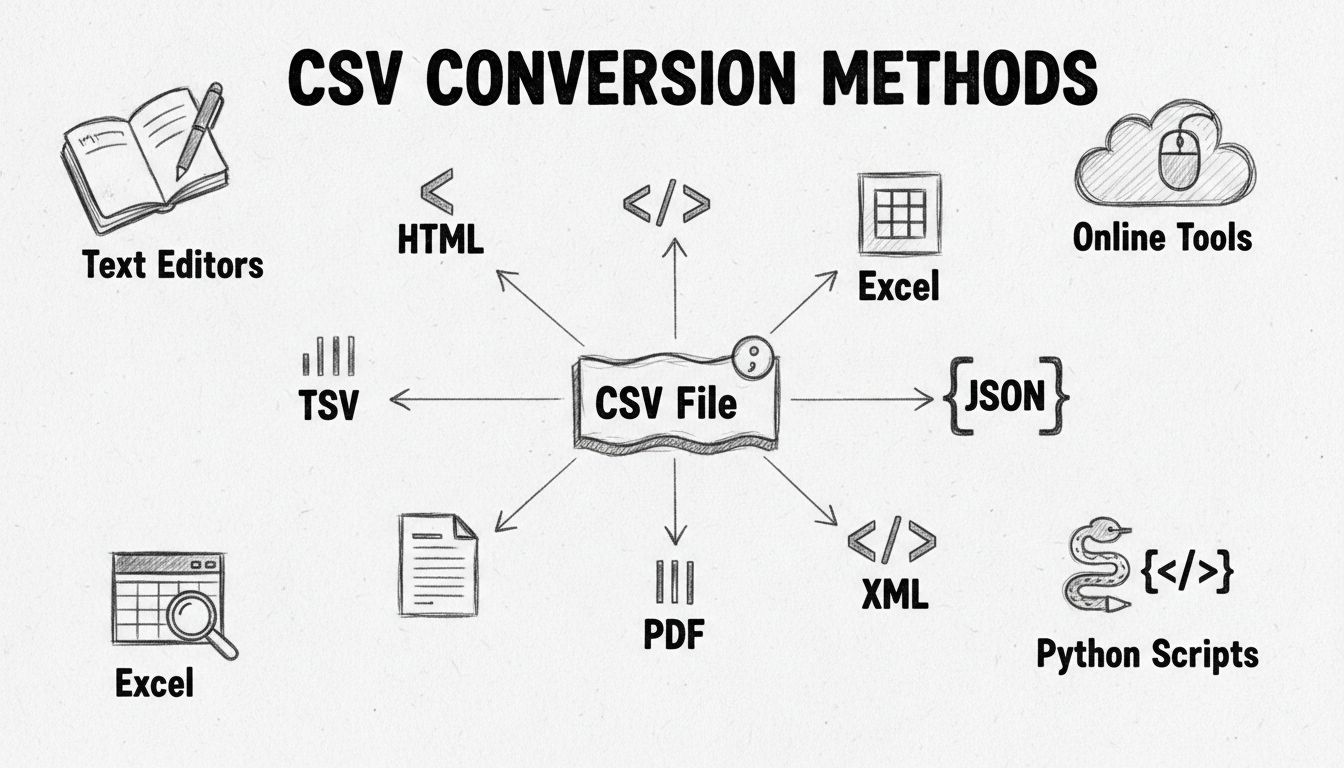
Learn how to convert CSV files to Excel, JSON, XML, PDF and other formats. Discover the best methods including online tools, Python scripts, and spreadsheet sof...
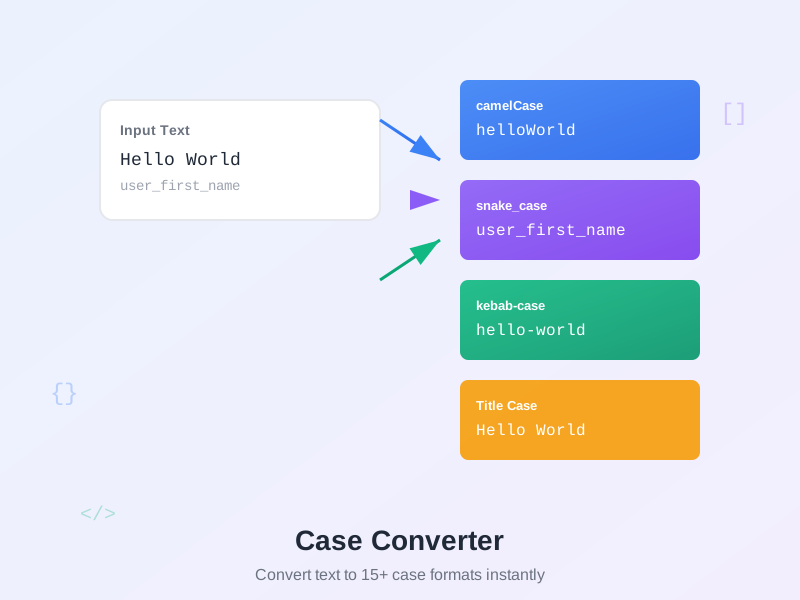
Free online text case converter. Convert text to camelCase, snake_case, UPPERCASE, lowercase, Title Case, kebab-case, PascalCase, and 15+ formats instantly.
Join our community of happy clients and provide excellent customer support with Post Affiliate Pro.



Cookie Consent
We use cookies to enhance your browsing experience and analyze our traffic. See our privacy policy.