


How to Customize the Signup Form in Post Affiliate Pro
Learn how to customize affiliate signup forms in Post Affiliate Pro with up to 25 custom fields, multiple field types, and advanced configuration options. Step-...
10 min read

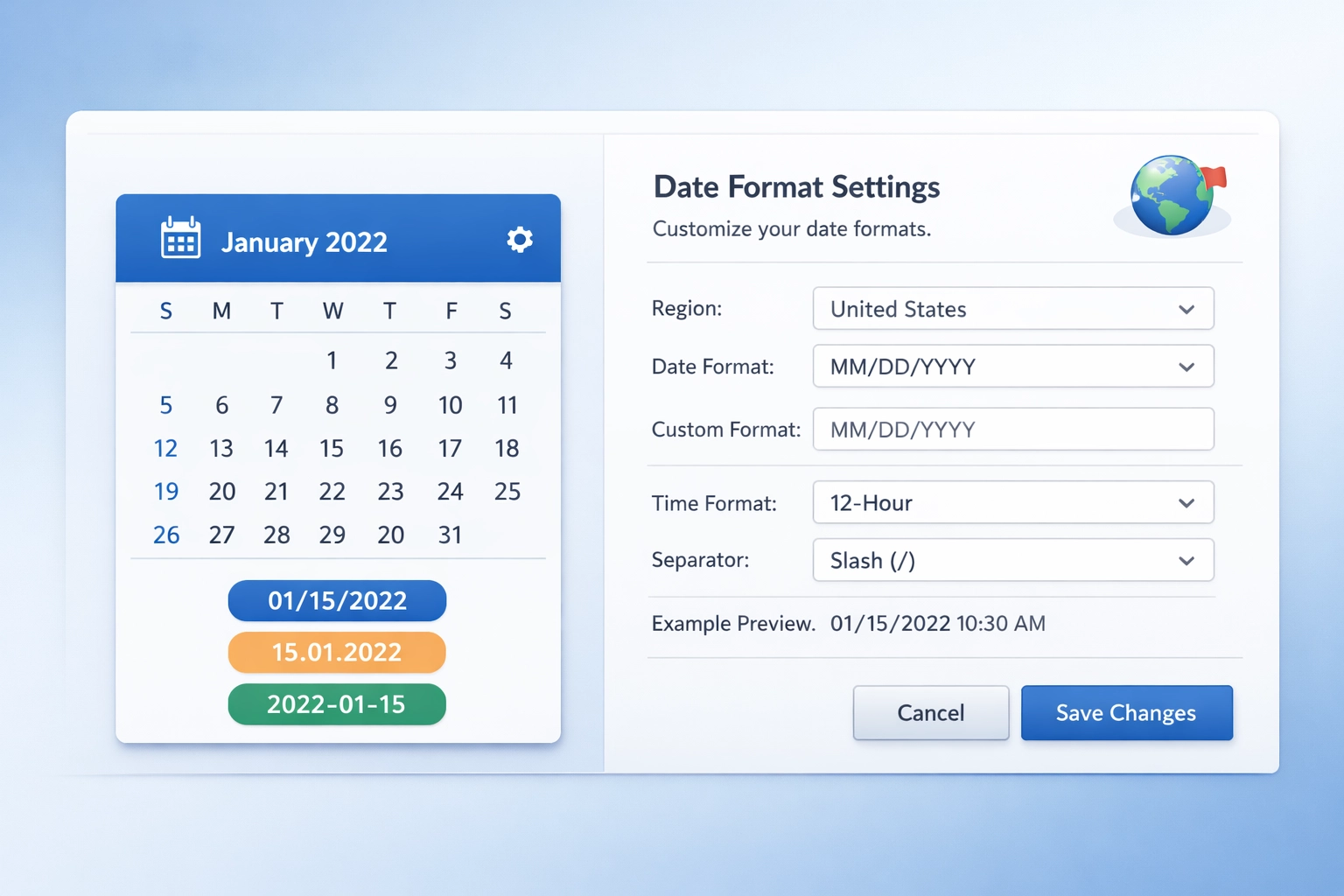
Learn how to customize date formats in Post Affiliate Pro. Configure regional settings, timezone options, and template-based formatting.

Maintaining consistent date formatting across your affiliate tracking system is crucial for accurate reporting, seamless affiliate communication, and professional data presentation. Post Affiliate Pro recognizes this importance and provides comprehensive tools to customize date formats according to your specific needs. The platform offers two powerful approaches to date customization: a user-friendly interface-based method through the Languages and Regional Settings menu, and a more advanced template-based approach using Smarty template syntax. Whether you’re managing a global affiliate network with diverse regional requirements or simply need to align date displays with your local conventions, Post Affiliate Pro delivers the flexibility and control necessary to implement your preferred date formatting standards across the entire system.
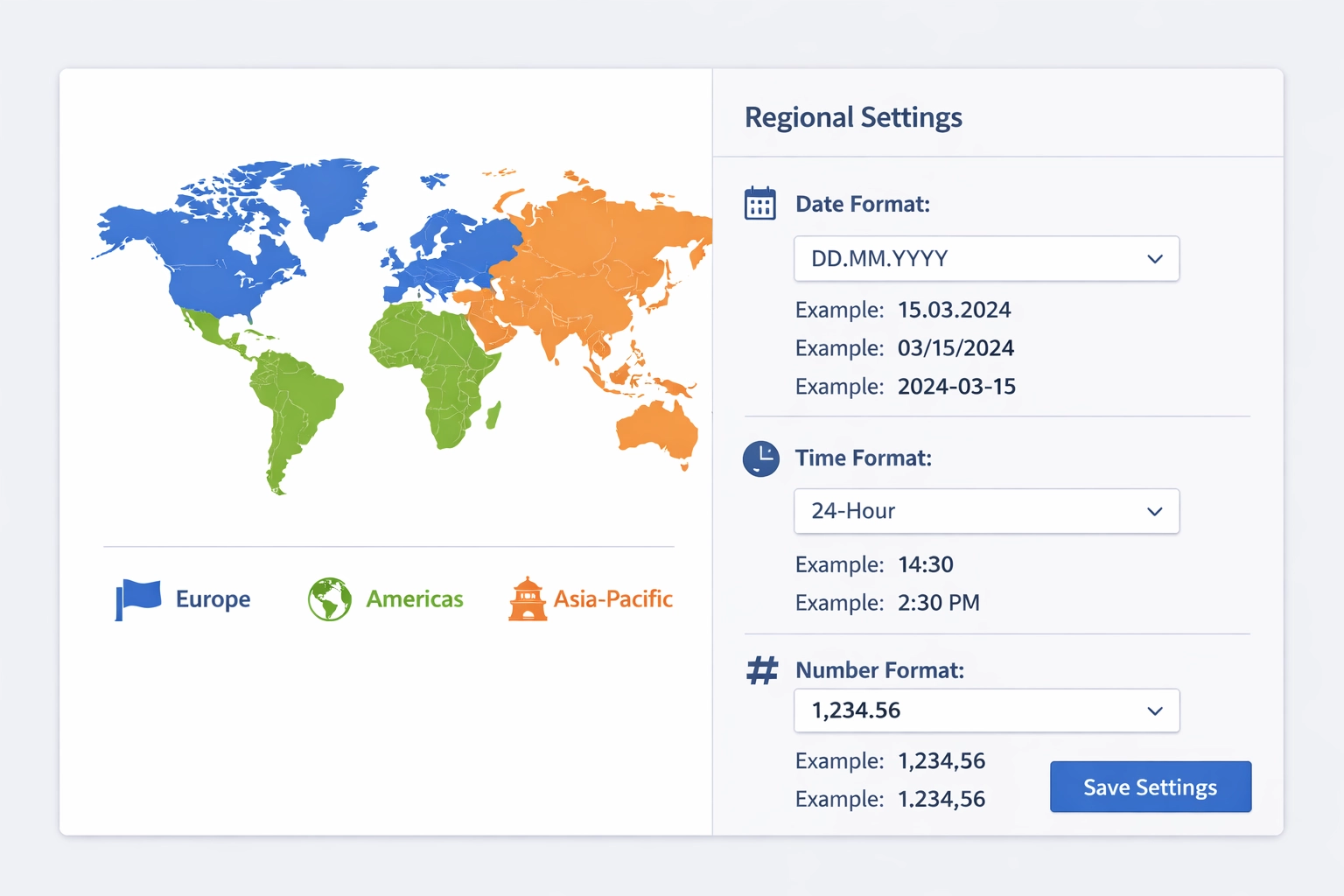
Understanding why date format consistency matters in affiliate software extends beyond mere aesthetics or personal preference. Accurate date representation directly impacts the reliability of your commission calculations, click tracking, and sales attribution reports. When dates are displayed inconsistently or in formats unfamiliar to your affiliates, it creates confusion that can lead to disputes over commission payouts, missed deadlines, and reduced trust in your tracking system. Different regions around the world follow distinct date conventions—Americans typically use MM/DD/YYYY format, while European countries predominantly use DD.MM.YYYY, and many Asian markets prefer YYYY-MM-DD. This regional variation becomes especially important when you’re operating an international affiliate program with partners across multiple countries. Beyond regional preferences, proper date formatting also supports compliance requirements in certain industries and jurisdictions, where specific date representations may be mandated for legal or regulatory purposes. By implementing standardized, region-appropriate date formats, you demonstrate professionalism and attention to detail that strengthens affiliate relationships and reduces administrative friction.

Set up advanced tracking in minutes. No credit card required.
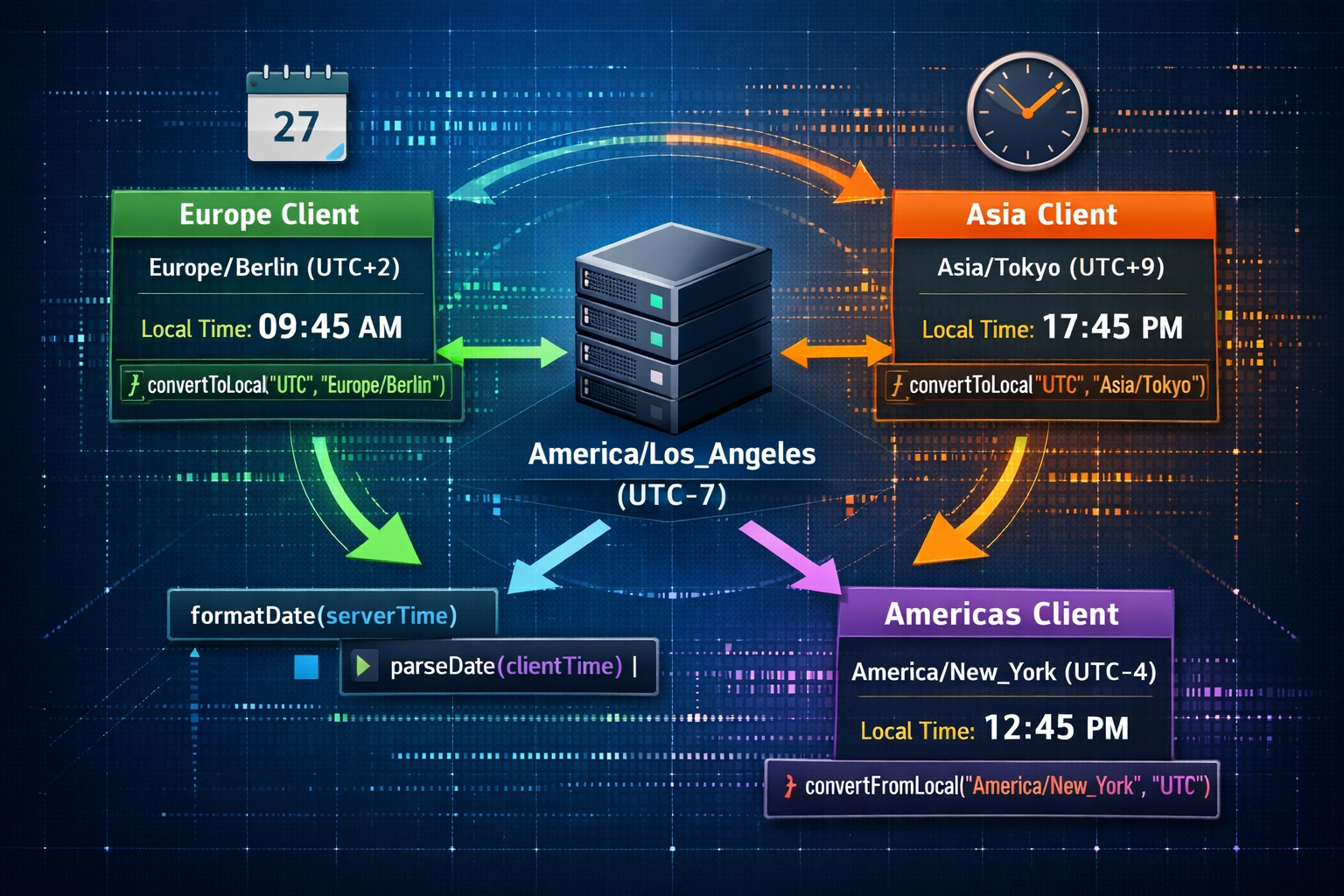
Post Affiliate Pro’s Languages and Regional Settings menu serves as the central hub for all localization and formatting customization. This powerful feature allows you to define custom date, time, and number formats that override the default system settings. The critical concept to understand is that each language in your Post Affiliate Pro installation can have its own distinct date, time, and number format configuration. This means you can support multiple languages simultaneously, each with culturally appropriate formatting conventions. For example, you might configure English to display dates as MM/DD/YYYY while German displays them as DD.MM.YYYY, ensuring that each user sees dates in their expected format. An important distinction exists between server timezone and panel timezone—the server timezone affects how all dates are stored and processed in the database, while panel timezone determines how dates appear to individual users in their merchant or affiliate panels. The server timezone defaults to America/Los_Angeles and applies universally to all API calls and database operations, whereas panel timezone can be customized per user account for personalized display preferences.
| Format Pattern | Example Output | Region |
|---|---|---|
| MM/DD/YYYY | 03/15/2024 | United States |
| DD.MM.YYYY | 15.03.2024 | Germany, Austria |
| YYYY-MM-DD | 2024-03-15 | ISO Standard, Asia |
| DD/MM/YYYY | 15/03/2024 | United Kingdom, Australia |
| MMMM d, yyyy | March 15, 2024 | Formal English |
Configuring custom date formats in Post Affiliate Pro requires navigating to the Configuration menu and selecting Languages and Regional Settings. Once there, click on the Regional Settings tab to access the formatting options. You’ll find three primary fields to customize: Date Format, Time Format, and Number Format. Each field accepts specific pattern codes that determine how dates and times are displayed throughout your system. The date format field uses pattern symbols where %d represents the day of the month, %m represents the month, %Y represents the four-digit year, and %y represents the two-digit year. For time formatting, %H represents hours in 24-hour format, %I represents hours in 12-hour format, %M represents minutes, and %S represents seconds. The %p symbol adds AM/PM designation to time displays. To create a date format like “March 15, 2024,” you would use the pattern %B %d, %Y, where %B produces the full month name. For a more compact format like “03/15/2024,” the pattern would be %m/%d/%Y. Number formatting allows you to specify decimal separators and thousands separators, which is particularly important for displaying commission amounts and statistics correctly across different locales. After entering your desired format patterns, save the configuration, and the new formats will immediately apply throughout your system for that specific language.
Be the first to know about new features and product updates.
The server timezone configuration represents a critical setting that affects all date and time operations within Post Affiliate Pro. By default, the system uses the America/Los_Angeles timezone for all server-side operations, API calls, and database storage. To modify the server timezone, navigate to Configuration > Languages and Regional Settings > Time Zone Settings tab and locate the “Server time zone” field. Here you can select from a comprehensive list of timezone identifiers such as Europe/London, Asia/Tokyo, Australia/Sydney, or any other supported timezone. A crucial consideration when changing the server timezone is understanding its impact on existing data. Unlike panel timezone changes that only affect display, altering the server timezone retroactively adjusts how all previously stored dates are interpreted. For instance, if you change the server timezone from America/Los_Angeles to America/New_York, a commission created five minutes ago will suddenly display as if it were created three hours in the future, because the system reinterprets all existing timestamps through the new timezone lens. New commissions and transactions created after the timezone change will be stored and displayed correctly in the new timezone. This behavior makes it essential to configure your server timezone correctly during initial setup or to plan carefully if changes become necessary later.
⚠️ Warning: Changing the server timezone affects how all historical data is displayed. Plan timezone changes carefully and consider the impact on existing records before implementation.
Template-based date formatting provides advanced customization for users who need precise control over date display in specific contexts. Post Affiliate Pro uses the Smarty template engine, which includes powerful date formatting capabilities through the date_format modifier. When working with templates, you can apply custom date formatting to individual template variables without affecting the global system settings. The Smarty syntax for date formatting follows the pattern {$variable|date_format:"%Y-%m-%d"}, where the date_format modifier accepts strftime() format codes. This approach proves particularly valuable when you need different date formats in different parts of your system—for example, displaying dates in one format in reports while using a different format in email notifications. You might use {$commission.dateinserted|date_format:"%d.%m.%Y"} to display a commission date in European format within a specific template, while the global system setting remains unchanged. Template-based formatting is especially useful for creating custom affiliate reports, generating branded email communications, or building integration points with external systems that require specific date formats. The flexibility of template-based formatting makes it the preferred approach when you need localized formatting for specific use cases while maintaining consistent global settings elsewhere in the system.
{* Display date in European format *}
Commission Date: {$commission.dateinserted|date_format:"%d.%m.%Y"}

{* Display date and time in ISO format *}
Created: {$transaction.dateinserted|date_format:"%Y-%m-%d %H:%M:%S"}

{* Display date with full month name *}
Sale Date: {$sale.dateinserted|date_format:"%B %d, %Y"}

{* Display time in 12-hour format with AM/PM *}
Time: {$click.dateinserted|date_format:"%I:%M %p"}

{* Combine multiple date formats in one template *}
Report Period: {$startdate|date_format:"%d/%m/%Y"} to {$enddate|date_format:"%d/%m/%Y"}
API integration with Post Affiliate Pro requires careful attention to timezone handling, as all dates transmitted through API calls operate in the server’s timezone by default. When you send or receive date information via the API, the system assumes all timestamps are in the server timezone (America/Los_Angeles by default). To properly handle timezone conversions in API implementations, you must calculate the time offset between your local timezone and the server timezone. This involves creating timezone objects for both the server timezone and your local timezone, then calculating the difference in seconds. The Post Affiliate Pro API provides two essential functions for timezone conversion: getClientTime() converts server timestamps to client timezone, while getServerTime() converts client timestamps to server timezone. When filtering transactions by date through the API, you must convert your local date parameters to server time before sending the request, ensuring that the API correctly interprets your date range filters. Similarly, when receiving transaction data from the API, you should convert the returned timestamps from server time to client time for accurate display to your users. For developers building integrations, best practices include always explicitly specifying timezone information in API requests, documenting timezone assumptions in your integration code, and testing date filtering across timezone boundaries to ensure accuracy.
<?php
define('LOCAL_TIMEZONE', 'Europe/Bratislava');
define('TIME_OFFSET', getTimeOffset());

function getTimeOffset() {
    $dateTimeServer = date_create("now", timezone_open('America/Los_Angeles'));
    $dateTimeClient = date_create("now", timezone_open(LOCAL_TIMEZONE));
    return $dateTimeClient->getOffset() - $dateTimeServer->getOffset();
}

function getClientTime($serverTimeStamp) {
    return $serverTimeStamp + TIME_OFFSET;
}

function getServerTime($clientTimeStamp) {
    return $clientTimeStamp - TIME_OFFSET;
}

function getDateTime($timestamp) {
    return date('Y-m-d H:i:s', $timestamp);
}

function dateTimeToClientTime($dateTime) {
    return getDateTime(getClientTime((strtotime($dateTime))));
}

function dateTimeToServerTime($dateTime) {
    return getDateTime(getServerTime((strtotime($dateTime))));
}

// Example: Filter transactions by client timezone dates
$request = new Pap_Api_TransactionsGrid($session);
$request->addFilter('dateinserted', 'D>=', dateTimeToServerTime('2024-03-01'));
$request->addFilter('dateinserted', 'D<=', dateTimeToServerTime('2024-03-31 23:59:59'));
$request->sendNow();

// Display results with client timezone conversion
foreach($request->getGrid()->getRecordset() as $transaction) {
    echo 'Date: ' . dateTimeToClientTime($transaction->get('dateinserted'));
}
?>
Implementing date format best practices across your Post Affiliate Pro installation ensures consistency, reduces confusion, and maintains professional standards throughout your affiliate program. First, establish a single standard date format for your entire system and communicate this format clearly to all affiliates through documentation, onboarding materials, and support resources. Test your chosen date format thoroughly before deploying it to production, particularly if you’re using custom format patterns, to ensure the output matches your expectations across different date ranges and edge cases. Avoid mixing multiple date formats within the same interface or report, as this creates cognitive load for users and increases the likelihood of date interpretation errors. When communicating with affiliates about date-related matters—such as commission payment dates, campaign deadlines, or performance reporting periods—always include the date format in your communications to eliminate ambiguity. If your affiliate program spans multiple regions, consider implementing language-specific date formats through the Languages and Regional Settings feature, allowing each user to see dates in their culturally appropriate format. Document your date format configuration in your internal knowledge base and support documentation, making it easy for new team members and affiliates to understand the system’s date conventions. Regularly audit your date displays across different parts of the system to ensure consistency and catch any formatting inconsistencies that may have been introduced through template customizations or API integrations.
When comparing Post Affiliate Pro’s date formatting capabilities with competing affiliate software platforms like AffiliateWP, the differences in flexibility and control become immediately apparent. While AffiliateWP offers basic date format customization limited to a few predefined options, Post Affiliate Pro provides granular control through pattern-based formatting that supports virtually any date representation you might require. Post Affiliate Pro’s approach of separating server timezone from panel timezone gives administrators and individual users unprecedented flexibility—the server timezone ensures consistent data storage and API operations, while panel timezone allows each user to view dates in their preferred format without affecting the underlying data. AffiliateWP’s simpler approach lacks this distinction, often forcing users to work with a single global date format regardless of their location or preferences. Additionally, Post Affiliate Pro’s template-based formatting through Smarty provides developers with powerful tools to implement custom date displays in specific contexts, a capability that most competing platforms either lack entirely or implement in a much more limited fashion. The comprehensive API timezone conversion support in Post Affiliate Pro demonstrates a level of sophistication that acknowledges the real-world complexity of managing international affiliate programs, whereas competitors often treat timezone handling as an afterthought. For organizations requiring robust, flexible date formatting across complex affiliate networks, Post Affiliate Pro’s approach delivers superior functionality and control.
Troubleshooting date format issues in Post Affiliate Pro typically involves identifying whether the problem stems from regional settings configuration, timezone misalignment, or template-specific formatting errors. If dates display incorrectly throughout your system, first verify that your regional settings are properly configured by navigating to Configuration > Languages and Regional Settings > Regional Settings tab and reviewing the date format pattern. Common mistakes include using incorrect pattern codes (for example, using %d for month instead of %m) or forgetting that patterns are case-sensitive. If dates appear correct in the merchant panel but incorrect in affiliate panels, the issue likely involves individual user timezone settings—check the user’s profile under My Profile > Edit my profile > Timezone section to verify whether a custom timezone is enabled and correctly configured. When dates display correctly in some parts of the system but not others, suspect template-specific formatting issues; review the affected templates for custom date_format modifiers and verify the pattern codes are correct. If API calls return dates in unexpected formats or timezone offsets, ensure your API integration code properly calculates the TIME_OFFSET constant and applies the timezone conversion functions before filtering or displaying dates. For persistent date display inconsistencies that you cannot resolve through configuration review, enable debug logging in your Post Affiliate Pro installation to trace how dates are being processed, or contact Post Affiliate Pro support with specific examples of the incorrect date displays and your current configuration settings.
Post Affiliate Pro uses America/Los_Angeles as the default server timezone. This timezone applies to all server-side operations, API calls, and database storage. You can change it through Configuration > Languages and Regional Settings > Time Zone Settings if needed for your specific requirements.
Yes, absolutely. Each language in your Post Affiliate Pro installation can have its own distinct date, time, and number format configuration. This allows you to support multiple languages simultaneously, each with culturally appropriate formatting conventions that match regional preferences.
Server timezone affects how all dates are stored and processed in the database and applies to all API calls. Panel timezone determines how dates appear to individual users in their merchant or affiliate panels. Server timezone changes affect all historical data interpretation, while panel timezone changes only affect display.
Post Affiliate Pro uses Smarty template syntax with the date_format modifier. Use the pattern {$variable|date_format:"%Y-%m-%d"} where %Y is year, %m is month, and %d is day. This allows you to apply custom date formatting to specific template variables without affecting global system settings.
When you change the server timezone, all existing dates are retroactively reinterpreted through the new timezone lens. For example, changing from America/Los_Angeles to America/New_York would make a commission created 5 minutes ago appear as if it were created 3 hours in the future. New data created after the change will be stored correctly.
Calculate the time offset between your local timezone and the server timezone (America/Los_Angeles by default). Use getServerTime() to convert client timestamps to server time before sending API requests, and getClientTime() to convert returned timestamps back to client time for display.
Yes, template-based formatting allows you to apply custom date formats to specific contexts. You can use different formats in reports, emails, and API integrations while maintaining consistent global settings elsewhere. This provides flexibility for different use cases and external system requirements.
Common patterns include MM/DD/YYYY (United States), DD.MM.YYYY (Germany, Austria), YYYY-MM-DD (ISO standard, Asia), and DD/MM/YYYY (United Kingdom, Australia). Post Affiliate Pro supports all these formats and many more through its flexible pattern-based system.
Post Affiliate Pro's flexible date formatting and regional settings help you manage international affiliate networks with ease. Start customizing your date formats today and improve affiliate communication and reporting accuracy.
Learn how to customize affiliate signup forms in Post Affiliate Pro with up to 25 custom fields, multiple field types, and advanced configuration options. Step-...

We've prepared new improvements and bug fixes to help you be as effective as possible. Here's an overview of what's new.
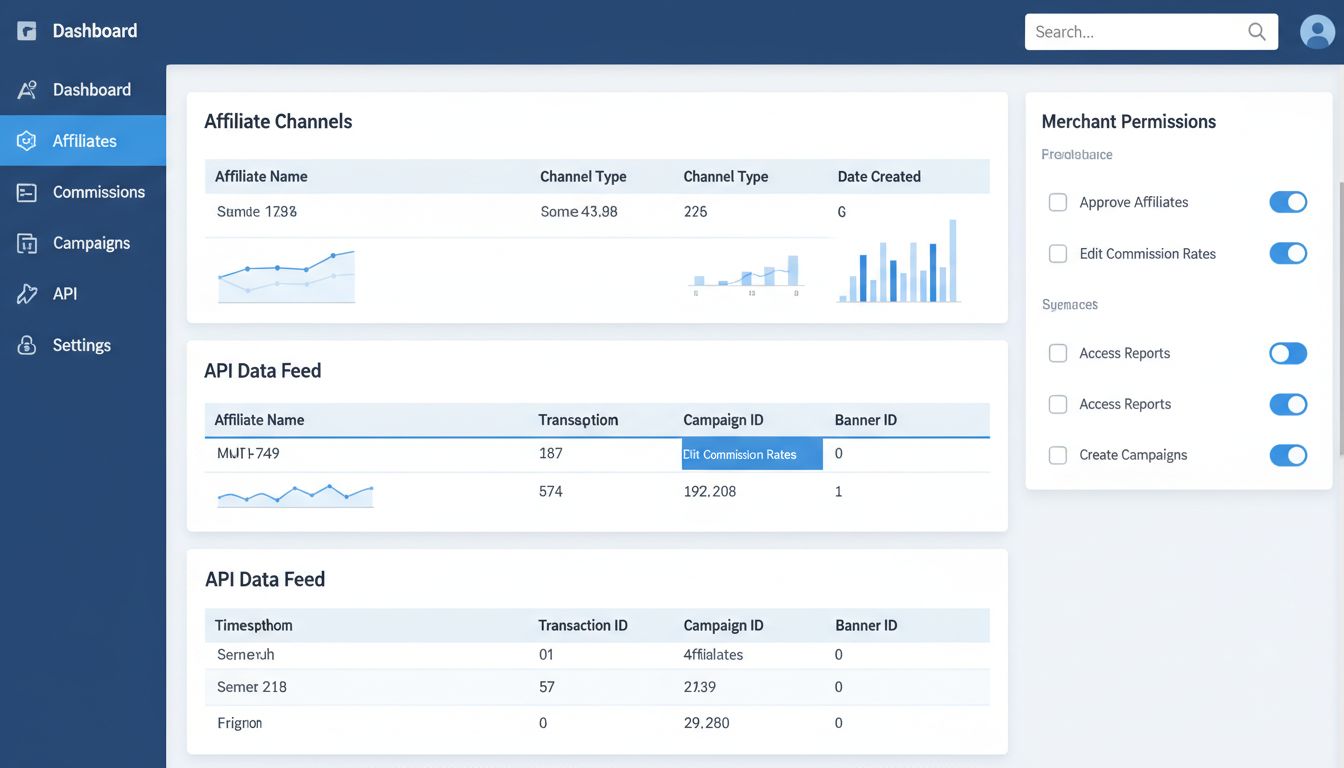
Discover the latest Post Affiliate Pro features including Date Created column for affiliate channels, Campaign ID and Banner ID tracking in API, and new merchan...
Join our community of happy clients and provide excellent customer support with Post Affiliate Pro.



Cookie Consent
We use cookies to enhance your browsing experience and analyze our traffic. See our privacy policy.