
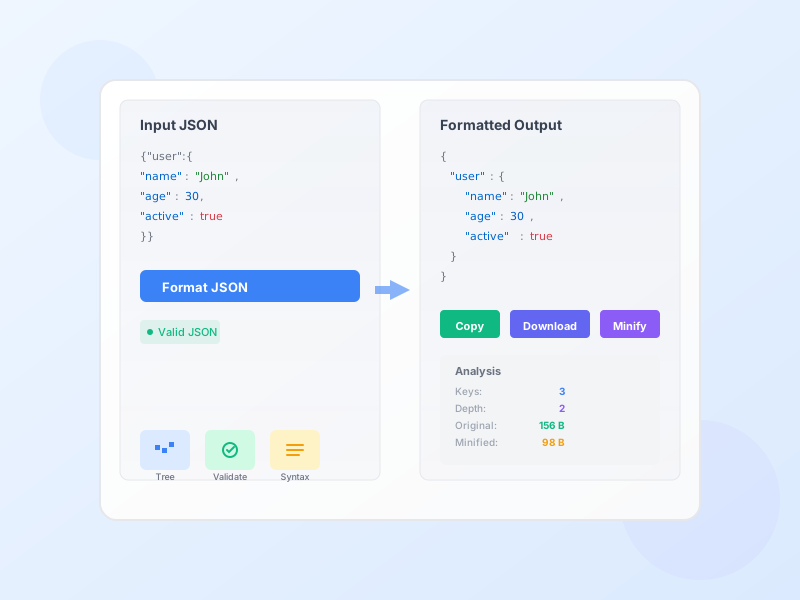
JSON Formatter & Validator - Beautify & Validate JSON Online
Free online JSON formatter and validator. Beautify, minify, validate, and analyze JSON data with syntax highlighting, tree view, and detailed error reporting.
4 min read
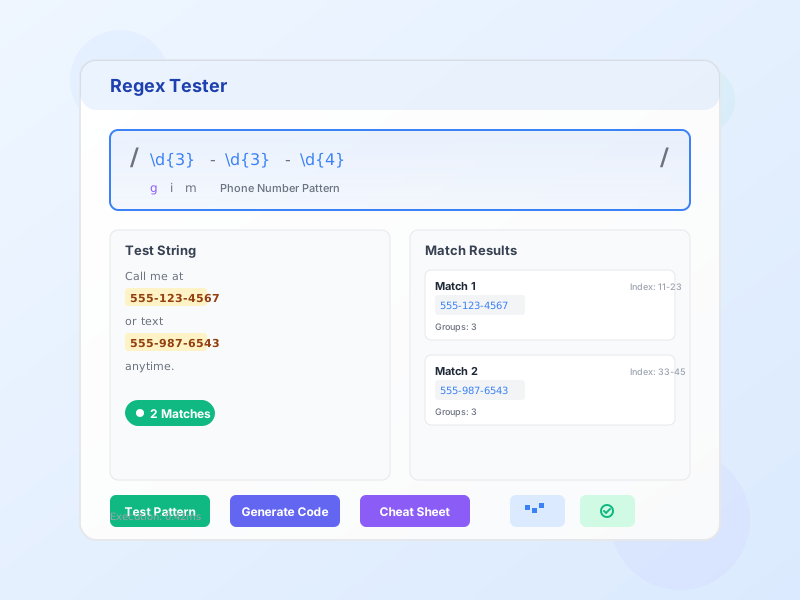
Test and debug regular expressions with real-time pattern matching, syntax highlighting, and match visualization. Get instant feedback with highlighted matches, captured groups, match positions, and execution time. Generate production-ready code in JavaScript, Python, PHP, Java, C#, Ruby, and Go.
Regular expressions (regex) are powerful pattern-matching tools used in every major programming language for text search, validation, extraction, and manipulation. A single regex pattern can replace dozens of lines of string manipulation code.
Real-time Pattern Matching - See matches highlighted instantly as you type. Visual feedback helps you understand exactly what your pattern captures.
Multiple Modes - Test pattern matching, find-and-replace operations, and string splitting all in one tool.
Captured Groups - View all captured groups with their values and positions. Essential for data extraction patterns.
Six Regex Flags - Global, Ignore Case, Multiline, Dotall, Unicode, and Sticky flags with clear explanations.
Pattern Library - 14+ pre-built patterns for common use cases: email, URL, phone, date, IP address, credit card, password validation, and more.
Code Generator - Generate ready-to-use code snippets in JavaScript, Python, PHP, Java, C#, Ruby, and Go. Proper syntax for each language with correct escaping.
Regex Cheat Sheet - Comprehensive reference for all regex syntax including character classes, anchors, quantifiers, groups, and lookaround assertions.
Performance Monitoring - Execution time display helps identify inefficient patterns that could cause production issues.
Email Validation - Verify email addresses match standard formats before sending or storing. Pattern: [a-zA-Z0-9._%+-]+@[a-zA-Z0-9.-]+\.[a-zA-Z]{2,}
Phone Number Extraction - Extract phone numbers from text in various formats (with or without parentheses, dashes, spaces).
URL Matching - Find and validate HTTP/HTTPS URLs in content, support tickets, or user submissions.
Date Parsing - Extract dates in specific formats (YYYY-MM-DD, MM/DD/YYYY) from logs, documents, or user input.
Password Strength - Validate password requirements: minimum length, uppercase, lowercase, numbers, special characters.
Data Cleaning - Remove unwanted characters, normalize spacing, extract specific data from messy text.
Character classes define what type of character to match at a position. . (dot) matches any single character except newline - the most commonly used wildcard. \d matches any digit 0-9, equivalent to [0-9]. Perfect for finding numbers in text. \D matches any non-digit character. \w matches word characters: letters (a-z, A-Z), digits (0-9), and underscore (_). Ideal for matching variable names, usernames, and identifiers. \W matches non-word characters (spaces, punctuation, special characters). \s matches whitespace: spaces, tabs, newlines. Use for trimming or normalizing spacing. \S matches non-whitespace characters. Custom classes like [a-z] match lowercase letters, [A-Z] uppercase, [0-9] digits, [a-zA-Z0-9] alphanumeric. Use [^...] to negate - [^0-9] matches anything except digits.
Anchors don’t match characters - they match positions in the string. ^ (caret) matches the start of the string (or start of line with Multiline flag). Use ^Hello to match strings that begin with “Hello”. $ (dollar) matches end of string/line. Combine ^pattern$ to match entire string exactly - crucial for validation (usernames, passwords, formats). Without anchors, patterns match anywhere - \d{3} matches any 3 digits even inside longer numbers. With anchors ^\d{3}$, only exactly 3-digit strings match. \b is a word boundary - the position between a word character (\w) and non-word character. \bcat\b matches “cat” but not “category” or “bobcat”. Prevents partial word matches. \B matches non-word boundaries - positions between two word characters or two non-word characters.
Quantifiers specify how many times the preceding element should match. * (asterisk) means zero or more. a* matches “”, “a”, “aa”, “aaa”. Commonly used as .* to match anything. + (plus) means one or more. a+ matches “a”, “aa”, “aaa” but not empty string. Use \d+ for numbers with at least one digit. ? (question mark) means zero or one - makes element optional. colou?r matches both “color” and “colour”. {n} matches exactly n times. \d{3} matches exactly 3 digits. {n,} matches n or more times. \w{3,} matches words with 3+ characters. {n,m} matches between n and m times. [a-z]{5,10} matches 5-10 lowercase letters. Greedy vs Lazy: Quantifiers are greedy by default (match as much as possible). Add ? to make lazy: .*? matches as little as possible. Important when matching between delimiters like <.*?> for HTML tags.
Capturing groups (...) serve two purposes: grouping parts of a pattern and capturing matched text for later use. Pattern (\d{3})-(\d{4}) matching “555-1234” captures group 1 = “555” and group 2 = “1234”. Use in replacements: replacement ($2) $1 converts to “(1234) 555”. Non-capturing groups (?:...) group without capturing - use when you need grouping for quantifiers but don’t need the captured text. Improves performance. Example: (?:http|https):// groups the alternation without capturing. Named groups (?<name>...) let you reference captures by name instead of number: (?<year>\d{4})-(?<month>\d{2}). Alternation | means OR - match one pattern or another. cat|dog matches “cat” or “dog”. Use with groups: (Mr|Ms|Mrs)\.? \w+ matches “Mr Smith”, “Ms. Jones”, “Mrs Brown”.
Lookaround assertions check if a pattern exists ahead or behind without including it in the match - powerful for complex conditions. Positive lookahead (?=...) asserts that the pattern ahead matches. \d(?=px) matches digits only when followed by “px” - matches “12” in “12px” but not in “12em”. Negative lookahead (?!...) asserts the pattern ahead does NOT match. \d(?!px) matches digits NOT followed by “px”. Positive lookbehind (?<=...) asserts pattern behind matches. (?<=\$)\d+ matches numbers preceded by dollar sign - matches “50” in “$50” but not “50”. Negative lookbehind (?<!...) asserts pattern behind doesn’t match. Use for complex password rules: ^(?=.*[a-z])(?=.*[A-Z])(?=.*\d).{8,}$ requires lowercase, uppercase, digit, and 8+ characters using multiple lookaheads.
Many characters have special meaning in regex and must be escaped with backslash \ to match literally. Metacharacters that need escaping: . * + ? [ ] { } ( ) ^ $ | \ - to match a literal period, use \. not . (which means “any character”). To match asterisk use \*. \n matches newline character (line break). \t matches tab character. \r matches carriage return. \\ matches literal backslash (since backslash is the escape character). Special sequences like \d \w \s don’t need escaping - they ARE the escaped form. In programming language strings, you often need double backslashes because the string also escapes: JavaScript new RegExp('\\d+') or use regex literals /\d+/ to avoid double escaping. Test escaping patterns in this tool before implementing in code.
Regex flags (also called modifiers) change how the entire pattern behaves. Global (g) finds all matches instead of stopping after the first. Essential for counting occurrences or replacing all instances. Without it, only first match is found. Ignore Case (i) makes matching case-insensitive. Pattern hello with i flag matches “Hello”, “HELLO”, “hElLo”. Crucial for user input where case varies. Multiline (m) changes ^ and $ to match start/end of each line instead of entire string. Without m, ^start in multi-line text only matches the very first “start”. With m, it matches “start” at beginning of every line. Dotall (s) makes dot . match newline characters, which it normally doesn’t. Use for matching across line breaks. Unicode (u) enables proper Unicode support for matching emoji, accented characters, and multi-byte characters. Sticky (y) matches only at exact lastIndex position - advanced flag for sequential parsing.
The biggest regex mistake is trying to write complex patterns all at once. Always start with the simplest pattern that matches your target, then add complexity incrementally. For example, to match email addresses, start with \w+@\w+ and verify it matches basic emails. Then add dot support: [\w.]+@\w+. Then add domain extension: [\w.]+@\w+\.\w+. Then handle multiple domain levels: [\w.]+@[\w.]+\.\w+. Finally refine character classes: [a-zA-Z0-9._%+-]+@[a-zA-Z0-9.-]+\.[a-zA-Z]{2,}. Test each step in the Regex Tester before adding the next piece. This approach makes debugging easy - if something breaks, you know exactly which addition caused it. Incremental development also helps you understand each component’s role, making future maintenance easier.
When validating input (usernames, passwords, formats), always use anchors ^ at start and $ at end to match the entire string. Without anchors, partial matches pass validation incorrectly. For example, username pattern [a-z]{3,10} seems reasonable, but without anchors it matches “abc” inside “abc123!@#$xyz” - probably not what you want. The correct pattern ^[a-z]{3,10}$ ensures the ENTIRE string is 3-10 lowercase letters with nothing else. Similarly, password validation ^(?=.*[a-z])(?=.*[A-Z])(?=.*\d).{8,}$ uses anchors to ensure the whole password meets requirements, not just a substring. Use anchors for: email validation, phone number verification, ZIP code checks, date format validation, credit card validation - any scenario where you’re checking if input matches a specific format exactly.
Regex has 12 special characters (metacharacters) with special meaning: . * + ? [ ] { } ( ) ^ $ | \ - if you want to match these literally, you must escape them with backslash. Common mistakes: trying to match file extensions with .txt (this matches any character + “txt”). Correct: \.txt. Matching currency with $5 matches end-of-string + “5”. Correct: \$5. Matching URLs with http:// fails because // can mean comments in some flavors. Correct: http:\/\/ (though forward slash doesn’t always need escaping, it’s safer). Matching .com domains requires \.com not .com. When in doubt, escape it. Inside character classes [...], most special characters lose their special meaning (except ], \, ^, -) so [.] matches literal period without backslash, but [\.] is safer and clearer.
Every capturing group (...) consumes memory and processing time to store the captured text. If you need grouping for applying quantifiers or alternation but don’t need the captured text, use non-capturing groups (?:...) instead. For example, (?:http|https):// groups the alternation without capturing - you don’t need to extract “http” or “https”, you just need to match either. Performance difference is minimal for simple patterns, but significant in complex patterns with many groups or when processing large text. Rule of thumb: use capturing groups only when you need to extract or reference the matched text (in replacements with $1, $2, etc.). Use non-capturing groups everywhere else. This also makes your replacement references simpler - fewer groups means $1, $2, $3 correspond to only the data you actually want to capture.
Regex bugs appear most often in edge cases. Always test: Empty strings - Does your pattern handle empty input correctly? Should ^\d*$ match "" (it does because * means zero or more)? Very long strings - Patterns with nested quantifiers can cause catastrophic backtracking. Test with 1000+ character strings. Special characters - Test strings with quotes, apostrophes, newlines, tabs, Unicode characters, emoji. Does your email pattern handle user+tag@example.com? Boundary cases - Single character inputs, maximum length inputs. Does username validation ^[a-z]{3,10}$ correctly reject 2-character and 11-character usernames? Negative cases - Ensure patterns reject invalid input. Does email regex correctly reject @example.com, user@, user@.com? Alternate formats - Phone numbers can be (555) 123-4567, 555-123-4567, 555.123.4567, 5551234567. Test all valid formats and ensure invalid ones fail.
Regex performance varies dramatically based on pattern complexity and text length. Avoid catastrophic backtracking - nested quantifiers like (a+)+b or (a*)*b cause exponential time complexity when the pattern fails to match. Symptoms: regex hangs or times out. Solution: simplify patterns, use possessive quantifiers, or atomic groups. Be specific - [a-z]+ is much faster than .+ when you know you’re matching letters. Specific character classes reduce backtracking. Use anchors - ^\d{3}-\d{4}$ is faster than \d{3}-\d{4} because the engine can quickly reject strings that don’t start with a digit. Avoid unnecessary alternation - (cat|dog|bird|fish) with many alternatives is slower than (cat|dog) with few. Consider whether you can restructure. Monitor execution time - this tester shows milliseconds. Patterns under 1ms are excellent, 1-10ms acceptable, 10-100ms concerning, 100ms+ indicates serious problems. Always test with production-sized data.
A regular expression (regex) is a sequence of characters that defines a search pattern, primarily used for pattern matching in strings. Regex is supported in virtually every programming language (JavaScript, Python, PHP, Java, C#, Ruby, Go) and is essential for tasks like validation (email, phone numbers), text search and replace, data extraction, log parsing, and input sanitization. For example, the pattern `\d{3}-\d{3}-\d{4}` matches phone numbers like 555-123-4567. Regex uses special characters called metacharacters (. * + ? [ ] { } ( ) ^ $ | \) that have special meanings: `.` matches any character, `*` means zero or more, `+` means one or more, `[]` defines character sets, and `()` creates groups. Mastering regex dramatically improves your ability to manipulate text efficiently.
Using the Regex Tester is simple: (1) **Enter Pattern** - Type your regex pattern in the 'Regular Expression' field (e.g., `\d+` to match numbers). The pattern is automatically wrapped in forward slashes. (2) **Select Flags** - Enable flags like Global (g) to find all matches, Ignore Case (i) for case-insensitive matching, Multiline (m) to treat each line separately, or other advanced flags. (3) **Choose Mode** - Select Match to find pattern occurrences, Replace to test substitution, or Split to divide text by pattern. (4) **Enter Test String** - Paste or type text in the test string area to match against your pattern. (5) **Test Pattern** - Click 'Test Pattern' to see real-time results with highlighted matches, captured groups, match positions, and execution time. (6) **Review Results** - Examine highlighted matches, captured groups, and detailed match information. (7) **Generate Code** - Click any language button (JavaScript, Python, PHP, Java, C#, Ruby, Go) to generate ready-to-use code snippets.
Regex flags modify how pattern matching behaves: **Global (g)** - Finds all matches in the text instead of stopping after the first match. Essential for search-and-replace operations and counting occurrences. **Ignore Case (i)** - Makes pattern matching case-insensitive. `hello` matches 'Hello', 'HELLO', 'hElLo'. **Multiline (m)** - Changes ^ and $ behavior to match start/end of each line instead of entire string. Crucial for processing multi-line text like log files. **Dotall (s)** - Makes the dot (.) match newline characters (\n), which it normally doesn't. Useful for matching across line breaks. **Unicode (u)** - Enables full Unicode matching, properly handling Unicode characters, emoji, and multi-byte characters. **Sticky (y)** - Matches only at the exact position specified by lastIndex property. Advanced flag for sequential parsing.
Capturing groups are portions of a regex pattern enclosed in parentheses `()` that 'capture' matched text for later use. They serve two purposes: grouping pattern elements and extracting specific data. For example, in the pattern `(\d{3})-(\d{3})-(\d{4})` matching '555-123-4567', you get three captured groups: Group 1 = '555', Group 2 = '123', Group 3 = '4567'. Use captured groups in replacements with $1, $2, etc. To swap first and last name: pattern `(\w+) (\w+)` with replacement `$2, $1` converts 'John Doe' to 'Doe, John'. **Non-capturing groups** `(?:...)` group without capturing, improving performance when you don't need the matched text. **Named groups** `(?
The three modes serve different text processing purposes: **Match Mode** - Finds all occurrences of your pattern in the test string, highlighting each match and showing captured groups, match positions (start/end index), and total match count. Use this to validate patterns, extract data, or count occurrences. **Replace Mode** - Tests find-and-replace operations by substituting matched text with a replacement string. Supports backreferences ($1, $2) to reuse captured groups. Perfect for testing text transformations before implementing in code. For example, pattern `(\d{2})/(\d{2})/(\d{4})` with replacement `$3-$1-$2` converts '01/27/2026' to '2026-01-27'. **Split Mode** - Divides the test string into an array of substrings using the regex pattern as the delimiter. Similar to string.split() in JavaScript or re.split() in Python. Useful for parsing CSV data, splitting on multiple delimiters, or tokenizing text.
The Pattern Library includes 14+ ready-to-use patterns for common validation tasks: **Email** - `[a-zA-Z0-9._%+-]+@[a-zA-Z0-9.-]+\.[a-zA-Z]{2,}` matches standard email addresses. **URL** - Matches HTTP/HTTPS URLs with optional www, paths, and query strings. **Phone (US)** - `\(?\d{3}\)?[-.\s]?\d{3}[-.\s]?\d{4}` matches (555) 123-4567, 555-123-4567, 555.123.4567. **Date (ISO)** - `\d{4}-\d{2}-\d{2}` matches YYYY-MM-DD format. **IPv4** - Matches IP addresses like 192.168.1.1. **Hex Color** - Matches #FF5733 or #FFF. **Username** - Validates 3-16 character usernames with letters, numbers, dash, underscore. **Strong Password** - Requires 8+ characters with uppercase, lowercase, number, and special character. **ZIP Code** - Matches US ZIP codes (12345 or 12345-6789). **Credit Card** - Matches card numbers with optional spaces/dashes. **SSN** - Matches 123-45-6789 format. **Time (24h)** - Matches 14:30 format. Click any pattern to load it instantly.
Once you've tested your regex pattern successfully, use the Code Generator to export ready-to-use code in seven programming languages. After testing your pattern, the Code Generator section appears below the results. Click any language button (JavaScript, Python, PHP, Java, C#, Ruby, Go) to see syntax-correct code for that language. The generator automatically includes your pattern, flags, and test string, formatted according to each language's conventions. For example, JavaScript uses `/pattern/flags` syntax, Python uses `re.compile(r'pattern')`, PHP uses `preg_match('/pattern/')`, and so on. The code includes proper escaping, flag translation (JavaScript's 'g' becomes Python's re.MULTILINE), and common matching operations. Click 'Copy Code' to copy the snippet to your clipboard, then paste directly into your project. This saves time and ensures correct syntax across different programming languages.
Common regex issues and solutions: **1. Special characters not escaped** - Characters like . * + ? [ ] { } ( ) ^ $ | \ have special meaning. Use backslash to escape them: `\.` matches a literal period. **2. Missing or wrong flags** - Forgetting the Global (g) flag means only first match is found. Needing case-insensitive matching requires Ignore Case (i) flag. **3. Greedy vs lazy quantifiers** - `.*` is greedy (matches as much as possible), `.*?` is lazy (matches as little as possible). Use lazy quantifiers when matching between delimiters. **4. Anchors misunderstanding** - `^` and `$` match start/end of string. Without Multiline (m) flag, they don't match line boundaries. **5. Character class mistakes** - `[a-z]` matches lowercase only, `[a-zA-Z]` matches all letters. **6. Backslash escaping** - In JavaScript strings, use double backslashes: `new RegExp('\\d+')` because strings consume one backslash. **7. Catastrophic backtracking** - Complex patterns with nested quantifiers can cause exponential performance issues. Simplify or use atomic groups.
The execution time (displayed in milliseconds) shows how long your regex pattern took to execute against the test string. This performance metric is crucial for identifying inefficient patterns that could cause problems in production. Patterns under 1ms are excellent. 1-10ms is acceptable for most use cases. 10-100ms suggests the pattern may be inefficient - consider optimization. Over 100ms indicates a serious performance problem, often caused by catastrophic backtracking. Catastrophic backtracking occurs with nested quantifiers like `(a+)+b` when matching fails - the regex engine tries exponentially more combinations. To optimize: (1) Use possessive quantifiers or atomic groups to prevent backtracking, (2) Be specific - `[a-z]+` is faster than `.+`, (3) Anchor patterns when possible, (4) Avoid alternation in loops, (5) Use non-capturing groups `(?:...)` instead of capturing groups when you don't need the matched text. Test your patterns with large strings (1000+ characters) to ensure production readiness.
Absolutely! This tester is designed for both learning and professional use. **Learning Features:** The Pattern Explanation shows what your pattern does in plain English, helping you understand regex syntax. The Cheat Sheet button opens a comprehensive reference with all regex syntax (character classes, anchors, quantifiers, groups, lookaround, special characters) and their meanings. The Pattern Library provides 14+ real-world examples you can study and modify to learn patterns for email validation, URL matching, date parsing, and more. The real-time highlighting shows exactly what each part of your pattern matches. The captured groups display demonstrates how parentheses extract data. **Practice Approach:** (1) Start with simple patterns (`\d+` for numbers, `\w+` for words) and test them. (2) Use the Pattern Library - click a pattern, examine how it works, modify it slightly, and retest. (3) Refer to the Cheat Sheet when you encounter unfamiliar syntax. (4) Build complex patterns incrementally - add one piece at a time and verify it works before adding more. (5) Generate code to see how regex is implemented in your preferred programming language.
Yes, completely secure. This Regex Tester runs entirely in your browser using client-side JavaScript - zero server processing, zero data transmission, zero storage on external servers. Your regex patterns and test strings never leave your computer. All pattern matching, highlighting, and code generation happen locally in your browser's JavaScript engine. No network requests are made during testing (the tool works offline once loaded). No cookies are set, no analytics track your patterns, and no session data is stored remotely. Pattern history is saved only in your browser's localStorage on your own device - never synced to servers. This privacy-first architecture makes the tool completely safe for testing sensitive data like customer information, proprietary data formats, confidential logs, or any regex pattern that might reveal business logic. You can safely test email addresses, phone numbers, SSNs, API tokens, or any other data without privacy concerns. The tool is ideal for regulated industries (healthcare, finance) where data must remain on-premises.
Manage multiple affiliate programs and improve your affiliate partner performance with Post Affiliate Pro.
Free online JSON formatter and validator. Beautify, minify, validate, and analyze JSON data with syntax highlighting, tree view, and detailed error reporting.
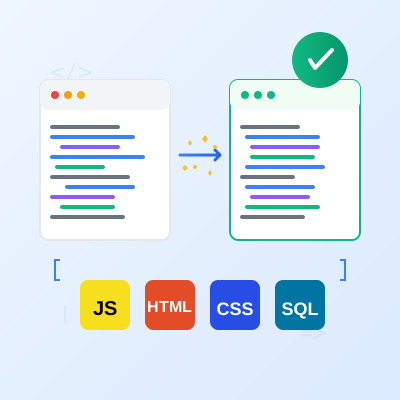
Free online code beautifier and formatter. Format and beautify JavaScript, HTML, CSS, SQL, and more with syntax highlighting, customizable options, and instant ...
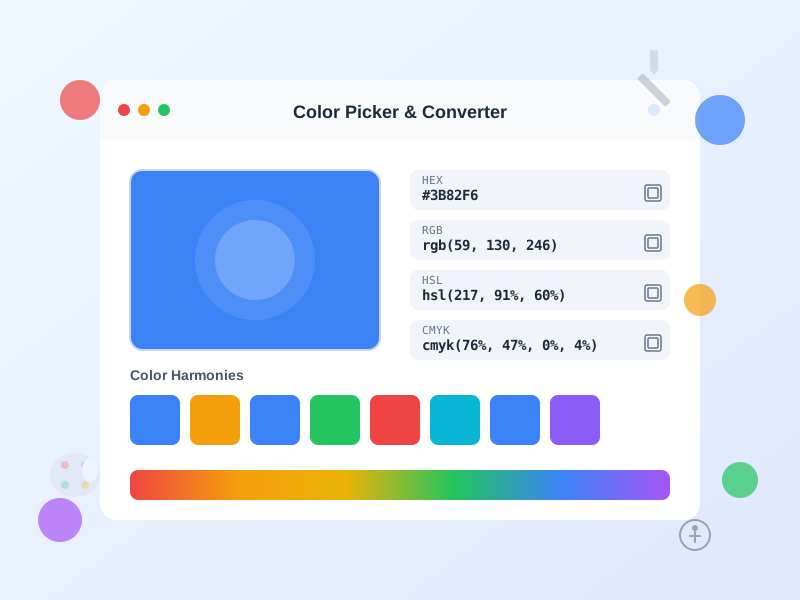
Free online color picker tool with instant conversion between HEX, RGB, HSL, HSV, and CMYK formats. Generate color palettes, check WCAG accessibility, and creat...
Join our community of happy clients and provide excellent customer support with Post Affiliate Pro.



Cookie Consent
We use cookies to enhance your browsing experience and analyze our traffic. See our privacy policy.