
QR Code Generator for Affiliate Links
Create professional, scannable QR codes for your affiliate links.
8 min read
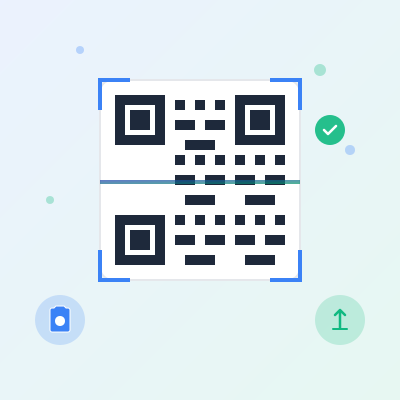
Free online QR code scanner and reader. Scan QR codes using your camera, upload images, or drag & drop. Instantly decode URLs, WiFi passwords, vCards, and more. Privacy-focused scanning—all processing happens locally in your browser with no uploads. Works on mobile and desktop with real-time camera scanning.
A QR code scanner (also called QR code reader) is a tool that decodes Quick Response (QR) codes—two-dimensional barcodes that store information like URLs, text, contact details, WiFi credentials, and more. Unlike traditional barcodes (UPC, EAN) that store limited numeric data in horizontal lines, QR codes use a matrix of black and white squares to encode significantly more information in a compact, square format.
How QR code scanning works:
This online QR scanner features:
1. Universal compatibility
Online QR scanners work on any device with a web browser—no app installation required. Scan QR codes on iPhone, Android phone, Windows PC, Mac, Linux, iPad, Chromebook, or any device with internet access. Unlike native QR scanner apps (iOS Camera app, Google Lens, dedicated scanner apps) that require installation and OS compatibility, web-based scanners are instantly accessible via URL—bookmark for quick access.
2. Privacy and security
This scanner processes QR codes entirely in your browser using JavaScript—no images are uploaded to external servers. When you scan via camera, the video stream processes locally frame-by-frame with no recording or transmission. Uploaded images decode in browser memory using Canvas API, never leaving your device. Scan history stores in browser localStorage (device-specific storage), not remote databases. No tracking, no cookies, no analytics—your scanned QR codes remain private.
Contrast with some QR scanner apps and cloud-based scanners that upload QR images to servers for processing, logging scanned URLs, or injecting ads/tracking. This scanner has no such data collection—fully client-side processing ensures your privacy.
3. Multi-format support
Scan QR codes from three input methods:
4. Content type detection
Not all QR codes are simple text or URLs—this scanner automatically detects and formats specialized QR code types:
5. Instant results with action buttons
After decoding, results display immediately with relevant action buttons:
6. Scan history
Last 10 scanned QR codes save to browser localStorage for quick reference. Review previous scan results without re-scanning—useful for comparing multiple QR codes, referencing scanned information later, or recovering accidentally closed results. Each history entry shows content type badge, timestamp (e.g., “2h ago”), and truncated preview of decoded content. Click any history item to reload full results.
History persists across browser sessions (even after closing browser) until you clear browser data or click “Clear All” button. Device-specific storage—history doesn’t sync across devices (not cloud-based).
URL QR Codes - Web Links
Most common QR code type, encoding web addresses (https://example.com ). Widely used for:
WiFi QR Codes - Network Credentials
Encode WiFi network name (SSID), password, and security type in standardized format (WIFI:T:WPA;S:NetworkName;P:Password;;). Used for:
Note: This web scanner displays WiFi credentials but cannot auto-connect your device (browser security limitation). Native mobile QR scanners (iOS Camera app, Android built-in scanner) support automatic WiFi connection—use those for one-tap setup.
vCard QR Codes - Contact Information
Encode digital business cards in vCard format (BEGIN:VCARD…END:VCARD) including name, phone, email, organization, job title, website, address. Used for:
Email QR Codes
Encode email addresses (mailto:email@example.com or plain email format). Used for:
Phone QR Codes
Encode phone numbers (tel:+1234567890 or plain numeric format). Used for:
SMS QR Codes
Encode text messages with pre-filled recipient and message (sms:+1234567890:Message text). Used for:
Geo/Location QR Codes
Encode geographic coordinates (geo:latitude,longitude or geo:latitude,longitude?q=Place+Name). Used for:
Calendar/Event QR Codes
Encode iCalendar events (BEGIN:VEVENT…END:VEVENT) with event title, date, time, location, description. Used for:
Method 1: Camera Scanning (Mobile/Desktop Webcam)
Best for scanning physical QR codes (business cards, posters, product labels, menus, packaging).
Camera tips:
Method 2: Image Upload (Drag-and-Drop or Browse)
Best for QR codes in digital images (screenshots, photos, downloaded images, email attachments).
Upload tips:
Method 3: URL Scanning (Load from Web)
Best for QR codes embedded in web pages, social media posts, or shared via image URLs.
URL scanning tips:
After scanning, this tool automatically detects QR code content type and displays appropriate formatting and actions. Here’s what each type means:
URL (Blue Badge)
QR code contains web address (http:// or https://). Most common type for marketing, product info, event tickets, menus.
EMAIL (Green Badge)
QR code contains email address (mailto: link or plain email format like user@example.com ).
PHONE (Purple Badge)
QR code contains phone number (tel: link or plain numeric format like +1-555-123-4567).
WIFI (Yellow Badge)
QR code contains WiFi network credentials in standardized format (WIFI:T:WPA;S:NetworkName;P:Password;;).
VCARD (Pink Badge)
QR code contains contact card in vCard format (BEGIN:VCARD…END:VCARD).
TEXT (Gray Badge)
QR code contains plain text that doesn’t match other specific formats (URL, email, phone, etc.).
Other types (SMS, GEO, CALENDAR)
Less common QR code types detected but not specially parsed (displayed as text with type badge).
Scan History
Every scanned QR code automatically saves to history (last 10 scans). History displays in right panel below results with:
Using scan history:
Clear history:
Click “Clear All” button to delete all scan history. Confirmation prompt appears—confirm to permanently erase history. Cannot be undone—cleared history is irrecoverable.
Settings
Auto-open URLs: When enabled, scanned QR codes containing URLs automatically open in new browser tab immediately after decoding (skips “Open URL” button click). Useful for quickly visiting links without manual action. Disabled by default for security—verify URL before visiting. Enable if scanning trusted QR codes (your own, known sources).
Settings save to browser localStorage and persist across sessions.
This QR code scanner is privacy-focused and secure:
1. Client-side processing only
All QR code scanning happens entirely in your browser using JavaScript—no images or decoded content is uploaded to external servers. When you upload an image, it’s processed in browser memory via Canvas API and immediately decoded. Camera scanning processes video stream frame-by-frame in browser—no recording, no transmission. Zero server-side processing—100% client-side.
2. No data collection
3. Camera privacy
4. Local storage only
5. Security considerations when scanning QR codes
While this scanner is secure, QR codes themselves can be malicious—always verify QR code sources:
Best practices:
This QR code scanner works on all modern browsers with JavaScript and Canvas API support:
Desktop Browsers:
Mobile Browsers:
Camera Scanning Requirements:
Unsupported Browsers:
Troubleshooting browser issues:
1. Ensure good lighting
QR codes need adequate lighting for camera detection and accurate decoding:
2. Hold camera steady
Blurry images from shaky hands reduce scanning accuracy:
3. Proper distance and alignment
4. Use high-resolution images (uploads)
For best accuracy when uploading QR code images:
5. Ensure sufficient contrast
QR codes rely on high contrast between dark modules and light background:
6. Clean physical QR codes
Physical damage reduces scanning accuracy:
7. Verify QR code source
Before scanning, verify QR code legitimacy:
Do I need to install an app to scan QR codes?
No, this web-based QR code scanner requires no installation—works directly in your browser on any device (phone, tablet, computer). Bookmark this page for quick access anytime. Alternative: Native QR scanners (iOS Camera app, Google Lens, dedicated scanner apps) offer some advantages (better camera performance, offline use, automatic WiFi connection), but require installation and updates. This online scanner provides instant access without storage space or app management.
Can I scan QR codes without internet?
Partially. After initial page load (downloads HTML, CSS, JavaScript, jsQR library), you can scan uploaded images offline—no internet required for decoding. Camera scanning and URL scanning require active browser/internet. For guaranteed offline QR scanning (remote locations, travel, no WiFi), use native QR scanner apps that work fully offline after installation.
Why does camera scanning need permission?
Browser security requires explicit user permission to access camera/microphone—prevents malicious websites from secretly recording users. When you click “Start Camera”, browser displays permission prompt. Grant permission to allow camera access. Permission is site-specific—granting access on this site doesn’t affect other sites. Revoke permission anytime via browser settings. Your camera stream processes locally in browser and is never recorded or uploaded.
Can I scan barcodes (UPC, EAN, Code128)?
No, this scanner only reads QR codes (Quick Response codes)—two-dimensional matrix barcodes. Traditional one-dimensional barcodes (UPC, EAN-13, Code128, Code39) require different decoding algorithms. For barcode scanning, use dedicated barcode scanner apps (ZXing-based apps, Barcode Scanner apps) that support multiple barcode formats.
How do I create QR codes?
Use this site’s QR Code Generator tool (companion to this scanner). Generate custom QR codes for URLs, text, WiFi, vCard, email, phone, SMS. Customize size, colors, error correction, and add logos. Download as PNG or SVG. Test generated QR codes with this scanner to ensure scannability.
What if my QR code won’t scan?
Common solutions: (1) Improve lighting—add more light or enable phone flashlight. (2) Clean QR code—remove smudges, dirt, wrinkles. (3) Increase image resolution—upload higher-quality photo or move camera closer. (4) Check contrast—ensure dark modules on light background (not faded or low-contrast colors). (5) Verify QR code validity—regenerate if damaged beyond error correction capacity. (6) Try different scanning method—if camera fails, try uploading photo; if upload fails, try URL scanning.
Is it safe to scan unknown QR codes?
No—malicious QR codes can link to phishing sites, malware, or scams. Only scan QR codes from trusted sources (your own, reputable businesses, verified contacts). Avoid scanning random QR codes in public places, unsolicited emails, or sketchy flyers. Always inspect URLs before visiting (use “Copy” button to view full URL). This scanner decodes QR content safely, but cannot validate safety of linked destinations—exercise caution when visiting scanned URLs.
To scan a QR code online using this tool, choose one of three methods: (1) Camera scanning - Click 'Camera' tab, grant camera permission, point your device camera at the QR code, and it will auto-detect and decode instantly. Works on mobile and desktop webcams. (2) Image upload - Click 'Upload Image' tab, drag-and-drop a QR code image or browse files from your device. Supports JPG, PNG, WebP, GIF formats. (3) URL scanning - Click 'From URL' tab, paste an image URL containing a QR code, and click 'Scan from URL'. All scanning happens locally in your browser—no images are uploaded to servers. Your camera stream is never recorded or transmitted. Decoded results display immediately with content type detection (URL, WiFi, vCard, text, email, phone). Click 'Copy' to copy decoded text or 'Open URL' to visit links directly. Scan history saves your last 10 scans in browser localStorage for quick access.
Yes! This QR code scanner works perfectly on mobile devices using your phone's camera. On smartphones, the tool automatically requests camera access when you click 'Start Camera'. On iOS (iPhone/iPad), Safari will prompt for camera permission—tap 'Allow' to grant access. On Android, Chrome/Firefox will show a permission popup—tap 'Allow' to proceed. The scanner uses your device's rear camera by default (environment-facing) for easier scanning of printed QR codes. If multiple cameras are available (front/rear), a camera selection dropdown appears—switch between cameras as needed. Mobile browsers support real-time camera scanning with instant QR code detection. Point your phone's camera at a QR code, and the tool auto-detects and decodes it within seconds. The scan frame overlay helps you align the QR code for optimal recognition. Camera permissions are device-specific—granting access in Safari doesn't affect Chrome, and vice versa. Your camera stream processes locally in the browser and is never recorded, uploaded, or stored. After scanning, tap 'Stop Camera' to release camera access and save battery. For offline QR codes (business cards, posters, product labels), camera scanning is the fastest method—no need to upload photos.
This QR code scanner reads all standard QR code formats and automatically detects content types: **URL QR codes** - Web addresses starting with http:// or https://. Displays as clickable link with 'Open URL' button. Auto-opens if 'Auto-open URLs' setting enabled. **Email QR codes** - Email addresses (mailto: links or plain email format). Detected as 'EMAIL' type. **Phone QR codes** - Phone numbers (tel: links or numeric formats). Detected as 'PHONE' type. **WiFi QR codes** - WiFi network credentials in WIFI:T:WPA;S:NetworkName;P:Password;; format. Displays parsed SSID, password, and security type (WPA, WEP, None). **vCard QR codes** - Contact cards starting with BEGIN:VCARD. Parses and displays name, phone, email, organization, website. **Calendar/Event QR codes** - iCalendar events (BEGIN:VEVENT format). Detected as 'CALENDAR' type. **SMS QR codes** - Text messages (sms: or smsto: links). Detected as 'SMS' type. **Geo/Location QR codes** - Geographic coordinates (geo: links). Detected as 'GEO' type. **Plain text QR codes** - Any other text content. Detected as 'TEXT' type. The scanner uses jsQR library, which decodes QR code versions 1-40 (21x21 to 177x177 modules), supports all error correction levels (L, M, Q, H), and handles numeric, alphanumeric, byte, and Kanji encoding modes. Works with standard black-on-white QR codes, colored QR codes (sufficient contrast required), and QR codes with logos (if error correction allows). Does NOT decode other barcode formats (UPC, EAN, Code128, Data Matrix, Aztec)—QR codes only.
Yes, this QR code scanner is completely safe and privacy-focused—all scanning happens locally in your browser with zero server uploads. **Privacy guarantees:** No images uploaded - When you upload a QR code image, it's processed entirely in your browser's memory using JavaScript Canvas API. The image never leaves your device. No camera recording - Camera scanning uses getUserMedia API to access your camera stream in real-time. The stream is processed frame-by-frame in browser memory and never recorded, saved, or transmitted to servers. No data storage on servers - Scan results, history, and settings are stored in your browser's localStorage (device-specific, client-side storage). Nothing is sent to external servers or databases. No tracking or analytics - This tool doesn't track scanned QR codes, URLs visited, or user behavior. No cookies, no tracking pixels, no third-party scripts (except jsQR library from CDN). Offline-capable - After initial page load, the tool can scan uploaded images offline (no internet required). Camera scanning requires active browser, but no network requests are made. **Security considerations:** Always verify QR code sources before scanning—malicious QR codes can link to phishing sites, malware downloads, or scam pages. This scanner decodes QR content but doesn't validate safety of URLs. Use 'Copy' button to inspect URLs before clicking 'Open URL'. For WiFi QR codes, verify network credentials before connecting—avoid scanning QR codes from untrusted sources. Scan history stored in localStorage persists until you clear browser data—use 'Clear All' button to delete scan history manually. **Open-source transparency:** This tool's code runs client-side in your browser—inspect via browser DevTools (right-click → Inspect → Sources tab) to verify no network requests during scanning.
If your QR code won't scan, try these troubleshooting steps: **Image quality issues:** Blurry images - QR codes need sharp, in-focus images for decoding. If using camera scanning, hold your device steady and ensure proper lighting. For uploaded images, use high-resolution photos (at least 300x300 pixels for the QR code area). Low contrast - QR codes require high contrast between dark modules (typically black) and light background (typically white). Faded QR codes, colored QR codes with low contrast, or images with poor lighting may fail to scan. Increase image brightness/contrast in photo editor before uploading. Damaged QR codes - Physical damage (tears, smudges, wrinkles) or digital corruption can prevent scanning. QR codes use error correction (L=7%, M=15%, Q=25%, H=30% recovery), but heavily damaged codes exceed recovery limits. Try scanning a cleaner version or regenerate the QR code. **Camera scanning issues:** Permission denied - If camera doesn't start, check browser permissions. On Chrome: click padlock icon in address bar → Site Settings → Camera → Allow. On Safari iOS: Settings → Safari → Camera → Ask or Allow. Poor lighting - QR codes need adequate lighting for camera detection. Avoid direct sunlight (causes glare/overexposure) and very dark environments (underexposure). Use diffused indoor lighting or enable phone flashlight. Wrong camera selected - If multiple cameras are available, ensure you're using the correct camera (rear camera for printed QR codes). Use camera selection dropdown to switch. Distance/alignment - Hold camera 4-8 inches from QR code. Ensure entire QR code (including white border/quiet zone) is visible within scan frame overlay. Avoid extreme angles—scan perpendicular to QR code surface. **Upload/URL issues:** Unsupported file format - Scanner supports JPG, PNG, WebP, GIF image formats. Convert other formats (BMP, TIFF, SVG) to PNG/JPG before uploading. CORS errors (URL scanning) - Websites may block cross-origin image loading via CORS policy. If 'Failed to load image from URL' error appears, download the image and use upload mode instead. **QR code validity:** Not a QR code - Ensure the image contains an actual QR code, not a different barcode type (UPC, EAN, Code128, Data Matrix, Aztec). This scanner only reads QR codes. Invalid QR structure - Corrupted or improperly generated QR codes may have invalid structure. Regenerate the QR code using a reliable generator. **Browser compatibility:** Outdated browser - Camera scanning requires modern browser with getUserMedia API support (Chrome 53+, Firefox 36+, Safari 11+, Edge 12+). Update browser to latest version. Mobile browser restrictions - Some mobile browsers restrict camera access on HTTP sites (requires HTTPS). Ensure you're accessing via HTTPS or localhost.
Currently, this QR code scanner decodes one QR code at a time from each image or camera frame. When scanning from camera, the tool continuously scans video frames until it detects the first QR code, then stops scanning and displays the result. To scan another QR code via camera, click 'Stop Camera' then 'Start Camera' to restart scanning. When uploading an image containing multiple QR codes, the scanner decodes the first QR code detected by the jsQR library (typically the largest or most prominent QR code in the image). Other QR codes in the image are ignored. **Workaround for batch scanning:** For multiple QR codes in separate images, scan them sequentially: (1) Upload/scan first QR code, (2) View result and copy if needed, (3) Upload/scan next QR code, (4) Repeat for all QR codes. Each scan automatically saves to history (last 10 scans), so you can review previous results in the History panel without re-scanning. For multiple QR codes in a single image (e.g., sheet of product labels), crop each QR code into separate images before scanning, or photograph each QR code individually with camera scanning. **Future enhancement consideration:** Batch scanning support (detect and decode all QR codes in one image) could be added in future updates, but current implementation focuses on single QR code accuracy and performance. If you need professional batch QR code scanning (hundreds of codes from spreadsheets, databases, or inventory systems), consider specialized QR code scanning software with bulk processing capabilities.
WiFi QR codes encode network credentials (SSID, password, security type) in a special format that allows instant WiFi connection. This scanner automatically detects and parses WiFi QR codes. **How to scan WiFi QR codes:** (1) Use camera scanning for printed WiFi QR codes (router labels, business cards, signage) or upload mode for digital WiFi QR code images. (2) Point camera at WiFi QR code or upload the image—scanner auto-detects 'WIFI' content type. (3) Decoded result displays with parsed information: SSID (network name), Password (WiFi password), Security (WPA, WPA2, WEP, or None for open networks). (4) Copy password to clipboard using 'Copy' button, then manually connect to WiFi network via device settings. **WiFi QR code format:** WiFi QR codes use this standard format: WIFI:T:WPA;S:MyNetwork;P:MyPassword;H:false;; - T (Type): WPA, WPA2, WEP, or nopass (open network). - S (SSID): Network name. - P (Password): Network password (omitted for open networks). - H (Hidden): true if hidden network, false if visible. Example: WIFI:T:WPA2;S:HomeNetwork;P:SecurePass123;; encodes WPA2 network 'HomeNetwork' with password 'SecurePass123'. **Security considerations:** Only scan WiFi QR codes from trusted sources (your own router, legitimate businesses, friends/family). Malicious WiFi QR codes could connect you to rogue networks designed for man-in-the-middle attacks or data interception. Verify network name (SSID) matches expected network before connecting. Avoid scanning WiFi QR codes in public places from unknown sources. **Generating WiFi QR codes:** Use this site's QR Code Generator tool to create WiFi QR codes for your own networks—share with guests for easy WiFi access without verbally sharing passwords. **Automatic connection limitation:** This web-based scanner cannot automatically connect your device to WiFi (browser security restriction). After scanning, manually enter the displayed password in your device's WiFi settings. Some mobile devices (Android 10+, iOS 11+) have built-in WiFi QR scanners in Camera app that support automatic connection—use those for one-tap WiFi setup.
A vCard QR code encodes contact information (name, phone, email, address, organization, website) in vCard format (virtual contact card). Scanning a vCard QR code lets you save contact details to your phone without manual typing. **vCard QR code format:** vCard QR codes start with 'BEGIN:VCARD' and end with 'END:VCARD', containing fields like: FN: Full name (e.g., FN:John Smith). TEL: Phone number (e.g., TEL:+1-555-123-4567). EMAIL: Email address (e.g., EMAIL:john@example.com). ORG: Organization (e.g., ORG:Acme Corp). URL: Website (e.g., URL:https://example.com). ADR: Address. TITLE: Job title. NOTE: Additional notes. Example vCard QR code content: BEGIN:VCARD VERSION:3.0 FN:Jane Doe TEL:+1-555-987-6543 EMAIL:jane@company.com ORG:Tech Innovations URL:https://company.com END:VCARD **How this scanner handles vCard QR codes:** (1) Scan vCard QR code via camera or upload—scanner auto-detects 'VCARD' content type. (2) Decoded result displays raw vCard text in main content area. (3) 'Additional Information' section appears, parsing and displaying key fields in readable format: Name, Phone, Email, Organization, Website. (4) Use 'Copy' button to copy full vCard text, then manually create contact in your phone's contacts app. **Creating contacts from scanned vCards:** **iOS (iPhone/iPad):** Some apps (Contacts+, QR Code Reader apps) can import vCard text directly. Alternatively, copy vCard text, paste into Notes app, share via email to yourself, then open email on iPhone and tap vCard attachment to import. **Android:** Use vCard import apps or paste vCard text into .vcf file, save to device, then import via Contacts app. **Desktop:** Save vCard text as .vcf file (File → Save As → filename.vcf), then import into Outlook, Google Contacts, Apple Contacts. **Generating vCard QR codes:** Use this site's QR Code Generator tool to create vCard QR codes for business cards, email signatures, resumes, or networking events. vCard QR codes typically require High (H) error correction due to large data size—ensure QR code is large enough (at least 200x200 pixels) for reliable scanning.
Partially—this QR code scanner works offline for image uploads after initial page load, but requires internet for camera scanning and URL loading. **Offline capabilities:** Image upload scanning - Once the web page loads (including jsQR library from CDN), you can scan QR codes from uploaded images without internet connection. The entire decoding process happens in browser memory using JavaScript. Upload a QR code image, and the scanner decodes it locally. Scan history - Previously scanned QR codes are stored in browser localStorage and accessible offline in the History panel. Settings - Scanner settings (auto-open URLs) are saved locally and persist offline. **Online requirements:** Initial page load - First visit requires internet to download HTML, CSS, JavaScript, and jsQR library (loaded from cdn.jsdelivr.net). After initial load, browser caches assets for faster subsequent loads. Camera scanning - Requires active browser with camera API support, but doesn't require network requests for scanning itself. However, if camera scanning page elements aren't cached, internet may be needed to reload UI. URL scanning - Requires internet to fetch images from external URLs. Cannot scan from URLs offline. Opening scanned URLs - If scanned QR code contains URL and you click 'Open URL', internet is required to visit the destination site. **Progressive Web App (PWA) potential:** This tool could be enhanced as a PWA (Progressive Web App) with service workers to fully cache all assets (including jsQR library) for 100% offline functionality (except URL scanning). Would enable offline camera scanning, image upload scanning, and access to scan history without internet. Future enhancement under consideration. **Offline usage recommendation:** If you need guaranteed offline QR scanning (travel, remote locations, no WiFi), bookmark this page before going offline to leverage browser cache. Alternatively, use native QR scanner apps (iOS Camera app, Google Lens, dedicated QR scanner apps) which work fully offline after installation.
This QR code scanner is highly accurate for standard QR codes with good image quality, leveraging the jsQR library—a robust, widely-used JavaScript QR decoder. Accuracy depends on several factors: **Decoding accuracy factors:** Image quality - High-resolution, sharp, well-lit images with clear QR codes yield near 100% accuracy. Blurry, low-resolution, or poorly-lit images reduce accuracy significantly. Aim for at least 300x300 pixels for the QR code area, with sufficient white space (quiet zone) around edges. Contrast - QR codes with high contrast (black on white, dark on light) decode reliably. Low-contrast QR codes (gray on light gray, colored codes with similar lightness) may fail to decode. Ensure foreground modules are visibly darker than background. Damage tolerance - QR codes include error correction: L (Low, 7%), M (Medium, 15%), Q (Quartile, 25%), H (High, 30%). This scanner can decode QR codes with damage up to the error correction level's limit. For example, QR code with High (H) error correction can lose up to 30% of data and still decode successfully. Beyond error correction capacity, decoding fails. QR code size/version - Supports QR code versions 1-40 (21x21 to 177x177 modules). Larger QR codes (version 10+) with complex data (URLs, vCards) require higher resolution images for accurate scanning. Small QR codes (version 1-5) decode easily even from moderate resolution images. Encoding mode - Handles numeric, alphanumeric, byte, and Kanji encoding modes. No accuracy difference across modes if image quality is sufficient. **Real-world accuracy benchmarks:** Standard QR codes (business cards, product labels, posters) - 95%+ accuracy with decent smartphone photos or scanned images. WiFi/vCard QR codes - 90%+ accuracy if QR code is large enough (typically version 5+) and imaged clearly. Colored/branded QR codes - 80-90% accuracy depending on contrast. QR codes with logos - 85-95% accuracy if logo size is appropriate (typically under 30% of QR area) and High (H) error correction is used. Damaged/faded QR codes - 60-80% accuracy depending on damage extent and error correction level. **Comparison to native apps:** This web-based scanner performs comparably to native QR scanner apps (iOS Camera, Google Lens, dedicated scanners) for image uploads. Camera scanning may be slightly less accurate than native apps due to browser camera API limitations (resolution, focus control, frame rate). For mission-critical QR scanning (inventory management, access control), native apps may offer better reliability. **Improving accuracy:** Ensure adequate lighting, hold camera steady (or use tripod), crop uploaded images to focus on QR code, increase image resolution before uploading, clean physical QR codes (remove smudges, dirt), regenerate damaged QR codes, use High (H) error correction when generating QR codes.
Yes, this free online QR code scanner can be used for commercial purposes without restrictions. **Permitted commercial uses:** Retail/E-commerce - Scan QR codes on products, packaging, price tags, inventory labels, shipping labels. Customer self-service kiosks - Embed scanner in kiosks for customers to scan product QR codes, promotional codes, loyalty program codes. Event management - Scan QR code tickets, attendee badges, registration confirmations, event programs. Restaurants/Hospitality - Scan QR codes for contactless menus, table ordering, payment links, WiFi access. Healthcare - Scan patient wristbands, medication labels, equipment tracking QR codes (ensure HIPAA compliance for patient data). Logistics/Warehousing - Scan QR codes on pallets, shipments, warehouse locations, asset tags. Marketing - Scan QR codes from print ads, flyers, billboards, business cards to track campaign engagement. Real estate - Scan property listing QR codes, virtual tour links, contact information. **No usage fees or licenses:** This tool is completely free—no subscription fees, usage limits, API costs, or commercial licensing fees. Unlimited scans, no registration required, no hidden charges. **Limitations for enterprise use:** While free for commercial use, consider these limitations: No SLA/uptime guarantee - As a free web tool, there's no service level agreement. For mission-critical operations, consider self-hosting or dedicated QR scanning infrastructure. No bulk API - This is a web-based tool for interactive scanning, not a bulk API for server-side QR processing. For automated bulk scanning (thousands of QR codes), use dedicated QR libraries (ZXing, jsQR in custom apps). No data export/integration - Scan history stored in browser localStorage isn't exportable to databases or business systems. For enterprise QR tracking, build custom integrations using QR libraries. Privacy considerations - This tool is privacy-focused (client-side scanning, no server uploads), but for handling sensitive customer data (payment QR codes, personal information), ensure compliance with data protection regulations (GDPR, CCPA). **Alternative for heavy commercial use:** For high-volume enterprise QR scanning (10,000+ scans/day), dedicated QR scanning infrastructure is recommended: Self-hosted jsQR library - Deploy jsQR library in your own web app with custom UI, database integration, analytics, and full control. Native mobile apps - Build iOS/Android apps with native QR scanner SDKs for better camera performance, offline support, and enterprise features. Commercial QR APIs - Use commercial QR decoding APIs (Google ML Kit, Scandit, Dynamsoft) with enterprise SLAs, support, and advanced features. **Recommendation:** For small-to-medium commercial use (retail stores, small events, marketing campaigns), this free scanner is perfectly suitable. For large-scale enterprise deployments, evaluate self-hosted or commercial solutions.
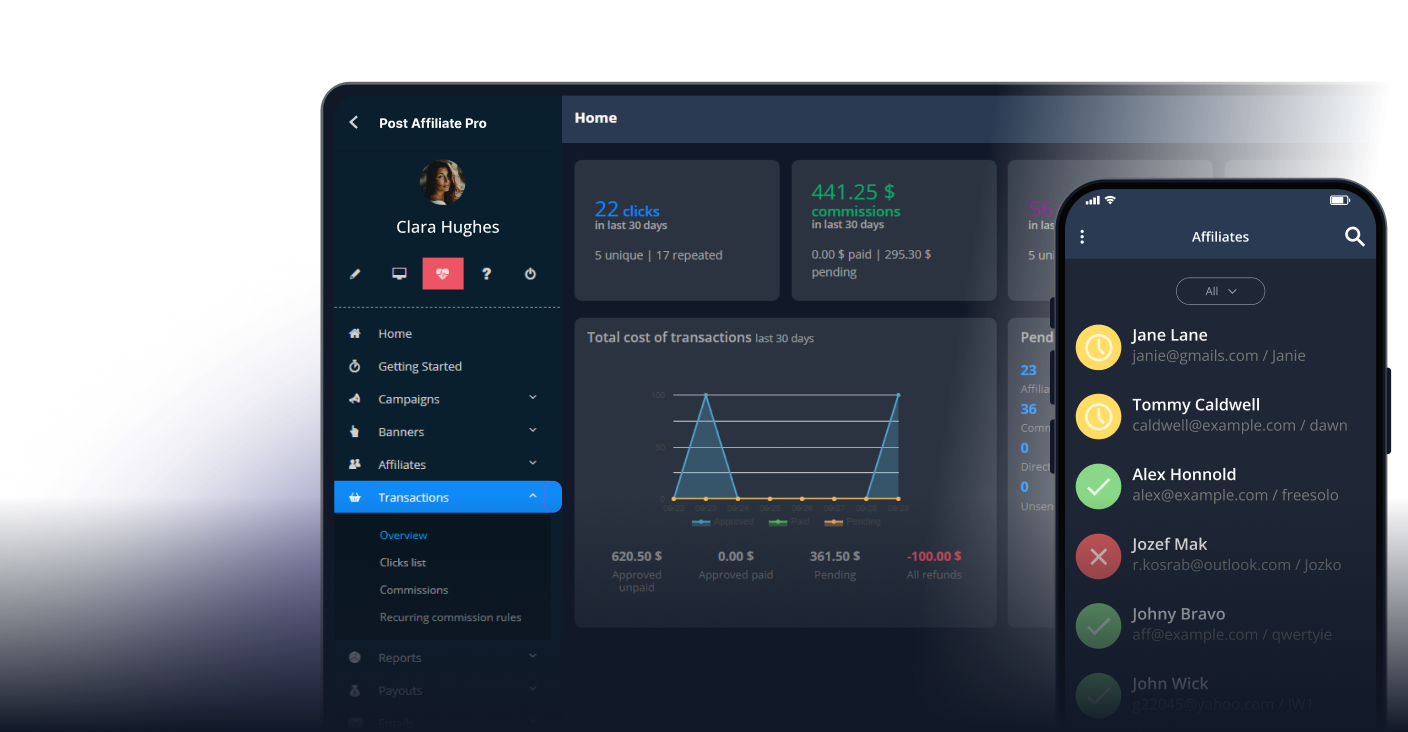
Manage multiple affiliate programs and improve your affiliate partner performance with Post Affiliate Pro.
Create professional, scannable QR codes for your affiliate links.
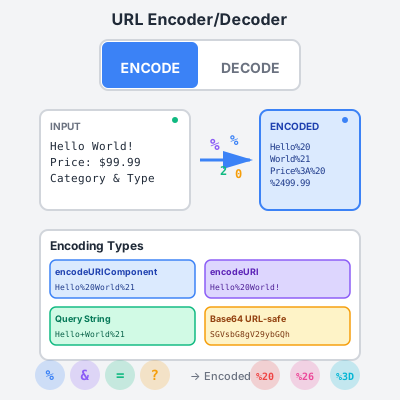
Free online URL encoder and decoder tool. Encode and decode URLs, query strings, and URL components instantly. Perfect for affiliate marketers and web developer...
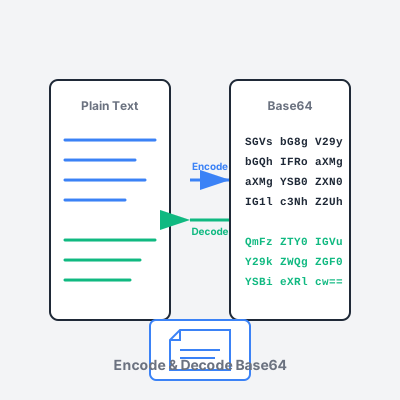
Free online Base64 encoder and decoder tool. Encode text and files to Base64, decode Base64 strings, support for URL-safe encoding, and image preview.
Join our community of happy clients and provide excellent customer support with Post Affiliate Pro.



Cookie Consent
We use cookies to enhance your browsing experience and analyze our traffic. See our privacy policy.