
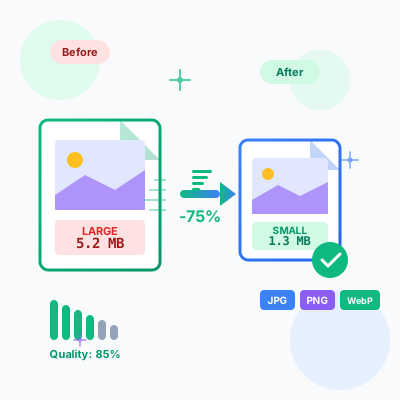
Image Compressor - Optimize & Compress Images Online Free
Free online image compressor tool. Compress JPG, PNG, WebP images while maintaining quality. Batch compression, before/after comparison, resize options, and ins...
17 min read
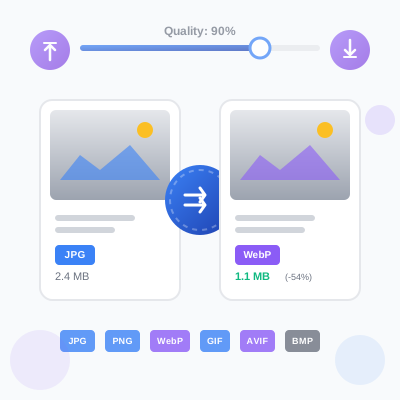
Free online image format converter for web and digital use. Convert images between JPG, PNG, WebP, GIF, AVIF, and BMP formats with adjustable quality settings. Features batch conversion, side-by-side preview, file size comparison, and client-side processing for complete privacy. No registration or file uploads required—all conversions happen directly in your browser. Perfect for optimizing website images, creating transparent graphics, and modernizing image formats.
Image format conversion transforms images from one file format to another while preserving visual content. Different formats use different compression algorithms, color spaces, and feature sets—conversion allows you to optimize images for specific use cases (web performance, transparency support, animation, print quality).
Why convert image formats:
How conversion works (technical):
ctx.drawImage()).canvas.toBlob() with specified MIME type and quality settings.All processing happens client-side in your browser—no server uploads, ensuring complete privacy for sensitive images.
This tool supports six popular image formats covering web, digital, and legacy use cases:
JPEG/JPG (Joint Photographic Experts Group):
PNG (Portable Network Graphics):
WebP:
GIF (Graphics Interchange Format):
AVIF (AV1 Image File Format):
BMP (Bitmap):
For lossy formats (JPEG, WebP, AVIF), the quality slider controls compression level—higher quality preserves more detail but creates larger files. Finding the optimal quality-to-size ratio maximizes visual appeal while minimizing load time.
Quality level recommendations:
90-100% quality (Maximum Quality):
80-85% quality (Recommended for Web):
70-75% quality (Aggressive Compression):
50-60% quality (Maximum Compression):
Below 50% quality (Not Recommended):
Quality comparison tool: This converter shows side-by-side before/after previews with file size comparison. Use this to visually evaluate quality settings before committing to batch conversions. Zoom in on previews to inspect compression artifacts at pixel level.
Format-specific quality notes:
Processing multiple images simultaneously saves time for large conversion projects. This tool supports uploading up to 50 images per session, configuring unified settings, and bulk downloading results.
Step-by-step batch conversion:
Step 1: Upload images
Step 2: Configure output settings
Step 3: Preview originals
Step 4: Convert all or individually
Step 5: Review results
Step 6: Download
Batch workflow tips:
Limitations:
This tool prioritizes privacy by processing all images locally in your browser—zero server uploads, no data collection, complete confidentiality.
How client-side processing works:
File loading (local only):
Image processing (Canvas API):
CanvasRenderingContext2D) handles decoding, manipulation, and encodingFormat conversion (browser-native):
toBlob() method encodes pixel data to target format (JPEG, PNG, WebP, AVIF)Download (local file system):
Privacy guarantees:
No server uploads:
No analytics/tracking:
No third-party dependencies:
Offline capability:
Verification methods:
Limitations of client-side processing:
Browser memory constraints:
Format support depends on browser:
No cloud storage integration:
For privacy-conscious users, this tool offers desktop-software-level privacy without installation requirements—perfect for handling sensitive images securely.
Image format support varies across browsers—understanding compatibility ensures converted images work for your target audience.
Format support matrix (2026):
| Format | Chrome | Firefox | Safari | Edge | Opera | Global Support |
|---|---|---|---|---|---|---|
| JPEG | ✅ All | ✅ All | ✅ All | ✅ All | ✅ All | 100% |
| PNG | ✅ All | ✅ All | ✅ All | ✅ All | ✅ All | 100% |
| GIF | ✅ All | ✅ All | ✅ All | ✅ All | ✅ All | 100% |
| WebP | ✅ 23+ | ✅ 65+ | ✅ 14+ | ✅ 18+ | ✅ 12.1+ | 95%+ |
| AVIF | ✅ 85+ | ✅ 93+ | ✅ 16+ | ✅ 93+ | ✅ 71+ | 75%+ |
| BMP | ✅ All | ✅ All | ✅ All | ✅ All | ✅ All | 100% |
Note: “All” means all versions, including legacy browsers. Version numbers indicate minimum required version.
Fallback strategies for modern formats:
WebP with JPEG/PNG fallback (recommended for production):
<picture>
  <source srcset="image.webp" type="image/webp">
  <img src="image.jpg" alt="Description">
</picture>
Modern browsers load WebP (25% smaller), older browsers load JPEG fallback.
AVIF with WebP and JPEG fallback (cutting-edge optimization):
<picture>
  <source srcset="image.avif" type="image/avif">
  <source srcset="image.webp" type="image/webp">
  <img src="image.jpg" alt="Description">
</picture>
Chrome 85+ loads AVIF (50% smaller), Safari 14-15 loads WebP, IE/older Safari loads JPEG.
Responsive images with format fallbacks:
<picture>
  <source srcset="image-800.avif 800w, image-1200.avif 1200w" type="image/avif">
  <source srcset="image-800.webp 800w, image-1200.webp 1200w" type="image/webp">
  <img src="image-800.jpg" srcset="image-800.jpg 800w, image-1200.jpg 1200w" alt="Description">
</picture>
Combines format fallbacks with responsive image sizing for optimal delivery.
Browser detection (JavaScript):
// Check WebP support
const supportsWebP = document.createElement('canvas')
  .toDataURL('image/webp')
  .startsWith('data:image/webp');

// Check AVIF support (async)
async function supportsAVIF() {
  const avif = 'data:image/avif;base64,AAAAIGZ0eXBhdmlmAAAAAGF2aWZtaWYxbWlhZk1BMUIAAADybWV0YQAAAAAAAAAoaGRscgAAAAAAAAAAcGljdAAAAAAAAAAAAAAAAGxpYmF2aWYAAAAADnBpdG0AAAAAAAEAAAAeaWxvYwAAAABEAAABAAEAAAABAAABGgAAAB0AAAAoaWluZgAAAAAAAQAAABppbmZlAgAAAAABAABhdjAxQ29sb3IAAAAAamlwcnAAAABLaXBjbwAAABRpc3BlAAAAAAAAAAIAAAACAAAAEHBpeGkAAAAAAwgICAAAAAxhdjFDgQ0MAAAAABNjb2xybmNseAACAAIAAYAAAAAXaXBtYQAAAAAAAAABAAEEAQKDBAAAACVtZGF0EgAKCBgANogQEAwgMg8f8D///8WfhwB8+ErK42A=';
  const img = new Image();
  img.src = avif;
  await img.decode();
  return img.width === 2;
}
Testing browser support:
Recommendations:
Different image types require different formats for optimal file size and quality. Matching format to content maximizes performance without sacrificing visual appeal.
Photographs and complex images:
Graphics, logos, and icons:
Transparent images:
Animations:
Thumbnails and previews:
Balancing visual quality with file size is critical for web performance—over-compressed images look unprofessional, while under-compressed images slow page loads.
Quality optimization workflow:
Step 1: Start with recommended baseline
Step 2: Test with sample images
Step 3: Adjust based on visual inspection
Step 4: Apply to full batch
Step 5: Measure performance impact
Quality settings by use case:
Common quality mistakes:
Modern formats (WebP, AVIF) dramatically reduce file sizes but require fallbacks for older browsers. Implementing progressive enhancement ensures all users receive images while prioritizing performance for modern browsers.
Multi-format delivery with <picture> element:
<picture>
  <!-- Modern browsers: AVIF (smallest) -->
  <source srcset="image.avif" type="image/avif">

  <!-- Fallback: WebP (smaller than JPEG) -->
  <source srcset="image.webp" type="image/webp">

  <!-- Universal fallback: JPEG (all browsers) -->
  <img src="image.jpg" alt="Descriptive alt text" width="800" height="600">
</picture>
How it works:
<source> elements top-to-bottom<img> element provides fallback and defines alt text, dimensionsResponsive images with format fallbacks:
<picture>
  <!-- AVIF with multiple sizes -->
  <source
    srcset="image-400.avif 400w, image-800.avif 800w, image-1200.avif 1200w"
    sizes="(max-width: 600px) 400px, (max-width: 1200px) 800px, 1200px"
    type="image/avif">

  <!-- WebP with multiple sizes -->
  <source
    srcset="image-400.webp 400w, image-800.webp 800w, image-1200.webp 1200w"
    sizes="(max-width: 600px) 400px, (max-width: 1200px) 800px, 1200px"
    type="image/webp">

  <!-- JPEG fallback with multiple sizes -->
  <img
    src="image-800.jpg"
    srcset="image-400.jpg 400w, image-800.jpg 800w, image-1200.jpg 1200w"
    sizes="(max-width: 600px) 400px, (max-width: 1200px) 800px, 1200px"
    alt="Descriptive alt text"
    width="800" height="600">
</picture>
Workflow for creating multi-format images:
<picture> element with all formats and sizesBuild automation: For large projects, automate multi-format generation with build tools:
responsive-loader + imagemin-webp + imagemin-avifgulp-responsive + gulp-webp + gulp-avifContent Delivery Networks (CDNs) with auto-format: Modern CDNs automatically serve optimal formats based on browser capabilities:
f_auto parameter)auto=format)For static sites without CDN auto-format, manually create and deploy all format variants.
Beyond quality settings, additional techniques minimize file sizes without quality loss—every kilobyte saved improves page load speed and reduces bandwidth costs.
Resize to target display dimensions:
Strip metadata (EXIF data):
Use progressive JPEG (for large images):
Lazy loading for off-screen images:
loading="lazy" attribute to <img> elements<img src="image.jpg" loading="lazy" alt="Description">Combine techniques for maximum savings:
Example savings (1920x1080 photo):
Image rendering varies across browsers and devices—testing ensures consistent visual quality and performance for all users.
Cross-browser testing checklist:
Desktop browsers:
Mobile browsers:
Testing methods:
Browser DevTools emulation:
Real device testing:
Automated testing:
What to test:
Common cross-browser issues:
<picture> fallbacks work in IE11, Safari <14—images should still load (JPEG/PNG)This tool supports conversion between the most popular web and digital image formats: JPEG/JPG (lossy compressed format ideal for photos), PNG (lossless format supporting transparency), WebP (modern format with superior compression, up to 30% smaller than JPEG), GIF (supports simple animations and limited color palette), AVIF (next-generation format with excellent compression, 50% smaller than JPEG), and BMP (uncompressed bitmap format). You can convert from any supported input format to any supported output format. All conversions happen entirely in your browser using the Canvas API—no files are uploaded to servers, ensuring complete privacy. The tool automatically handles format-specific requirements like transparency (preserved in PNG/WebP/GIF, filled with white background in JPEG), color depth adjustments, and quality settings for lossy formats (JPEG, WebP, AVIF). Browser support varies: JPEG, PNG, GIF, and BMP work in all modern browsers, while WebP requires Chrome 23+, Firefox 65+, Safari 14+, Edge 18+, and AVIF requires Chrome 85+, Firefox 93+, Safari 16+. If your browser doesn't support the output format, you'll see an error message.
For lossy formats (JPEG, WebP, AVIF), the quality slider controls compression level from 1% (maximum compression, smallest files, lowest visual quality) to 100% (minimum compression, largest files, highest visual quality). Quality directly impacts file size: At 90-100% quality, file sizes are largest with minimal visual loss—ideal for professional photography, print materials, and images requiring pixel-perfect preservation. At 70-85% quality (recommended), file sizes reduce 30-50% with imperceptible quality loss for most users—optimal balance for web use, social media, and general purpose. At 50-70% quality, file sizes reduce 50-70% with noticeable compression artifacts on close inspection—acceptable for thumbnails, previews, and bandwidth-constrained scenarios. Below 50% quality, severe compression artifacts appear (blocky JPEG, blurry WebP, color banding)—only use for extreme file size requirements. For lossless formats (PNG, BMP), quality settings don't apply as pixel data is preserved exactly. WebP and AVIF achieve better quality-to-size ratios than JPEG—90% WebP often matches 95% JPEG visually while being 25-30% smaller. Experiment with the quality slider to find the optimal balance for your specific use case. Preview both versions side-by-side to evaluate visual differences before downloading.
WebP is a modern image format developed by Google in 2010, designed to replace JPEG and PNG for web use. WebP advantages: Superior compression—25-35% smaller than equivalent JPEG at same visual quality, 26% smaller than PNG for lossless images. Supports both lossy (like JPEG) and lossless (like PNG) compression in a single format. Supports transparency (alpha channel) like PNG, eliminating need for separate transparent image format. Supports animation like GIF, with better compression (files are 3x smaller than animated GIFs). Faster page load times—smaller files mean reduced bandwidth consumption and quicker rendering. When to use WebP: Website images—backgrounds, hero images, product photos, blog post images (with JPEG/PNG fallback for older browsers). E-commerce product images—smaller files improve shopping experience and SEO (page speed ranking factor). Progressive web apps—WebP reduces app size and improves performance. Responsive images—serve WebP to supported browsers, JPEG/PNG to others using 
AVIF (AV1 Image File Format) is the newest image format, standardized in 2019, based on the AV1 video codec. AVIF represents the cutting edge of image compression technology. AVIF advantages over JPEG/WebP: Superior compression—50% smaller than JPEG, 20-30% smaller than WebP at equivalent visual quality. Better color accuracy—supports wide color gamut (HDR, 10-bit/12-bit color depth) for vibrant, accurate colors. Advanced features—supports film grain synthesis, HDR imaging, and progressive rendering. Royalty-free—open standard with no licensing costs (unlike some codecs). AVIF vs WebP comparison: File size: AVIF wins—20-30% smaller than WebP at same quality. Encoding speed: WebP wins—AVIF encoding is 3-5x slower (not an issue for pre-conversion, problematic for real-time generation). Browser support: WebP wins—broader support (WebP: 95% global users, AVIF: 75% global users as of 2026). Decoding speed: Similar—both decode efficiently in modern browsers. Transparency support: Both support alpha channels. When to use AVIF: High-traffic websites—smaller files significantly reduce bandwidth costs and improve Core Web Vitals. Image-heavy applications—photography portfolios, image galleries, visual-centric sites. Next-generation web projects—progressive sites targeting modern browsers. When NOT to use AVIF: Broad browser compatibility needed—Safari only supported AVIF from version 16 (Sept 2022), older devices still lacking support. Real-time image generation—slow encoding makes AVIF impractical for user-uploaded content processing. Email/legacy requirements—AVIF support is minimal outside modern browsers. Browser support (2026): Chrome 85+, Firefox 93+, Edge 93+, Safari 16+, Opera 71+. Recommended approach: Use AVIF as primary format with WebP and JPEG fallbacks: 
This tool supports batch conversion for processing multiple images simultaneously, saving time when converting entire image libraries. How batch conversion works: Upload multiple images—click the upload area and select multiple files using Ctrl+Click (Windows/Linux) or Cmd+Click (Mac), or drag and drop multiple files from your file explorer into the upload zone. The tool accepts up to 50 images per session (browser memory limitations). Configure output settings—select desired output format (JPEG, PNG, WebP, GIF, AVIF, BMP) and quality level (for lossy formats) before conversion. Settings apply to all images uniformly. Convert all—click 'Convert All' button to process all uploaded images in sequence. Large batches may take time (AVIF encoding is slower). Each image converts independently using Canvas API. Preview results—each image shows side-by-side before/after previews with file size comparison, allowing you to verify conversion quality before downloading. Download options: Individual downloads—click 'Download' on each converted image card to save specific images. Download all—click 'Download All' button to download all converted images as separate files (browser may prompt for download location for each file, or auto-save to Downloads folder). Batch workflow best practices: Organize images before upload—group similar images (same target format/quality) for efficient batch processing. Test with sample images first—convert 2-3 representative images to verify quality settings before batch converting hundreds. Monitor browser memory—converting 50 high-resolution images simultaneously may slow browser or cause out-of-memory errors on low-RAM devices; process in smaller batches (10-20 images) if issues arise. Clear completed batches—after downloading, click 'Clear All' to free browser memory before starting next batch. Rename systematically—batch downloads preserve original filenames with new extensions; rename files systematically before upload if needed. Limitations: No ZIP download—due to browser API limitations, this tool downloads each image individually rather than as a compressed archive (future enhancement). Format mixing—all images in a batch convert to the same output format; to convert to multiple formats, process separate batches. For professional bulk conversion with advanced features (ZIP export, format mixing, automation), consider desktop tools like ImageMagick or XnConvert. This tool excels at quick, privacy-focused batch conversions without software installation.
Absolutely safe—this tool operates entirely client-side in your browser. Zero server uploads, complete privacy. How it works: All processing happens locally—when you upload images, they're loaded into your browser's memory using the FileReader API, never transmitted over the network. Conversion uses Canvas API—your browser's built-in Canvas 2D rendering context handles image decoding, format conversion, and quality adjustments entirely on your device. No external API calls—the tool doesn't communicate with any servers during conversion (verify in browser DevTools Network tab—zero network requests after initial page load). Files stay on your device—original and converted images remain in browser memory and local Downloads folder; nothing is stored on external servers. Privacy guarantees: No tracking—tool doesn't collect analytics on uploaded images, filenames, or conversion settings. No storage—images aren't saved to databases, localStorage only preserves user preferences (output format, quality slider position), never image data. No third-party services—tool doesn't use external image processing APIs (Cloudinary, Imgix, etc.) that could access your images. Works offline—after initial page load, you can disconnect internet and continue converting (service worker caching)—ultimate proof of local-only processing. Verify privacy yourself: Open browser DevTools (F12) → Network tab → Upload and convert images → Observe zero network requests during conversion. Why client-side processing matters: Sensitive images—medical photos, personal documents, confidential business images never leave your device. Compliance—meets GDPR, HIPAA, and other privacy regulations requiring local data processing. Bandwidth savings—no upload/download cycles; large RAW files convert without internet congestion. Speed—local processing is instant (no server round-trips); conversion speed depends only on your device CPU. Limitations of client-side processing: Browser memory constraints—very large images (50MB+) may cause out-of-memory errors on low-RAM devices. Format support—conversion depends on browser capabilities (older browsers may not support WebP/AVIF encoding). No cloud storage—converted images must be manually downloaded; tool doesn't sync to Google Drive, Dropbox, etc. For ultimate privacy-conscious image conversion, this tool is ideal—equivalent privacy to desktop software, with no installation required.
Converted images may increase in size depending on source format, target format, quality settings, and image characteristics. Understanding format efficiency helps predict and control file sizes. Scenarios where file size increases: Lossy to lossless conversion—converting JPEG (lossy) to PNG (lossless) always increases file size, often 2-5x larger. JPEG discards data during compression; PNG preserves all pixel data, requiring more bytes. Example: 500KB JPEG photo becomes 2.5MB PNG. If you need lossless quality, accept larger size; if file size matters, stick with JPEG or use WebP lossless. Adding transparency support—converting opaque JPEG to PNG adds alpha channel (transparency layer), increasing file size even if image has no transparent areas. PNG stores transparency data for every pixel. If image doesn't need transparency, convert to JPEG or WebP lossy instead. Low quality to high quality—converting heavily compressed 60% quality JPEG to 90% quality JPEG or WebP increases file size. Higher quality settings preserve more detail, requiring more data. Lower quality slider if file size is priority. Complex images to lossless formats—photographs with millions of colors convert to larger PNG files than simple graphics. Lossless compression struggles with photographic complexity (gradients, noise, textures). Use lossy formats (JPEG, WebP, AVIF) for photos; reserve PNG for graphics, logos, screenshots. GIF limitations—converting 24-bit PNG to GIF reduces color palette to 256 colors but may increase file size for simple images due to GIF's inefficient compression algorithm. GIF is outdated for most use cases; use PNG for graphics or WebP/AVIF for photos. Uncompressed formats—converting any format to BMP always creates enormous files (uncompressed bitmap data). 500KB JPEG becomes 15MB+ BMP. Only use BMP if specifically required by legacy software. How to minimize file size: Choose optimal formats: Photos → JPEG/WebP/AVIF (lossy). Graphics/logos/screenshots → PNG/WebP (lossless). Animations → WebP/AVIF (modern) or GIF (legacy). Adjust quality settings: Start at 85% quality for photos, lower to 70-75% if size is critical, test visually to find acceptable threshold. Use modern formats: AVIF (smallest), WebP (smaller than JPEG), JPEG (widely compatible). Avoid PNG for photos unless transparency is required. Resize before converting: Large dimensions increase file size exponentially; resize to target display size (web images rarely need >2000px width). File size comparison tool: This converter shows original vs converted file size with percentage change, colored green (size reduction) or orange (size increase). Use this feedback to adjust settings—if converted file is larger, switch formats or lower quality.
PNG (Portable Network Graphics) is a lossless image format available in multiple bit-depth variants—PNG-8 and PNG-24 are the most common, differing in color support and file size. PNG-8 (8-bit PNG): Supports 256 colors maximum (2^8 = 256)—similar to GIF's color limitation. Uses indexed color palette—each pixel references one of 256 predefined colors. Supports binary transparency—pixels are either fully opaque or fully transparent (no semi-transparency/gradients). Small file sizes—typically 30-70% smaller than PNG-24 for images with limited colors. Ideal for: Simple graphics (logos, icons, diagrams), flat-color illustrations, pixel art, images with <256 distinct colors. NOT suitable for: Photographs (insufficient colors, visible banding), images with gradients (color banding artifacts), images requiring semi-transparent effects (drop shadows, soft edges). PNG-24 (24-bit PNG): Supports 16.7 million colors (2^24 = 16,777,216)—true color depth for photographic images. Supports alpha transparency—256 levels of transparency per pixel (0 = fully transparent, 255 = fully opaque), enabling smooth gradients, drop shadows, and anti-aliased edges. Larger file sizes—higher color depth requires more data storage. Ideal for: Photographs requiring transparency, graphics with gradients and shadows, web design elements with smooth transparency, screenshots with complex colors. NOT suitable for: Simple graphics where PNG-8 suffices (wastes file size), bandwidth-constrained scenarios (use JPEG/WebP instead). PNG-32 (less common): 24-bit color + 8-bit alpha channel = 32 bits total. Functionally identical to PNG-24 with alpha transparency—the terms PNG-24 and PNG-32 are often used interchangeably. Some software distinguishes PNG-32 as 'PNG-24 with alpha' and PNG-24 as 'PNG-24 without alpha' (opaque only), but this isn't standardized. Which PNG should you use? Use PNG-8 if: Image has ≤256 colors (check by opening in image editor like Photoshop → Image → Mode → Color Table). Transparency needs are binary (logos, icons). File size is critical and color limitation is acceptable. Use PNG-24 if: Image is a photograph or has thousands of colors. Transparency needs gradients (drop shadows, feathered edges, anti-aliasing). Visual quality is priority over file size. This converter's behavior: When you convert to PNG, the tool automatically generates PNG-24 (full color support with alpha transparency) using Canvas API. Canvas doesn't offer PNG-8 export directly—PNG-24 ensures maximum compatibility and quality. For PNG-8 output, use dedicated optimization tools like TinyPNG, ImageOptim, or PNGQuant after converting to PNG here. Alternative: Convert to WebP instead—WebP lossless achieves 26% smaller file sizes than PNG-24 with identical visual quality and better browser support than PNG-8.
This tool currently does not support HEIC (High Efficiency Image Container) as a direct input format due to browser API limitations—most browsers cannot decode HEIC files in Canvas API. HEIC is Apple's proprietary format used by iPhones (iOS 11+) for photos, offering 50% smaller file sizes than JPEG at similar quality. However, HEIC requires specialized codecs not available in standard web browsers. Workarounds for converting HEIC to JPG: Method 1 - Convert HEIC before uploading: On iPhone: Open Photos app → Select HEIC image → Tap Share → Choose 'Mail' or 'Messages' → iOS automatically converts HEIC to JPEG for sharing. Save attached JPEG, then upload to this tool for further conversion if needed. On Mac: Open HEIC image in Preview → File → Export → Format: JPEG → Save. Upload resulting JPEG to this tool. On Windows: Install HEIF Image Extensions from Microsoft Store (free codec pack) → Open HEIC file in Photos app → Save As → JPEG. Upload to this tool. Online HEIC converters: Use dedicated HEIC-to-JPEG converters like FreeConvert.com, Convertio.co, or HEICtoJPEG.com (note: these upload images to servers, privacy concerns apply). After converting HEIC to JPEG, use this tool for further format conversions (JPEG to WebP, PNG, etc.). Method 2 - Enable JPEG export on iPhone (prevent HEIC creation): Open Settings → Camera → Formats → Select 'Most Compatible' instead of 'High Efficiency'. Future photos will save as JPEG instead of HEIC. Existing HEIC photos remain unchanged. Why browsers don't support HEIC: Patent licensing—HEIC uses HEVC (H.265) video codec, which requires patent royalties. Browser vendors avoid implementing patented codecs in open-source engines (Firefox, Chrome). Limited web adoption—HEIC is primarily an Apple ecosystem format; web standards favor royalty-free formats (WebP, AVIF). Security concerns—decoding HEIC requires complex codec libraries with potential vulnerabilities; browsers minimize attack surface by excluding non-standard formats. Alternative modern formats: Instead of HEIC, use WebP or AVIF for web/digital use: Both offer similar compression efficiency to HEIC (AVIF is 50% smaller than JPEG, WebP is 25-30% smaller). Both are web-native formats with broad browser support and no patent restrictions. Both support transparency, unlike JPEG/HEIC. This tool excels at converting JPEG/PNG to WebP/AVIF—after converting HEIC to JPEG using methods above, upload JPEG here and convert to WebP or AVIF for optimal web performance. Future enhancement: We're exploring WebAssembly-based HEIC decoding to enable direct HEIC uploads without server-side processing. This would maintain client-side privacy while adding HEIC support. Monitor changelog for updates.
Selecting the optimal image format balances file size (faster loading), quality (visual appeal), browser support (compatibility), and features (transparency, animation). Different formats excel in different scenarios—follow this decision framework for web images. Decision framework by image type: **Photographs and complex images** (products, hero images, backgrounds, blog photos): Best choice: AVIF with WebP and JPEG fallbacks. AVIF offers 50% smaller files than JPEG at same quality, dramatically improving page load speed. Use 
Manage multiple affiliate programs and improve your affiliate partner performance with Post Affiliate Pro.
Free online image compressor tool. Compress JPG, PNG, WebP images while maintaining quality. Batch compression, before/after comparison, resize options, and ins...
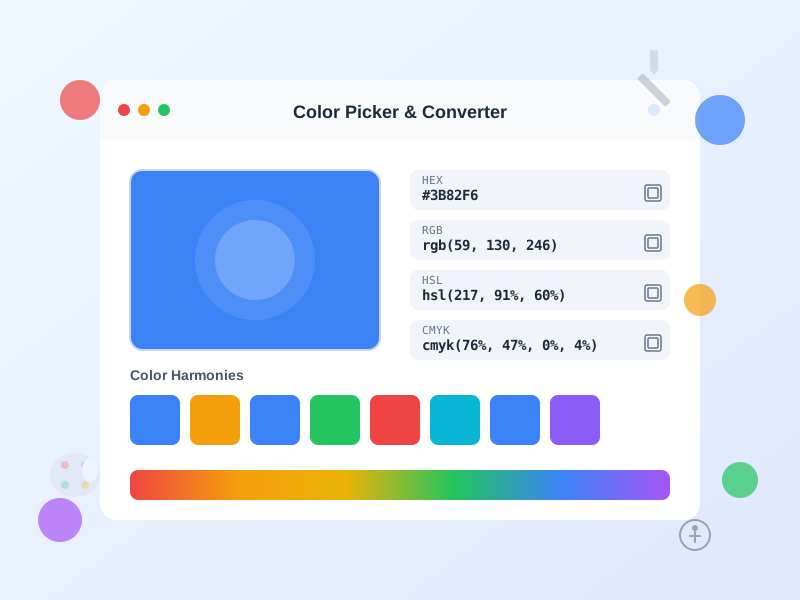
Free online color picker tool with instant conversion between HEX, RGB, HSL, HSV, and CMYK formats. Generate color palettes, check WCAG accessibility, and creat...
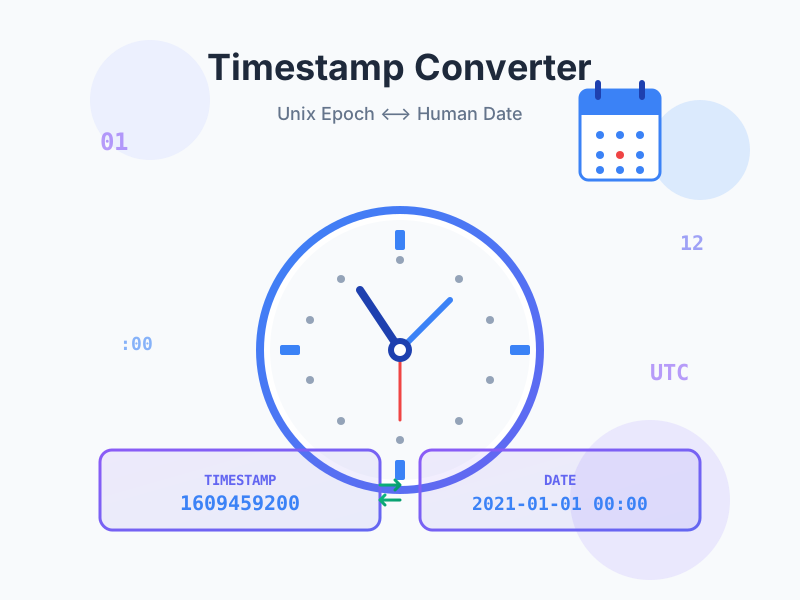
Convert Unix timestamps to human-readable dates and vice versa. Free online epoch time converter with timezone support, multiple formats, live current timestamp...
Join our community of happy clients and provide excellent customer support with Post Affiliate Pro.



Cookie Consent
We use cookies to enhance your browsing experience and analyze our traffic. See our privacy policy.